A Wi-Fi connection that suddenly stops working can bring your entire workflow to a halt. Bluetooth headphones may refuse to connect, wireless peripherals may disappear, or your laptop may lose access to every Wi-Fi network. When you open Windows Device Manager, you might find a yellow warning icon beside your Intel wireless adapter, along with an error code such as 10, 22, 28, 31, 39, 43, 45, or 48.
These errors can appear after a Windows update, a driver installation, a network disconnection, or a change in system configuration. The good news is that many wireless adapter problems can be resolved by checking the device status, installing the correct driver, or restoring a working driver configuration.
This guide explains how to troubleshoot Intel Wi-Fi and Bluetooth Device Manager error codes in Windows 10 and Windows 11, starting with the least disruptive fixes.
What Do Intel Wi-Fi and Bluetooth Error Codes Mean?
Device Manager uses error codes to indicate when a hardware device or its driver is not functioning as expected. The code helps narrow down the problem, but it does not always identify the exact cause.
Here is what the reported codes generally indicate:
| Error code | What it usually means |
|---|---|
| Code 10 | Windows cannot start the device. |
| Code 22 | The device has been disabled. |
| Code 28 | The required drivers are not installed. |
| Code 31 | Windows cannot load the drivers required for the device. |
| Code 39 | Windows cannot load the device driver, potentially because it is missing or damaged. |
| Code 43 | Windows has stopped the device after reporting a problem. |
| Code 45 | Windows considers the hardware disconnected. |
| Code 48 | Windows has blocked the driver because it is known to have problems. |
These codes can affect Intel wireless network adapters, Bluetooth adapters, or both. If Wi-Fi and Bluetooth stop working around the same time, check both entries in Device Manager rather than assuming they have identical causes.
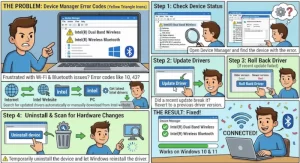
Step 1: Identify the Affected Wireless Device
Before changing drivers, confirm which device is reporting the error.
- Press Windows + X and select Device Manager.
- Expand Network adapters.
- Find your Intel wireless adapter, which may have a name such as Intel Wi-Fi 6 AX201 or Intel Wi-Fi 6E AX211.
- Expand Bluetooth and look for the corresponding Intel Bluetooth device if Bluetooth is also affected.
- Right-click the device and select Properties.
- Check the General tab for the device status and error code.
Write down the adapter model and exact error message. This information will help you select a compatible driver and avoid installing software intended for different hardware.
If the device is disabled and displays Code 22, right-click it and select Enable device, if that option is available. Restart the computer and check whether the warning disappears.
For Code 45, confirm that the adapter is detected by Windows. On a laptop, also check whether wireless connectivity has been disabled through a hardware switch, function key, or manufacturer utility.
Step 2: Install the Latest Intel Wi-Fi or Bluetooth Driver
An outdated, incompatible, or damaged driver can prevent Windows from communicating correctly with a wireless adapter. Intel recommends updating the relevant Wi-Fi or Bluetooth driver when troubleshooting these errors.
Use the official Intel download pages:
- Intel Wireless Wi-Fi Drivers for Windows 10 and Windows 11
- Intel Wireless Bluetooth Drivers for Windows 10 and Windows 11
Follow these steps:
- Identify your Intel adapter model in Device Manager.
- Open the appropriate Intel driver page.
- Review the supported operating systems and hardware before downloading.
- Run the downloaded installer and follow its instructions.
- Restart Windows if prompted.
- Return to Device Manager and verify whether the error code has disappeared.
If you need help identifying available driver updates, you can also use the Intel Driver & Support Assistant.
Important: If you are troubleshooting a laptop or prebuilt desktop, start with the driver supplied by the computer manufacturer. OEM drivers are tested against the system’s hardware and firmware configuration. If the manufacturer’s driver does not resolve the issue, try a compatible Intel generic driver.
Step 3: Reinstall the Driver if Updating Does Not Work
If the latest compatible driver is already installed but the warning remains, reinstalling it may help correct a damaged or incomplete installation.
Before uninstalling anything, download the appropriate replacement driver and save it locally. If Wi-Fi is unavailable, use another device to download the installer and transfer it with a USB drive.
Then:
- Open Device Manager.
- Expand Network adapters or Bluetooth, depending on the affected device.
- Right-click the Intel adapter and select Uninstall device.
- Review any driver-removal checkbox carefully. Removing the driver package can make recovery more difficult if no replacement is available.
- Complete the uninstall process.
- Install the previously downloaded OEM driver or compatible Intel driver.
- Restart Windows and check the device status again.
Windows may rediscover the adapter and install a driver automatically after a restart. However, automatic installation does not guarantee that the newest or most suitable driver will be selected.
If the issue began immediately after a driver update, check whether Properties > Driver > Roll Back Driver is available. Returning to a previously working driver may help when the latest version introduces a compatibility problem.
Step 4: Check Windows Updates and System Compatibility
Wireless drivers do not operate independently of Windows. Operating system updates, security changes, and driver compatibility issues can affect whether an adapter starts correctly.
Open Settings > Windows Update and check for available updates. Install applicable updates, restart the computer, and check Device Manager again.
If the error appeared directly after a Windows update, note the update’s installation date and the driver version currently installed. This information can help Microsoft support or your computer manufacturer identify a compatibility issue.
Do not assume that every error requires a Windows reinstall. Start with driver updates, OEM software, and device-specific troubleshooting.
If Windows reports Code 48, pay particular attention to driver compatibility and security-related blocking. Installing a compatible, supported driver is preferable to weakening Windows security settings to force an incompatible driver to load.
Step 5: Escalate Persistent Errors Carefully
If Codes 10, 22, 28, 31, 39, 43, 45, or 48 continue after you have installed the correct driver, additional diagnosis may be necessary.
Consider the following possibilities:
- Driver compatibility: The installed package may not support your specific adapter, Windows version, or computer configuration.
- Incomplete driver installation: A previous installation may have left the adapter without a working driver.
- Windows configuration issues: System-level problems may prevent Windows from loading the driver correctly.
- Hardware or firmware problems: The adapter may not be detected consistently or may require manufacturer-specific troubleshooting.
Intel recommends contacting Microsoft and following its guidance before pursuing more disruptive recovery steps. Depending on the diagnosis, this could include a clean installation of Windows.
A clean installation should be a last resort, not the first troubleshooting step. Back up important files, make sure you have the necessary recovery information, and download the required Wi-Fi and Bluetooth drivers before starting. Otherwise, you could finish reinstalling Windows without a working network connection.
You can find the appropriate computer manufacturer’s support resources through Intel’s system manufacturer directory.
Get Your Intel Wireless Adapter Working Again
Intel Wi-Fi and Bluetooth Device Manager error codes can look intimidating, especially when both wireless connections stop working at once. However, the error message provides a useful starting point for identifying whether the device is disabled, missing a driver, unable to start, or being blocked by Windows.
Start by checking the exact error code and adapter model. Install the latest compatible OEM driver, then try the appropriate Intel generic driver if the manufacturer’s package does not resolve the issue. If necessary, reinstall the driver, investigate recent Windows updates, and seek support before attempting a clean operating system installation.
Your next step: Open Device Manager, record the affected adapter’s model and error code, and download the matching driver from your computer manufacturer’s website. A targeted driver fix is usually a better starting point than resetting Windows or replacing hardware without further diagnosis.