
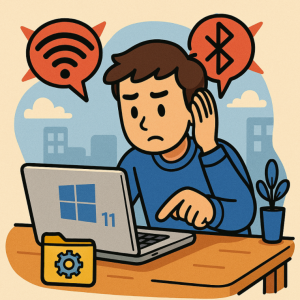
A Windows 11 laptop that suddenly drops Wi-Fi during a deployment call or refuses to connect to a Bluetooth headset can turn a five-minute task into an afternoon of troubleshooting. The frustrating part is that the visible symptom—“No Internet,” “Bluetooth not available,” or a device that simply refuses to pair—doesn’t tell you where the failure actually occurred.
The problem can sit anywhere between the physical adapter and the Windows networking stack: a disabled radio, stale driver, incorrect network configuration, power-management setting, corrupted Bluetooth pairing data, or a router-side issue.
The good news is that you don’t need to randomly reinstall drivers or reset the entire PC. A structured troubleshooting process can narrow down the cause quickly.
Start by Identifying Where the Failure Occurs
Before changing settings, determine whether the problem is isolated to Wi-Fi, Bluetooth, or Windows networking more broadly.
For Wi-Fi, check three things:
- Does the Wi-Fi option appear in Settings > Network & internet?
- Can the PC see nearby wireless networks?
- Can it connect to the network but not reach the internet?
These represent different failure points.
If the Wi-Fi toggle is missing entirely, Windows may not be detecting the wireless adapter correctly. If networks are visible but one particular network fails, the issue could involve authentication, saved network information, or the access point. If Windows connects successfully but websites don’t load, investigate DNS, IP configuration, or the upstream network.
Bluetooth follows a similar pattern. If Bluetooth is missing from Settings > Bluetooth & devices, start with adapter and driver detection. If Bluetooth is available but a particular device won’t pair, remove the existing pairing and troubleshoot the peripheral itself.
This simple classification prevents you from applying a network-wide fix to what may actually be a single-device problem.
Check Windows 11’s Built-In Troubleshooting Tools
Windows 11 includes troubleshooting capabilities that can identify common configuration problems before you start making manual changes.
Open Settings > System > Troubleshoot > Other troubleshooters and look for the relevant network or Bluetooth troubleshooting option available on your system.
You should also check Settings > Windows Update. Driver and system updates can resolve compatibility problems, particularly after a major Windows update or hardware change.
For IT teams managing multiple Windows 11 endpoints, this step matters because it establishes whether the issue is likely configuration-specific or associated with a broader software update.
Don’t assume that a machine with the latest Windows update has the latest hardware driver, either. Driver distribution can depend on Windows Update, the device manufacturer, or your organization’s endpoint-management policies.
Inspect the Network and Bluetooth Adapters
Device Manager is one of the most useful tools when Windows behaves as though a hardware component doesn’t exist.
Press Win + X, then select Device Manager.
Expand:
- Network adapters for Wi-Fi hardware
- Bluetooth for Bluetooth radios and related components
Look for warning icons or devices that appear under an unexpected category.
Right-clicking an adapter gives you several useful options, including:
- Update driver
- Disable device
- Enable device
- Uninstall device
- Properties
Start conservatively. If an adapter is disabled, enabling it may immediately restore connectivity. If the device has a driver error, inspect the Properties > General section for the Windows device status and error code.
Be careful with driver updates
“Update driver” doesn’t always mean Windows will find a newer driver. For business systems, the manufacturer’s support site or an organization’s approved driver-management process may provide a more appropriate package.
For example, Wi-Fi hardware from Intel, Realtek, MediaTek, Qualcomm, or Broadcom can behave differently depending on the laptop manufacturer’s customized driver package.
Avoid downloading drivers from random third-party driver repositories. Use the PC manufacturer or hardware vendor as the source whenever possible.
Reset a Problematic Wi-Fi Connection
If Windows detects the wireless adapter but won’t connect reliably, remove the saved network profile and reconnect.
Go to:
Settings > Network & internet > Wi-Fi > Manage known networks
Select the affected network and choose Forget.
Then reconnect and enter the Wi-Fi password again.
This can resolve problems caused by stale authentication information or configuration changes on the wireless network.
For a deeper check, open Command Prompt or Windows Terminal and use:
ipconfig /allThis displays the network adapter’s IP configuration, including its IPv4 address, default gateway, and DNS information.
You can also refresh the DHCP lease:
ipconfig /release
ipconfig /renew
If DNS appears to be the problem, flushing the local DNS resolver cache can help:
ipconfig /flushdnsThese commands don’t fix every connectivity problem, but they provide useful diagnostic information and can clear common local configuration issues.
Use Network Reset When Configuration Is Corrupted
Sometimes the problem isn’t the Wi-Fi password or router. Windows’ network configuration itself may be in a bad state.
Windows 11 provides a Network reset option under:
Settings > Network & internet > Advanced network settings > Network reset
Network reset removes and reinstalls network adapters and returns related networking components to their default configuration.
That makes it a useful escalation step—but not the first thing you should try.
Network reset can affect VPN clients, virtual network adapters, and other networking software. On managed workstations, that can have operational consequences.
Before using it on a business device, document the existing configuration and consider whether your organization’s VPN, endpoint-management, or security software requires additional setup afterward.
Fix Bluetooth Pairing Problems Methodically
Bluetooth problems often look like driver problems when they’re actually stale pairing information.
If a Bluetooth device is visible but refuses to connect:
- Open Settings > Bluetooth & devices > Devices.
- Find the problematic device.
- Remove or forget the device.
- Put the peripheral back into pairing mode.
- Add it again from Windows.
For headphones, keyboards, mice, and similar peripherals, also check whether the device is already connected to another computer or phone. Many Bluetooth devices won’t accept a new connection while actively connected elsewhere.
If Bluetooth itself is missing or unreliable, return to Device Manager and inspect the Bluetooth adapter and its driver.
Power management is another area worth checking on laptops. Some hardware drivers allow Windows to turn off devices to save power. If connectivity disappears after sleep or becomes unreliable on battery power, review the adapter’s Power Management settings and the laptop manufacturer’s power-management utilities.
When the Problem Is the Router, Not Windows
A common troubleshooting mistake is focusing entirely on the PC.
Test another device on the same Wi-Fi network.
If your phone, tablet, and another computer all experience the same failure, the Windows 11 machine probably isn’t the root cause.
Check:
- Router or access-point status
- Internet service availability
- DHCP availability
- Wireless band configuration
- Authentication settings
- Recent router firmware or configuration changes
For enterprise environments, also consider whether the issue affects a specific SSID, access point, VLAN, authentication server, or geographic area.
This distinction is particularly important for solution architects and IT professionals. A single endpoint suggests an endpoint-level investigation. A group of affected devices suggests an infrastructure or policy problem.
A Practical Troubleshooting Sequence
When you need a repeatable workflow, use this order:
1. Confirm the scope.
Determine whether the problem affects one device, one peripheral, one network, or multiple endpoints.
2. Check Windows settings.
Make sure Wi-Fi or Bluetooth is enabled and the relevant device is visible.
3. Inspect Device Manager.
Look for disabled adapters, driver errors, and missing hardware.
4. Update or reinstall the appropriate driver.
Use trusted hardware or manufacturer sources.
5. Forget and reconnect.
For Wi-Fi and Bluetooth, clear stale connection information before making more invasive changes.
6. Run network diagnostics.
Use tools such as ipconfig /all, ipconfig /release, ipconfig /renew, and ipconfig /flushdns.
7. Investigate the infrastructure.
Test other devices and determine whether the failure extends beyond Windows.
8. Use Network reset as an escalation step.
Reserve it for cases where less disruptive fixes haven’t resolved the problem.
This sequence minimizes unnecessary changes while giving you useful evidence at each stage.
Practical Takeaway: Troubleshoot From the Endpoint Out
Windows 11 Wi-Fi and Bluetooth problems become much easier to manage when you treat connectivity as a chain rather than a single setting.
Start with the physical adapter and Windows detection. Move through drivers and local configuration. Then examine IP, DNS, and authentication. Finally, investigate the router, access point, enterprise network, or Bluetooth peripheral.
For IT teams, the biggest improvement is often procedural: document which layer failed, what changed, and which diagnostic result confirmed the next step.
That turns “Wi-Fi isn’t working” from a vague support ticket into a reproducible technical problem—and gives you a much faster path to resolution.
Extra posts:
 Managing Bluetooth Devices and Settings in Windows 11: A Complete Guide
  Troubleshooting Common Windows 11 Issues
  How to Troubleshoot Windows 11 Upgrade Issues A Practical Guide
  Troubleshooting Windows 11 Issues A Practical Guide for IT Pros
  Optimizing Network and Connectivity for Copilot Performance
  Microsoft 365 Connectivity Troubleshooting A Practical Guide