
If you’ve ever relied on OneDrive to keep your files safe and accessible across multiple devices, you know just how convenient it can be—until it isn’t. Most of the time, OneDrive works quietly in the background, ensuring that your files are available whether you’re on your laptop, tablet, or phone. But when syncing issues arise, the situation can quickly turn into what I like to call a OneDrive sync nightmare.
Files start disappearing, multiple versions of the same document appear in different folders, and your desktop begins to look like it went through a blender. Suddenly, you’re left questioning whether your precious data is actually safe. The good news? In most cases, your files are not lost—they’re just temporarily out of place or stuck in a sync limbo. With a little patience and a few strategic steps, you can untangle the mess and get everything back under control.
Here’s a detailed guide to surviving a OneDrive sync disaster and preventing future headaches.
Step 1: Pause and Stop Syncing Immediately
The first—and most important—thing to do when OneDrive starts misbehaving is to stop it from making the situation worse. If files are duplicating, error messages keep popping up, or syncing seems endless, continuing to let OneDrive run can overwrite files or spread the problem further.
Here’s what to do:
- Click the OneDrive cloud icon in your taskbar.
- Select Pause syncing.
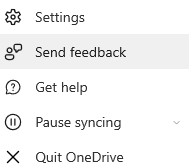
This simple step stops OneDrive from applying more changes to your files until you understand what’s actually happening. Think of it as hitting the brakes on a speeding car—you need control before making the next move.
Step 2: Check Your Files on OneDrive Online
Next, it’s time to look at the cloud version of your files. OneDrive’s online portal often holds the most reliable copy of your documents, sometimes even when your local PC appears empty.
- Go to OneDrive online and sign in.
- Check whether the missing or corrupted files exist there.
- Use the OneDrive Recycle Bin to restore recently deleted items—it’s separate from your Windows Recycle Bin.
- If a file has been accidentally overwritten, right-click it and select Version history. OneDrive often keeps previous versions, so you can recover an older, intact copy.
By starting with the cloud version, you can confirm that your files aren’t gone for good, and you can plan your next steps with confidence.
Step 3: Fix Common Sync Issues
Often, what seems like a full-blown disaster is actually caused by one of several common problems. Before panicking, check for these usual suspects:
- File path too long: OneDrive struggles with file paths longer than 260 characters. Shorten folder and file names to resolve this issue.
- Special characters: Characters like
* " < > ? / \ |are unsupported. Rename any files containing them. - Pending updates: Ensure your Windows system and OneDrive app are fully updated. Updates often fix underlying sync glitches.
- Account issues: Double-check that you’re signed into the correct account—personal and work accounts don’t always play nice with each other.
Addressing these small issues can often restore normal syncing without much fuss.
Step 4: Recover Lost Local Files
Sometimes, your files seem gone not just online but on your local PC as well. Don’t panic—you still have options:
- Check your Windows Recycle Bin first. Deleted files often end up here before OneDrive even notices.
- Look in OneDrive backup folders, such as Documents, Desktop, or Pictures. Sometimes files are moved rather than deleted.
- Use File History (Windows Backup) if it’s enabled. This allows you to restore older versions of files or folders.
- As a last resort, consider third-party file recovery tools—but make sure OneDrive sync is paused before attempting this to avoid accidental overwrites.
With a methodical search, you’re often able to track down even files that seem lost.
Step 5: Rebuild OneDrive Sync
If OneDrive’s sync is beyond repair and files keep duplicating or failing to upload, it’s time for a reset. Rebuilding the sync connection can solve even the most persistent problems.
- Back up your important files manually by copying them to an external drive.
- Unlink OneDrive: Right-click the OneDrive cloud icon → Settings → Unlink this PC.
- Sign back in and allow OneDrive to resync from scratch.
This forces OneDrive to reconnect with a clean slate while keeping the cloud copies intact. It’s like rebooting your system when it freezes—sometimes it’s the only way to get things working properly again.
Step 6: Prevent Future Sync Nightmares
Once you’ve survived a sync disaster, prevention becomes your new best friend. Here are some strategies to keep OneDrive in check:
- Don’t rely solely on OneDrive: Keep an external backup of critical files. Redundancy is key.
- Use selective sync: Only sync folders you actually need locally. This reduces the chance of conflicts and saves space.
- Monitor sync status: Regularly check that your files have the green checkmark, indicating successful syncing.
- Maintain good habits: Avoid renaming or moving folders outside of OneDrive. Doing so can confuse the syncing process.
By incorporating these habits into your workflow, you can greatly reduce the likelihood of experiencing another nightmare.
OneDrive is a powerful tool that makes accessing your files anywhere effortless—but when things go wrong, it can feel catastrophic. The good news is that most sync issues are recoverable, and with a calm, methodical approach, you can often restore everything without losing a single file.
Pausing sync, checking the cloud, addressing common issues, and rebuilding the connection when necessary are the core steps to untangling a OneDrive mess. And once you’ve learned from the experience, preventive strategies will keep your files safe and your sanity intact.
In short, OneDrive sync nightmares may be stressful, but they are far from hopeless. With patience, careful steps, and a backup plan, you can survive any syncing disaster—and even come out smarter on the other side.
Extra posts:
 Troubleshooting OneDrive Sync Issues: A Step-by-Step Guide
  OneDrive file sync and backups
  SharePoint vs Teams vs OneDrive: When to Use Each (and When Not To)
  Unlocking Searchable Content OCR for OneDrive for Business Now Available in Microsoft 365 Admin Center
  How to Sync Microsoft Forms with Excel for Efficient Data Collection
  Copilot in Excel Turning Data Nightmares into Insights in Seconds