
If your organization uses Microsoft 365, you have probably faced the same deceptively simple question:
“Should this live in SharePoint, Teams, or OneDrive?”
All three can store files. All three support sharing. All three let users collaborate on documents.
That overlap is exactly what makes Microsoft 365 confusing.
Put a project document in someone’s OneDrive and suddenly the team depends on one person’s account. Store everything in Teams and your channels can turn into an unstructured collection of folders and files. Put every working document directly into SharePoint and users may struggle with the structure if the work is primarily conversational and project-driven.
The real answer isn’t about which tool has the most features. It’s about ownership, collaboration, lifecycle, and governance.
Once you understand the role each service plays, the decision becomes much easier.
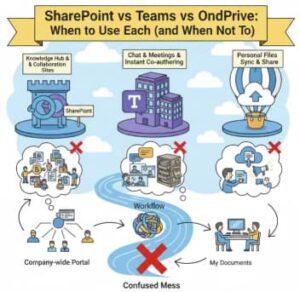
SharePoint vs Teams vs OneDrive: The Big Picture
The most important thing to understand is that these services aren’t completely separate systems.
Microsoft Teams uses SharePoint for team file storage. OneDrive is Microsoft’s personal file storage experience.
That means the three tools are connected, but they provide different experiences for different types of work.
A useful mental model is:
OneDrive → personal work
Teams → active team collaboration
SharePoint → structured organizational content
This isn’t a rigid rule. A Teams-based project, for example, is ultimately storing its files in SharePoint. But the distinction helps determine which interface and governance model make sense for a particular scenario.
Ask two questions before deciding where a file belongs:
- Who owns this content?
- How long and how broadly does this content need to be available?
Those questions are usually more useful than asking which product has the best file features.
OneDrive: Best for Personal and Early-Stage Work
Think of OneDrive as your personal work area within Microsoft 365.
It’s designed for files that primarily belong to an individual rather than a team or business function.
What OneDrive Is Best At
OneDrive works well when you’re:
- Creating a document that isn’t ready to share
- Working on personal notes or research
- Preparing a draft proposal
- Keeping temporary working files
- Accessing your files across multiple devices
- Sharing a document temporarily with a specific person
For example, imagine a solution architect is preparing a draft architecture proposal.
At the beginning, the document may contain rough diagrams, assumptions, and notes that only the architect needs. Keeping the working version in OneDrive makes sense.
Once the proposal becomes a team deliverable, however, its ownership may need to move.
When Not to Use OneDrive
OneDrive becomes the wrong choice when the file has effectively become organizational or team-owned content.
Avoid making OneDrive the primary repository when:
- Several people need ongoing access
- The file belongs to a project team
- The document is a departmental asset
- The content needs long-term retention
- Multiple people need predictable ownership
- The organization needs structured governance around the content
A common mistake is treating OneDrive as a replacement for a shared drive.
That’s risky from an operational perspective. If a critical project document exists only in an individual’s OneDrive, the organization can create unnecessary dependency on that person’s account and permissions.
Rule of thumb: If the question is “What happens to this file if its creator moves to another department?”, it’s worth reconsidering whether OneDrive is the right home.
Microsoft Teams: Best for Active Collaboration
Teams is primarily the collaboration experience.
It brings together chat, meetings, calls, apps, and files so a group can work in the same context.
This makes Teams particularly useful when the work is active, conversational, and tied to a defined group of people.
The Important Technical Detail: Teams Files Live in SharePoint
One of the most important concepts for Microsoft 365 administrators and architects is that Teams doesn’t operate as an entirely separate file-storage platform.
For standard Teams channels, files are stored in the SharePoint site associated with the Team.
The Teams interface simply gives users a collaboration-oriented way to access those files.
That distinction matters.
If a user uploads a file to a Teams channel, the underlying content is part of SharePoint. This means SharePoint concepts such as permissions, versioning, sharing, and document management still matter even when users primarily interact with the content through Teams.
When Teams Works Well
Use Teams when:
- A defined group is actively working together
- Conversations and documents are closely connected
- A project has recurring meetings and discussions
- Team members need quick access to shared files
- The work changes frequently
- Collaboration is more important than formal publishing
Typical examples include:
- Software development projects
- Client engagements
- Cross-functional initiatives
- Product launches
- Department working groups
When Not to Use Teams
Teams isn’t automatically the best destination for every document.
Be cautious about using Teams as the primary experience when content is:
- A formal company policy
- A long-term knowledge repository
- Intended for broad organizational access
- Heavily dependent on metadata and structured navigation
- Subject to formal publishing or approval processes
Another common mistake is allowing every project to create its own Team without a governance strategy.
Over time, organizations can end up with hundreds of Teams, inconsistent naming, duplicate files, inactive channels, and unclear ownership.
Teams is excellent for active work. It shouldn’t become the organization’s uncontrolled archive.
SharePoint: Best for Structured, Governed Content
SharePoint is where the conversation moves from simple collaboration toward content management and organizational knowledge.
It provides document libraries, metadata, version history, permissions, search, pages, lists, workflows, and other capabilities that help organizations manage information at scale.
What SharePoint Is Best At
Use SharePoint when content needs:
- Long-term ownership
- Structured organization
- Metadata
- Version control
- Approval processes
- Controlled access
- Search and discovery
- Department or organization-wide availability
- Governance and retention
Common examples include:
- Corporate policies
- Standard operating procedures
- Department document libraries
- Knowledge bases
- Internal portals
- Official templates
- Published reference material
- Controlled business documentation
For example, a project team might create a draft process document in Teams. Once the process is approved and becomes an organizational standard, the published version may belong in a SharePoint site or knowledge portal where employees can reliably find it.
Don’t Turn SharePoint Into a File Server
There is one particularly common SharePoint mistake: recreating an old network file share inside SharePoint.
That usually means creating:
Department > Year > Project > Documents > Final > Final-v2 > Final-v2-Approved
Technically, SharePoint can store that structure.
But SharePoint becomes far more useful when organizations take advantage of metadata, views, content types, search, versioning, and information architecture rather than relying entirely on deep folder structures.
The goal isn’t simply to put files somewhere online.
The goal is to make organizational content findable, understandable, governable, and reusable.
SharePoint vs Teams vs OneDrive: Quick Decision Guide
| Scenario | Recommended Tool |
|---|---|
| Personal drafts | OneDrive |
| Private working files | OneDrive |
| Temporary file sharing | OneDrive |
| Active project collaboration | Teams |
| Team meeting documents | Teams |
| Project files | Teams, backed by SharePoint |
| Department document management | SharePoint |
| Company policies | SharePoint |
| Knowledge base | SharePoint |
| Official templates | SharePoint |
| Long-term organizational content | SharePoint |
The key is to remember that Teams and SharePoint aren’t competing storage platforms.
Teams provides the collaboration experience. SharePoint provides the underlying content management capabilities for Team files and can also operate independently as an organizational content platform.
The Right Microsoft 365 Workflow: Create, Collaborate, Publish
A practical Microsoft 365 content lifecycle might look like this:
1. Create in OneDrive
Start with OneDrive when you’re working independently and the content is still a personal draft.
2. Collaborate in Teams
When the document becomes a team deliverable, move the collaborative version into the appropriate Team or SharePoint-backed workspace.
Now conversations, meetings, tasks, and files can exist within the same working context.
3. Publish in SharePoint
When the content becomes an approved organizational asset, publish it through an appropriate SharePoint site, library, page, or knowledge-management structure.
This creates a clearer lifecycle:
Draft → Collaboration → Approved Content
Not every document needs to follow all three stages. A temporary personal document may remain in OneDrive. A project document may live in a Team from creation through completion. A formal policy may be created directly in SharePoint.
The point is to make the lifecycle intentional.
The Most Important Question Isn’t “Where Can I Store This?”
Microsoft 365 gives organizations several ways to store and collaborate on content. The challenge isn’t usually technical capability.
It’s content ownership and information architecture.
Before creating a new location, ask:
- Is this personal or shared work?
- Who owns the content?
- Who needs access?
- How long should it exist?
- Does it need formal approval?
- Will people need to find it months or years from now?
- Does it need metadata or structured navigation?
- Is this active collaboration or published information?
The answers will usually point toward the right service.
Practical Takeaway: Give Every File a Purpose and an Owner
The simplest way to reduce Microsoft 365 content chaos is to establish clear rules:
If it belongs to you → start with OneDrive.
If a team is actively working on it → use Teams and its SharePoint-backed files.
If it is structured, published, governed, or organization-owned → use SharePoint.
The goal isn’t to force every file into one platform.
It’s to give every piece of content a clear owner, purpose, lifecycle, and home.
When those decisions are made consistently, SharePoint, Teams, and OneDrive stop looking like competing tools. They become three connected parts of the same Microsoft 365 content strategy.
Extra posts:
 Collaboration Scenarios How Teams, SharePoint, and OneDrive Work Together for Seamless Productivity
  How to Remove Expiration from Microsoft Teams Recordings (OneDrive/SharePoint and Stream)
  Integrate Teams with SharePoint
  SharePoint and OneDrive: mass delete notification in Office 365
  SharePoint and OneDrive integration with Adobe
  How to Use Copilot Cowork to Find Information Across SharePoint and OneDrive