
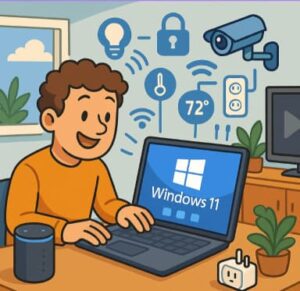
Smart home control is no longer limited to a wall-mounted tablet or a smartphone app. For many technical teams, a Windows 11 PC can provide a more capable control point—one that combines a familiar desktop environment with automation software, dashboards, network tools, and access to multiple smart home platforms.
That matters when a smart home moves beyond a few connected lights and becomes a distributed system. You may have thermostats, cameras, lighting controllers, sensors, media devices, security equipment, and IoT gateways communicating across different protocols. Managing all of that from a single Windows 11 workstation can simplify monitoring, troubleshooting, and automation.
The key is to treat Windows 11 not simply as another smart home interface, but as a flexible computing platform that can sit at the center of a broader home automation architecture.
Windows 11 Gives Smart Home Control a Full Desktop Environment
A phone is convenient for quick actions. A Windows 11 PC is better suited to tasks that require visibility, configuration, and multiple applications at once.
A desktop can display a smart home dashboard alongside:
- Network monitoring tools
- Home automation software
- Camera feeds
- System logs
- Browser-based device management consoles
- MQTT or IoT development tools
- Remote administration utilities
- Documentation and configuration files
For a solution architect, that creates an important distinction. The PC becomes an operational console rather than just a remote control.
Windows 11 also supports multiple displays, allowing one screen to show real-time device status while another displays security cameras, energy consumption, or automation workflows.
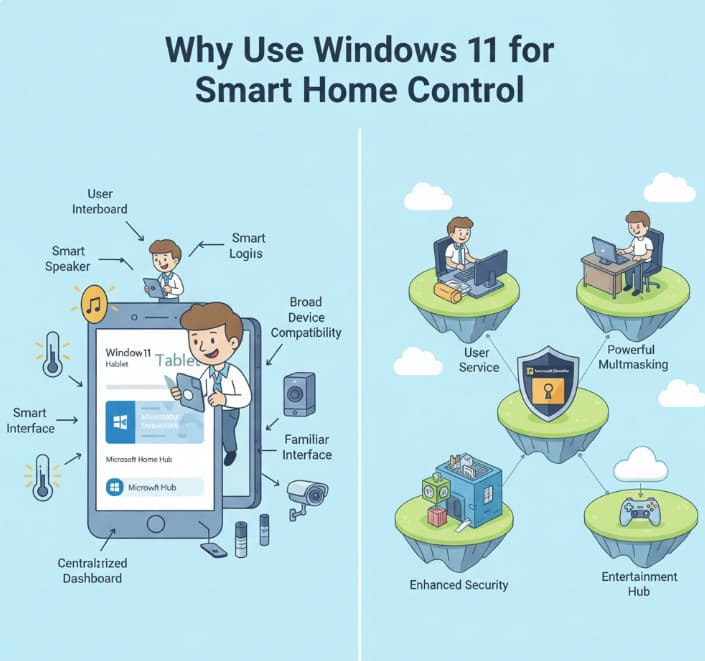
Use Windows 11 as a Smart Home Control Hub
One of the strongest reasons to use Windows 11 for smart home control is software flexibility.
Platforms such as Home Assistant can be accessed through a web browser and can also be integrated into broader desktop workflows. Developers can use Windows-based tools to build integrations, test APIs, monitor network traffic, and automate repetitive tasks.
This is particularly useful in environments where smart home devices come from different manufacturers.
Instead of relying on a separate application for every device category, a Windows PC can provide a common control layer. The underlying architecture might look like this:
Smart devices → Network/IoT protocols → Automation platform → Windows 11 dashboard
The Windows machine does not necessarily need to communicate directly with every device. In many architectures, the automation platform handles device discovery and protocol translation while Windows provides the user interface, administration environment, or additional automation logic.
That separation can make the overall system easier to maintain.
Windows 11 Works Well for Multi-Protocol Smart Homes
Smart homes rarely use one communication standard exclusively.
Depending on the devices involved, an installation may include Wi-Fi, Ethernet, Bluetooth, Zigbee, Z-Wave, Matter, or other IoT technologies. Each has different characteristics and deployment considerations.
Windows 11 is useful because it can interact with many of the software layers that sit above these protocols.
For example, a technical team might use:
- Matter for newer interoperable smart home devices
- MQTT for lightweight messaging between IoT components
- REST APIs for cloud-connected devices and services
- WebSockets for real-time application communication
- Browser dashboards for centralized control
- Python, PowerShell, or other development tools for custom automation
This approach is more adaptable than designing the entire environment around one vendor’s proprietary application.
For developers, the Windows environment also provides familiar tooling for scripting and testing. PowerShell can automate Windows-side tasks, while Python and other development environments can be used to prototype integrations or interact with APIs.
A Windows 11 PC Can Be a Powerful Automation Console
Smart home control becomes much more useful when it moves from individual commands to rules and workflows.
Consider a simple evening automation:
- A presence sensor detects that someone has arrived home.
- The automation platform checks the time and current lighting conditions.
- Selected lights are switched on.
- The thermostat changes to the preferred temperature.
- A media device is placed into the appropriate state.
- Windows displays the current status through a dashboard.
The PC does not have to perform every step. Its value comes from giving the operator a central place to see what is happening and intervene when necessary.
This is particularly important when automations fail.
If a light does not respond, a mobile application may only show that the command failed. On a Windows workstation, an administrator can investigate the network connection, inspect logs, test the device API, and check the automation platform without switching between several environments.
Security and Network Visibility Matter
Adding Windows 11 to a smart home architecture also introduces security responsibilities.
A PC connected to the same network as IoT devices should not automatically be treated as trusted simply because it is inside the home.
A stronger design separates responsibilities where practical. For example:
- Put IoT devices on a dedicated VLAN or network segment.
- Use strong authentication for administrative interfaces.
- Keep Windows 11 and installed applications patched.
- Restrict remote access to management interfaces.
- Avoid exposing smart home dashboards directly to the public internet.
- Use encrypted connections where supported.
- Monitor unusual network activity.
Windows 11’s security capabilities can complement these network controls, but they do not replace proper IoT segmentation.
For professional deployments, the security model should be designed before adding more devices. Every new connected device increases the attack surface.
Windows 11 Is Especially Useful for Developers
For software developers and technical teams, the biggest advantage may be the development ecosystem rather than the graphical interface.
A Windows 11 workstation can provide a familiar environment for building and testing smart home integrations. Developers can work with APIs, scripts, containers, databases, source control, and debugging tools from the same machine they use for everyday development.
This is useful when building custom dashboards or connecting devices that are not supported natively by an automation platform.
For example, a developer could create a small service that:
- Retrieves temperature data from an API.
- Stores historical readings.
- Detects unusual changes.
- Sends an event to the automation platform.
- Displays the result on a Windows dashboard.
The important architectural principle is to keep custom logic modular. A smart home should not depend on a single desktop application for every function. Windows 11 can serve as the development and management layer while dedicated services handle automation and device communication.
When Windows 11 Is the Right Choice—and When It Isn’t
Windows 11 is not automatically the best operating system for every smart home installation.
It makes particular sense when you already have a Windows PC that can remain powered on and when you need:
- A rich graphical dashboard
- Multi-monitor support
- Development and scripting tools
- Easy access to browser-based management interfaces
- Integration with existing Windows workflows
- Remote administration capabilities
A dedicated Linux server, mini PC, NAS, or purpose-built home automation appliance may be preferable when low power consumption, 24/7 headless operation, or minimal maintenance is the priority.
There is also a practical consideration: if the Windows machine is shut down, sleeps, or reboots for updates, any services running exclusively on it may become temporarily unavailable.
For that reason, critical automation should ideally have an architecture that does not depend on the desktop remaining available every minute of every day.
A Practical Architecture for Windows-Based Smart Home Control
A robust setup can separate the system into four layers:
1. Device layer
Sensors, lights, thermostats, cameras, locks, switches, and other connected equipment.
2. Connectivity layer
Wi-Fi, Ethernet, Matter, Zigbee, Z-Wave, MQTT, and other communication mechanisms.
3. Automation layer
A platform such as Home Assistant or another automation engine handles rules, events, device states, and integrations.
4. Management layer
Windows 11 provides dashboards, browsers, development tools, monitoring utilities, scripts, and administrative access.
This layered approach prevents the Windows PC from becoming a single point of failure for every component.
It also makes future expansion easier. You can replace individual devices or services without redesigning the entire environment.
Practical Takeaway: Start With the Architecture, Not the Operating System
The best reason to use Windows 11 for smart home control is not that Windows has magically become a smart home operating system. It is that Windows 11 provides a mature, flexible computing environment that can sit comfortably alongside modern IoT and home automation platforms.
For IT professionals and solution architects, the real opportunity is to build a layered system: connected devices at the edge, an automation platform in the middle, and Windows 11 as a powerful interface for monitoring, administration, development, and control.
If you already have a Windows 11 PC available, start by mapping your devices, communication protocols, automation platform, and security boundaries. Then decide which functions belong on the PC and which should remain on dedicated services.
That architectural decision will matter far more than the choice of dashboard.
Extra posts:
 Comparing Windows 11 Editions: Home vs Pro vs Enterprise vs SE
  Can I Rollback a Windows 11 Update? A Complete Guide to Reverting Windows Updates Safely
  How to Move the Start Menu to the Left in Windows 11 (Like Windows 10 Style)
  Windows 10 Extended Security Updates: A Bridge to Your Windows 11 Experience
  Windows Settings Backup Is Now Enabled by Default in Windows 11 26H2
  Complete Windows Sandbox Guide: How to Use Windows Sandbox in Windows 11