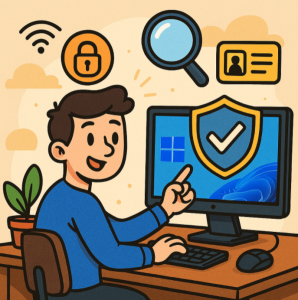
Windows 11 introduces a sleek design, productivity features, and tighter security compared to its predecessors. But no operating system is immune to threats. Whether you use your PC for work, gaming, or personal browsing, it’s essential to strengthen its defenses against malware, phishing, and unauthorized access.
Below are practical steps you can take to improve security on your Windows 11 PC.
1. Keep Windows Updated
Microsoft regularly releases security patches and feature updates to protect against new vulnerabilities.
- Go to Settings > Windows Update.
- Enable Automatic Updates to ensure you never miss critical fixes.
- Restart your device promptly after updates are installed.
2. Enable Windows Security Features
Windows 11 comes with built-in protection tools:
- Windows Security (Defender): Offers real-time virus and threat protection.
- Firewall & Network Protection: Blocks unauthorized connections.
- Ransomware Protection: Add folders to “Controlled Folder Access” to prevent malicious encryption.
Open Start > Settings > Privacy & security > Windows Security to configure these.
3. Use Strong Authentication
- Set a Strong Password or Passphrase. Avoid common words or short strings.
- Enable Windows Hello. Use facial recognition, fingerprint, or a PIN for faster, safer logins.
- Turn on Two-Factor Authentication (2FA). Pair your Microsoft account with an authenticator app for extra protection.
4. Encrypt Your Data with BitLocker
If your PC is lost or stolen, BitLocker encryption ensures your data remains safe.
- Available on Windows 11 Pro and Enterprise editions.
- To enable: Search for BitLocker in the Start menu, then turn it on for your drives.
5. Secure Your Network
- Change your Wi-Fi router’s default credentials and use WPA3 encryption if available.
- Consider a VPN when using public Wi-Fi to protect your data from snooping.
- Disable file and printer sharing when connected to unfamiliar networks.
6. Control App Permissions
Apps often request more access than necessary.
- Go to Settings > Privacy & security > App permissions.
- Review permissions for location, microphone, camera, and background apps.
- Disable any that seem unnecessary.
7. Backup Regularly
Even with the best defenses, things can go wrong. Regular backups ensure you don’t lose important files.
- Use File History or OneDrive for cloud backups.
- Consider an external hard drive for offline copies.
8. Practice Safe Browsing Habits
- Use Microsoft Edge with SmartScreen to block malicious sites.
- Be cautious when downloading software—prefer the Microsoft Store or official websites.
- Avoid clicking suspicious email links or attachments.
Windows 11 provides a solid foundation for security, but your habits and configurations play an equally important role. By keeping your system updated, enabling built-in protections, and practicing safe online behavior, you can significantly reduce the risk of cyberattacks.
Your PC holds valuable information—treat it like a digital vault and secure it accordingly.
Extra posts:
 Understanding Windows 11 Security Features: A Shield for Your Digital Life
  Unleash the Power of Windows Security: A Simple Guide to Using Defender Effectively
  Azure Security Basics Network Security Groups, Firewalls, and Defender for Cloud
  How to Move the Start Menu to the Left in Windows 11 (Like Windows 10 Style)
  Setting Up Windows Hello for Faster Logins in Windows 11
  Windows 11: What’s New Compared to Windows 10