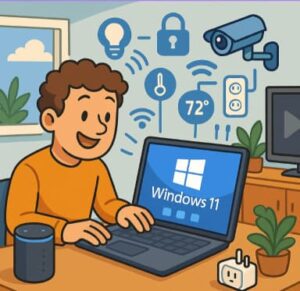
In a modern connected home, we expect to be able to control lights, thermostats, security cameras, smart locks and other devices not just from our phones—why not from our PC? With Windows 11, you can elevate your smart home setup by turning your desktop or laptop into a central command station. This guide will walk you through how to integrate Windows 11 with your smart home devices, the benefits and the practical steps.
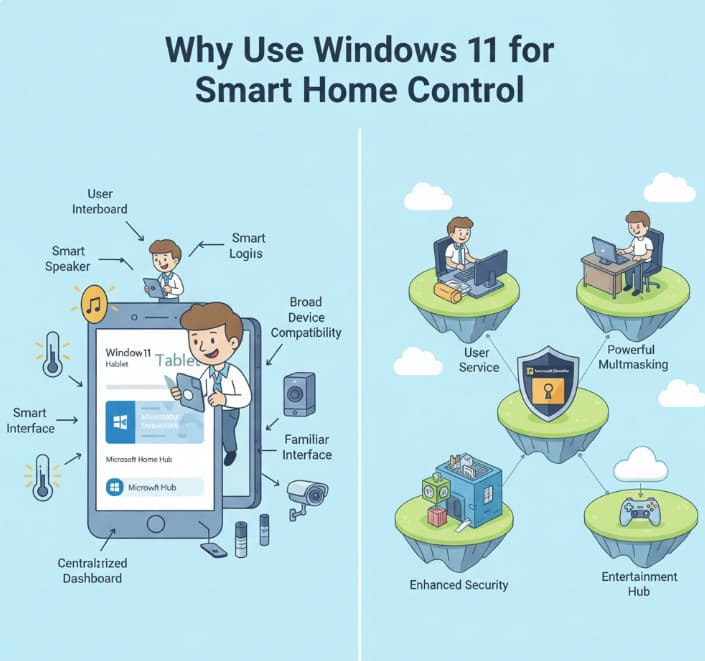
Why Use Windows 11 for Smart Home Control
- A PC (or Windows 11 tablet) offers a large screen, full-keyboard and more flexible interface for smart home dashboards and monitoring.
- There are several ways to control smart-home devices from a PC, including native apps and browser dashboards.
- Many smart home platforms support browser- or app-based dashboards that run on Windows, making the OS a viable hub.
- With Windows 11’s refined UI, improved multitasking and virtual desktops, you can keep your smart-home controls always accessible while you work.
What You’ll Need
Before diving in, ensure you have:
- A Windows 11 PC (desktop or laptop) or a Windows 11 tablet you can dedicate (or dual-use) as a smart-home dashboard.
- A stable home Wi-Fi (or wired) network that your smart home devices share with your PC.
- Smart home devices that support either manufacturer dashboard apps, browser access, or standard automation hubs.
- Optional: a universal smart home hub (or software) that unifies devices from different brands.
Setup & Integration Steps
1. Choose Your Primary Control Platform
Decide whether you’re going to use a manufacturer’s app (e.g., for smart lights or cameras) or a hub/automation platform that unifies multiple devices. The open-source Home Assistant project, for example, supports thousands of integrations and can run on Windows, providing a unified dashboard.
2. Install a Dashboard on Windows 11
- If your device vendor provides a Windows app or PWA, install it.
- Alternatively, open the browser version of the dashboard (e.g., via Chrome or Edge) and pin it or set it to launch at startup for quick access.
- You might create a dedicated desktop workspace or virtual desktop in Windows 11 just for smart-home controls.
3. Connect Your Smart Devices
Follow the standard setup for each smart device (lights, locks, cameras, thermostat). Ensure that they are on the same network as your PC so that Windows 11 can access them.
4. Configure Automations & Shortcuts
Windows 11 allows you to create shortcuts, widgets, or pinned tiles that open your smart-home dashboard or trigger actions. For instance:
- Create a desktop shortcut “Home Dashboard” that opens your smart-home web UI.
- Use Task Scheduler or a third-party utility to launch the dashboard when you login.
- Consider configuring voice-access via a microphone and assistant (if supported).
5. Monitor & Control from Anywhere
With your PC always connected, you can monitor live camera feeds, adjust lights, locks or thermostat settings. Because you have a full-sized screen, you can also view aggregated data, energy usage or logs more comfortably than on a phone.
Tips & Best Practices
- Organisation is key: Group your smart devices logically (by room or by function) in your dashboard so it’s clear and manageable.
- Security matters: Ensure your PC and smart-home devices are on a secured network, with passwords and up-to-date firmware.
- Use startup automation: Configure your PC or dashboard app to auto-start when you power on your machine, so your smart-home control is immediately available.
- Use a dedicated surface: If possible, mount your Windows 11 tablet or screen in a common area (hallway, kitchen) to act as a central smart-home command interface.
- Multi-brand integration: If you have devices from different manufacturers, using a unified platform helps avoid managing multiple separate apps.
- Monitoring & analytics: With the bigger screen on PC, you have the opportunity to visualise energy usage, device status, camera history and more effectively.
Challenges & Considerations
- Some smart-home vendors don’t provide full Windows apps, so you may rely solely on browser dashboards which might have limited features.
- PCs and Windows 11 tablets may consume more power than purpose-built smart-hubs or small embedded devices; consider always-on usage.
- Compatibility across brands remains a challenge. While the open standard “Matter” aims to unify device interoperability, adoption is still growing.
- Ensuring network security is critical: A PC exposed on the same network as smart devices becomes another attack surface.
Example Scenario
Imagine: You mount a Windows 11 tablet in your living room running a dashboard showing:
- Live feed from a smart camera at the front door
- Toggle switches for living room and hallway lights
- Thermostat status and control for climate
- Smart-lock status of the main door
- Quick buttons like “Away Mode” (locks doors, turns off lights, sets thermostat) and “Movie Night” (dims lights, closes blinds, sets TV input)
From your PC, you can monitor and change these with full-keyboard shortcuts, drag-and-drop room widgets, or even create automation scripts.
By integrating Windows 11 with your smart home devices, you turn your PC into a powerful control centre — one that offers flexibility, clarity and comfort. Whether you’re a smart-home enthusiast or simply looking to make your living space more automated, using Windows 11 this way adds value. Remember to plan your network, choose your dashboard wisely, and keep security top of mind.
Extra posts:
 How to Move the Start Menu to the Left in Windows 11 (Like Windows 10 Style)
  No-Code AI How Non-Developers Can Build Smart Chatbots with Copilot Studio
  No-Code AI: How Non-Developers Can Build Smart Chatbots with Copilot Studio
  Setting Up Windows Hello for Faster Logins in Windows 11
  Unlocking Efficiency with Microsoft 365 Archive A Smart Way to Manage Mailbox Storage
  Windows 11: What’s New Compared to Windows 10