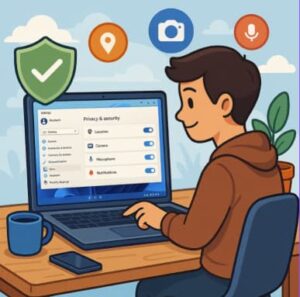
In today’s digitally connected world, privacy has become one of the most valuable assets we can protect. Whether you’re browsing online, installing new software, or simply checking your email, every action produces data. This data can be incredibly useful, but only when it is handled responsibly. On the flip side, when apps collect more information than they truly need, your privacy can be compromised. That’s where Windows 11’s app permission controls come into play.
Microsoft has taken significant steps to make Windows 11 more transparent and user-friendly when it comes to managing permissions. Apps must now request access to things like your camera, microphone, location, contacts, and even your file system. The system gives you the ability to allow or deny access, so you stay in control. But managing these permissions effectively requires a little knowledge—and that’s what this guide is all about.
Below, we’ll walk through why app permissions matter, how you can manage them in Windows 11, and the best practices for ensuring you maintain the strongest level of privacy possible.
Why App Permissions Matter More Than Ever
App permissions determine what an app is allowed to access on your computer. While some permissions are necessary for the app to work properly, others are optional—and sometimes unnecessary.
For example:
- A video conferencing app legitimately needs your camera and microphone.
- A weather app only needs your location, not your camera or file system.
- A photo editor might need access to your pictures, but not your contacts.
Unfortunately, some apps request more access than required, often for analytics or advertising purposes. If left unchecked, this can lead to:
- Unintentional data sharing
- Privacy breaches
- Potential security vulnerabilities
- Apps running unnecessary background processes
By regularly reviewing permissions, you stay in control of who sees what and minimize exposure to risk.
How to Access App Permissions in Windows 11
Windows 11 provides a clear and simple layout for managing permissions. You can access these settings in just a few steps:
- Open Settings.
Click the Start menu and select Settings (the gear icon). - Go to Privacy & Security.
This section houses almost everything related to your system’s privacy controls. - Choose App Permissions.
On the left-hand side or main panel, you’ll see categories like:- Location
- Camera
- Microphone
- Voice activation
- Notifications
- Contacts
- Calendar
- Phone calls
- Call history
- Tasks
- Messaging
- Others depending on your installed apps
- Click on a Permission Category.
Once you click on one, Windows will show you a list of apps that have requested that particular permission.
From this point, you can toggle each app’s access on or off, depending on your preferences.
Important App Permission Categories to Review
Not all permissions have the same level of impact on your privacy. Below are the most important ones you should review regularly:
1. Camera
Your webcam can reveal your surroundings, identity, and even sensitive information unintentionally. Limiting camera access ensures only essential apps can use it. For most users, only video calling apps like Zoom or Teams should be enabled.
2. Microphone
Your microphone can pick up conversations, background noise, and private information. Disable microphone access for apps that do not need it. Be especially cautious with games or utilities that unnecessarily request audio access.
3. Location
Windows uses your location for services such as maps or weather apps. If you value privacy, consider disabling this permission globally or only allowing it when an app truly requires it.
4. File System
One of the most sensitive permissions, file system access allows apps to read or modify documents, pictures, and personal data. Avoid granting this unless the app absolutely must read or write files.
5. Contacts, Calendar & Email
These permissions are often used by communication or productivity apps. If you do not use these features inside the app, disable the permissions to avoid unnecessary data exposure.
6. Notifications
This isn’t always a privacy issue, but managing notification access helps keep your workflow clean and reduces unnecessary interruptions.
Using “Recent Activity” to Monitor App Behavior
Windows 11 also includes a helpful feature under Privacy & Security → App Permissions called Recent Activity. This shows which apps accessed sensitive features like:
- Microphone
- Camera
- Location
If you see an unfamiliar app accessing something at an odd time, that’s a sign you should revoke its permission.
Best Practices for Maintaining Privacy in Windows 11
Following these steps helps you stay proactive rather than reactive:
1. Review App Permissions Monthly
Treat this like digital housekeeping. It only takes a few minutes and helps maintain peace of mind.
2. Only Install Trusted Apps
Avoid downloading software from unknown sources. Apps from official platforms like Microsoft Store go through more rigorous security checks.
3. Use “Ask Before Access” When Possible
Some permissions allow Windows to prompt you each time an app wants access. This is a great way to stay aware of app behavior.
4. Disable Background Apps
In the Privacy & Security section, turn off apps that run in the background if they don’t need to. This not only boosts privacy but also improves system performance.
5. Update Windows Regularly
Microsoft frequently patches security vulnerabilities. Keeping your system updated ensures you have the latest protections.
Managing app permissions in Windows 11 is one of the simplest yet most effective ways to safeguard your digital privacy. The operating system gives you a high level of control—it’s just a matter of using it. By taking a few minutes to review what each app can access, you significantly reduce the risk of data misuse, tracking, and unauthorized access.
In a world where privacy is becoming harder to protect, Windows 11 provides the tools you need to take back control. The key is staying aware, staying cautious, and taking advantage of the settings Microsoft has built into the system.
Extra posts:
 How do I manage app permissions in Windows 11?
  The Complete Guide to Widgets in Windows 11
  Complete Guide to Windows 11 Themes and Wallpapers
  How to Build and Save Your Own Theme Pack in Windows 11 A Complete Guide
  Setting Up Ransomware Protection in Windows 11 – A Simple and Complete Guide
  Personalizing Sounds, Cursors & Fonts in Windows 11 – A Complete Guide