Cut, Trim, Shine – Editing Made Easy
Editing turns raw footage into a compelling story. In Clipchamp, trimming, splitting, and arranging clips is simple and visual.
Step 1: Import Media
- Click Import media → select video, images, or audio
- Drag files into the timeline for sequencing
Step 2: Trim & Split Clips
- Trimming: hover over the edge of a clip → drag inward to shorten
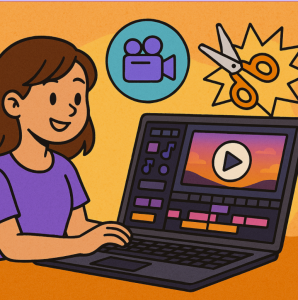
- Splitting: position the playhead → click Split (scissors icon)
- Example: Remove pauses or mistakes in a tutorial
Step 3: Resize & Adjust Speed
- Drag edges or right-click → Speed to create slow-motion or fast-forward effects
- Use speed creatively for emphasis, like showing a process quickly
Step 4: Undo & Redo
- Mistakes happen! Use Ctrl+Z or the undo button
- Redo with Ctrl+Y if you change your mind
Step 5: Organize Clips
- Rename clips on the timeline for easier management
- Group similar clips to maintain workflow clarity
With trimming, splitting, and speed adjustment mastered, your videos are starting to take shape!
The blog series about Clip Champ