
A Microsoft 365 agent can answer questions, summarize documents, and help users work inside Microsoft 365. But the moment users ask, “What’s the status of this Salesforce account?” or “Show me the open Jira issues for this project,” the limits of isolated knowledge become obvious.
That is where connectors come in.
Connectors give Microsoft 365 agents a controlled way to reach enterprise data and external systems. Depending on the scenario, they can provide information for grounding an agent, or give an agent access to tools that interact with external services. Microsoft’s current extensibility model supports both prebuilt and custom approaches, making connectors an important architectural component for solution architects, developers, and IT teams.
The key is choosing the right connector pattern for the job.
What connectors add to a Microsoft 365 agent
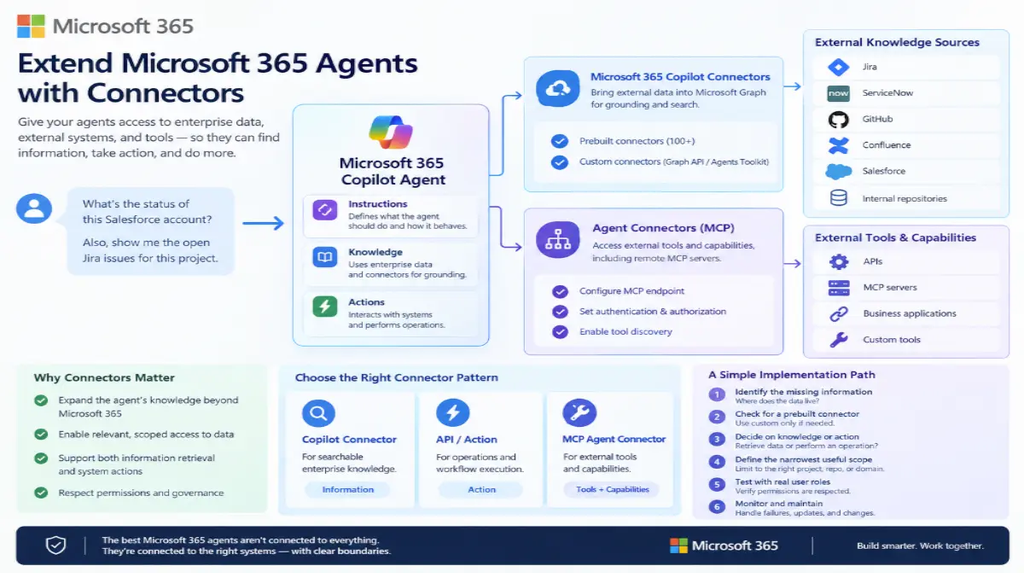
A useful way to think about an agent is as three layers:
- Instructions define what the agent should do and how it should behave.
- Knowledge gives the agent information it can use to generate grounded responses.
- Actions let the agent interact with systems and perform operations.
Microsoft’s declarative agent architecture follows this model. Declarative agents can use Microsoft 365 data, Copilot connectors, and external APIs while continuing to use the Microsoft 365 Copilot orchestration and security infrastructure.
Connectors primarily strengthen the knowledge and integration layers.
For example, consider an internal IT support agent. Its knowledge might include SharePoint documentation and ServiceNow knowledge articles. Its actions could create or update a ServiceNow ticket. Instead of forcing users to jump between systems, the agent can provide the relevant information and, where configured, initiate the appropriate workflow.
That distinction matters because finding information and taking action are not the same integration problem.
Microsoft 365 Copilot connectors: bringing external data into context
Microsoft 365 Copilot connectors are designed to bring external enterprise data into Microsoft Graph so that Copilot and agents can use that information as grounding data.
Microsoft provides more than 100 prebuilt Copilot connectors, while organizations can also build custom connectors through the Microsoft Graph connectors API or Microsoft 365 Agents Toolkit.
Common scenarios include connecting sources such as:
- Jira issues and project information
- ServiceNow tickets and knowledge
- GitHub repositories and development data
- Confluence content
- Salesforce or other line-of-business systems
- Internal or proprietary enterprise repositories
The important architectural point is that the connector is not simply “an API call from the chatbot.” Its purpose is to make external information available as an enterprise knowledge source.
This makes Copilot connectors particularly useful when the agent needs to retrieve and reason over organizational information.
For example:
“What unresolved production incidents are associated with Project Phoenix?”
An agent could use indexed ServiceNow or other enterprise data to find relevant records and use those records as grounding for its response.
Scope the connector instead of exposing everything
Connecting a data source is only the first step. Good agent design also limits the information the agent needs to consider.
Microsoft 365 Copilot currently supports scoped connector knowledge for several connectors. Depending on the connector, the scope can be something such as a Jira project, Confluence space, GitHub repository, ServiceNow knowledge base, or Azure DevOps area path.
That creates an important design option:
Broad connector:
The agent can search a large organizational data set.
Scoped connector:
The agent is constrained to the subset relevant to a specific team, project, department, or workflow.
For solution architects, scoping is more than a convenience feature. It can improve relevance by reducing irrelevant search results and can make the agent’s intended information boundary much easier to understand.
A project-management agent, for instance, should not necessarily search every Azure DevOps work item in the company. Scoping it to the relevant area path can give the agent a much cleaner knowledge boundary.
Adding a connector to a declarative agent
If you’re building a declarative agent with Microsoft 365 Agents Toolkit, connector configuration is part of the agent definition.
Microsoft’s documentation shows Copilot connectors being added through the agent manifest using the GraphConnectors capability and a connector connection_id.
A simplified configuration looks like this:
{
  "name": "GraphConnectors",
  "connections": [
    {
      "connection_id": "policieslocal"
    }
  ]
}
The actual connector ID depends on the connector configured in your Microsoft 365 environment.
After the connector is added, the agent can use the content indexed by that connector as a knowledge source. Microsoft also notes that omitting the connections array can make all available Copilot connector content accessible to the logged-in user, which makes explicit connector selection preferable when you want a predictable knowledge boundary.
For development teams, this is a good reminder: treat the agent manifest as part of your integration architecture, not just packaging metadata.
When you need actions instead of knowledge
Suppose your agent can find a customer’s account information. That’s useful.
Now suppose the user says:
“Update the customer’s support priority to high.”
Finding data is no longer enough. The agent needs an action that can interact with the target system.
Microsoft’s extensibility model distinguishes custom knowledge from custom actions. Declarative agents can use API plugins and other integration mechanisms to interact with external services in real time.
This creates a practical architecture:
Copilot connector → retrieve enterprise knowledge
API/plugin/action → perform an operation
Using the same IT support example:
- The connector retrieves the relevant incident history.
- The agent summarizes the issue.
- The user asks to escalate the incident.
- An action calls the service-management API.
- The agent reports the result.
That separation makes the solution easier to reason about, secure, test, and govern.
Where MCP agent connectors fit
There is another connector pattern worth understanding: agent connectors for external tools, including remote Model Context Protocol (MCP) servers.
Microsoft’s current documentation describes agent connectors as a mechanism that allows Microsoft 365 agents to access information and capabilities outside Microsoft 365, including through MCP servers. The connector configuration can specify the MCP endpoint, authentication and authorization details, and tool discovery information.
This is different from simply indexing external content into Microsoft Graph.
With an MCP-based integration, the agent can discover and invoke tools exposed by the MCP server. That makes this pattern particularly relevant when an organization already has an MCP-based tool layer or wants to expose operational capabilities to Microsoft 365 agents.
For developers, the distinction is straightforward:
- Need searchable external enterprise knowledge? Consider a Copilot connector.
- Need the agent to call an external API or perform an operation? Consider an action/API plugin.
- Need to expose tools through an MCP server? Consider an agent connector for MCP.
The right choice depends on whether your agent needs information, an operation, or both.
Security and governance should shape the design
Connector architecture should start with permissions, not prompts.
Microsoft states that Copilot connectors respect source-level permissions so users only receive content they are authorized to access.
That does not eliminate the need for governance.
IT and security teams should still establish:
- Which connectors are approved?
- Which agents can use each connector?
- What data can each agent access?
- Which users can invoke actions?
- How are connector credentials and authentication managed?
- How are changes to schemas, APIs, and permissions tested?
- What happens when a connected system becomes unavailable?
Microsoft also provides administrative controls around connector and agent availability, while declarative agents inherit Microsoft 365’s broader security, compliance, and governance infrastructure.
For production deployments, connector permissions should be reviewed alongside the agent’s instructions and actions. A well-written prompt cannot compensate for an overly broad data connection.
A practical implementation path
For a team extending an existing Microsoft 365 agent, a sensible sequence is:
1. Identify the missing information
Start with the user request the agent cannot currently answer.
Is the missing information in Jira, ServiceNow, GitHub, Salesforce, an internal database, or another system?
2. Check for a prebuilt connector
Microsoft recommends using prebuilt connectors when they fit the scenario and reserving custom development for unique or critical data sources.
3. Decide whether you need knowledge or action
If the agent only needs to retrieve information, a Copilot connector may be sufficient.
If it must modify data or trigger a workflow, add an appropriate action or API integration.
4. Define the narrowest useful scope
Avoid giving an agent access to an entire enterprise repository when the workflow only needs one project, knowledge base, repository, or business domain.
5. Test permissions with real user roles
Test the agent as different users. Verify that the responses respect the permissions inherited from the connected system.
6. Monitor the integration
Connector failures, stale data, API changes, authentication problems, and schema changes can all affect agent behavior. Treat connectors as production integrations that need lifecycle management.
The next step: design the integration boundary
The most effective Microsoft 365 agents aren’t necessarily the ones connected to the most systems. They’re the ones connected to the right systems with clear boundaries.
Start with the workflow. Identify the information the agent lacks. Then determine whether that information belongs in a Copilot connector, whether the agent needs an action, or whether an MCP-based tool integration makes more sense.
Microsoft 365 Agents Toolkit provides a pro-code path for building and testing enterprise agents across Microsoft 365 and other channels, while Microsoft 365 Copilot and Copilot Studio provide additional low-code and configuration-based options.
Once you treat connectors as architectural building blocks rather than simple add-ons, the design becomes much clearer: connect the data the agent needs, expose only the capabilities it should use, and keep permissions and scope explicit from the beginning.
Extra posts:
 Microsoft 365 Copilot Gets Self-Serve Connectors: What Organizations Need to Know
  Microsoft 365 Connectivity Troubleshooting A Practical Guide
  Create and Manage Groups in Microsoft 365 A Practical Guide
  How to Secure Microsoft AI Agents in Production: An Enterprise-Grade Guide
  Microsoft 365 Copilot & Agents Fundamentals
  10 Best Practices for Designing Effective Microsoft 365 Agents