
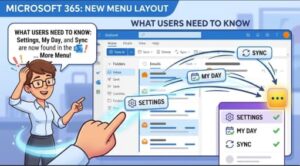
Microsoft is making a small but noticeable change to the Microsoft 365 interface that could affect how millions of users access familiar tools. Starting in September 2026, Microsoft is moving several suite header actions—including Settings, My Day, and Sync—into the More (…) menu.
The change is designed to reduce visual clutter in the Microsoft 365 suite header and create a more consistent place for additional actions. While the update does not remove any existing functionality, users may initially need a moment to adjust to the new location of these controls.
For organizations that provide Microsoft 365 support, maintain internal documentation, or train employees on Microsoft applications, this is a relatively minor interface change that is still worth communicating ahead of rollout.
What is changing in Microsoft 365?
Microsoft 365 users are accustomed to seeing various actions directly in the suite header when working with supported web experiences. As part of the latest interface update, Microsoft is moving some of those actions into the More (…) menu.
The most notable changes involve Settings and My Day, which will continue to be available but will no longer appear directly in their previous locations. Microsoft is also adding the Sync button to the More menu.
In practical terms, users will need to click or select the More (…) option before accessing these functions.
The underlying capabilities are not being removed or replaced. Instead, Microsoft is changing the way users reach them.
This distinction is important for IT teams and end users. A user who suddenly cannot see Settings or My Day where they previously appeared may initially assume that the feature has been disabled. In reality, the feature remains available through the updated menu structure.
Why is Microsoft making this change?
Microsoft says the primary goal is to keep the Microsoft 365 suite header organized and reduce visual clutter.
Modern productivity suites contain a growing number of tools, settings and shortcuts. Putting every action directly in the main interface can make the header increasingly crowded, particularly when users access Microsoft 365 through different applications and web experiences.
Moving less frequently accessed actions into a More menu provides Microsoft with a way to maintain access to those features without giving every action a permanent position in the main header.
The approach also creates a more consistent location for additional functionality.
For everyday users, the change may require a small adjustment. Instead of immediately selecting Settings or My Day from the header, they will first open the More (…) menu.
Once users become familiar with the new layout, the difference should be relatively straightforward.
Settings and My Day are not being removed
One of the most important points for Microsoft 365 users is that Settings and My Day are still available.
The update changes their location rather than their functionality.
This means organizations do not need to deploy a replacement tool or configure a new setting simply because these actions have moved.
For users who regularly access Settings, the new workflow will involve opening the More (…) menu and selecting Settings from there.
The same principle applies to My Day.
Microsoft is also adding Sync to the More menu, giving users another action that can be accessed from the expanded menu rather than directly from the suite header.
This is primarily a user-interface and navigation change rather than a change to the capabilities of Microsoft 365.
When will the Microsoft 365 update roll out?
Microsoft is using a phased rollout, meaning not every organization will see the change at exactly the same time.
According to Microsoft’s rollout schedule, the update began with Targeted Release worldwide in early September 2026, with completion expected by mid-September 2026.
For organizations on General Availability, the rollout is scheduled to begin in early October 2026 and is expected to continue through late October 2026 for worldwide deployments, as well as GCC High and DoD environments.
The GCC rollout is also scheduled to begin in early October 2026, with completion expected by early November 2026.
Microsoft 365 rollout timeline
| Release environment | Start | Expected completion |
|---|---|---|
| Targeted Release – Worldwide | Early September 2026 | Mid-September 2026 |
| General Availability – Worldwide | Early October 2026 | Late October 2026 |
| General Availability – GCC High | Early October 2026 | Late October 2026 |
| General Availability – DoD | Early October 2026 | Late October 2026 |
| General Availability – GCC | Early October 2026 | Early November 2026 |
Because Microsoft is rolling out the update in stages, employees within different organizations—or even different Microsoft 365 environments—may encounter the new interface at different times.
Who will be affected?
The change is relevant to users who work with Microsoft 365 applications and services that display the Microsoft 365 suite header.
The update specifically affects Microsoft 365 web experiences where the suite header and associated actions are available.
For most employees, there should be no action required. The update will be enabled automatically as part of Microsoft’s service update.
That means IT administrators do not need to turn on a new configuration simply to enable the menu change.
However, the lack of required technical action does not necessarily mean organizations should ignore the update.
For businesses with large numbers of Microsoft 365 users, even small interface changes can generate questions for helpdesk teams.
What should IT teams do?
Microsoft does not require administrators to make configuration changes for this update.
However, organizations may want to take a few simple steps to prepare users.
1. Notify helpdesk teams
IT support and helpdesk staff should know that Settings, My Day and Sync may no longer appear directly in the Microsoft 365 suite header.
This can prevent unnecessary troubleshooting when employees report that a familiar button has “disappeared.”
Support teams can simply explain that the actions are now available under the More (…) menu.
2. Review internal documentation
Many organizations create screenshots, quick-start guides, knowledge-base articles and training materials for Microsoft 365.
If those materials show the old suite header, they may become outdated once the new interface reaches users.
IT teams should review documentation that includes instructions such as “click Settings in the suite header” or similar navigation steps.
Updating these materials can help reduce confusion during the transition.
3. Communicate the change to employees
A short internal announcement may be enough.
Employees do not necessarily need a detailed explanation of the rollout schedule. A simple message explaining that some Microsoft 365 header actions are moving to the More (…) menu can prepare users for the change.
This can be especially useful for employees who frequently use Settings or My Day.
4. Update training materials
Organizations that provide Microsoft 365 training should check relevant courses and onboarding documentation.
Screenshots can become particularly problematic because users often rely on visual instructions. If a training document shows a button in one location while the employee sees it somewhere else, users may assume something is wrong with their account.
Is there a compliance impact?
Microsoft has identified no compliance considerations for this particular interface update, with organizations advised to review the change as appropriate for their own environment.
The update does not introduce a new capability, remove a capability, or change access to the underlying functionality. It primarily changes where users find certain actions within the Microsoft 365 interface.
Organizations with strict internal change-management procedures may still want to document the update as part of their normal Microsoft 365 service review process.
A small interface change with a practical user impact
The Microsoft 365 suite header update is not a major feature overhaul, but it demonstrates how even relatively small interface changes can affect workplace productivity.
For experienced Microsoft 365 users, the transition from a directly visible button to the More (…) menu may take only a few clicks to understand. For less experienced users, however, a familiar control disappearing from its usual location can create unnecessary confusion.
The good news is that Settings, My Day and Sync remain available. There is no indication from the announcement that these capabilities are being discontinued.
The main change is where users access them.
As Microsoft’s rollout progresses through September, October and early November 2026, organizations can prepare simply by updating support teams, checking documentation and giving users a brief heads-up.
For most businesses, no administrative configuration will be necessary. The update will arrive automatically as part of Microsoft’s service rollout.
Ultimately, the goal is a cleaner Microsoft 365 suite header, with additional actions grouped under a single More (…) menu. Users may need a short adjustment period, but the underlying Microsoft 365 functionality remains intact.
Extra posts:
 Microsoft Planner Lands Inside Outlook and Copilot: A Major Productivity Upgrade for Microsoft 365 Users
  Microsoft 365 Service Disruption Hits Multiple Services: What Users and Businesses Need to Know on September 2, 2026
  Microsoft Outlook Gets a Smarter AI Writing Partner: Copilot Moves Into Email Drafting
  Microsoft Teams and Google Calendar Sync Is Retiring: What Businesses Need to Know Before October 2026
  OneDrive’s 520-Character Fix: Microsoft Makes Windows Sync Errors Easier to Solve
  Microsoft Teams Mobile Calendar to Require Latest App Update by October 2026: Microsoft Announces Critical Change for iOS and Android Users