
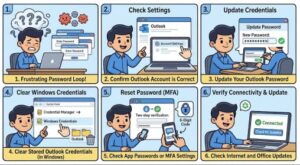
There are few things more frustrating than opening Outlook, getting ready to check your email, and seeing the same password prompt again and again. You enter the correct password, click Sign In, and everything seems fine until Outlook asks for your password once more.
If this keeps happening, you’re not alone. The “Outlook keeps asking for your password” problem can happen in Microsoft Outlook on Windows for several reasons. Sometimes it’s caused by incorrect saved credentials, an outdated Outlook installation, a damaged profile, authentication problems, or issues with your Microsoft 365 account.
The good news is that you usually don’t need to reinstall everything to fix it. In this guide, we’ll walk through practical solutions, starting with the easiest ones and moving toward more advanced fixes.
Why Does Outlook Keep Asking for Your Password?
Before changing anything, it helps to understand why Outlook might repeatedly request your password.
One common reason is that Outlook has stored an outdated password. For example, if you recently changed your Microsoft account or email password, Windows may still have the old credentials saved. Outlook tries to use them, fails authentication, and asks you to sign in again.
Other possible causes include:
- Corrupted Windows or Outlook credentials
- An outdated version of Outlook
- Problems with your Outlook profile
- Incorrect account settings
- Microsoft 365 authentication issues
- Cached login information
- Network or connectivity problems
- An account password that has expired
- Security software interfering with authentication
- Problems with modern authentication
The right solution depends on what’s causing the repeated prompt, so it’s worth working through the fixes one at a time.
1. Check Your Internet Connection
Start with something simple: make sure your internet connection is working properly.
Outlook needs to communicate with your mail server or Microsoft 365 services to authenticate your account. If your connection keeps dropping, Outlook may repeatedly ask you to sign in.
Try opening a few websites in your browser. If your connection appears unstable, restart your router or switch to another network temporarily.
If the internet works normally and Outlook still keeps asking for your password, move on to the next step.
2. Make Sure Your Password Is Actually Working
It sounds obvious, but it’s worth checking whether your email password works outside Outlook.
Open your email provider’s official sign-in page and try logging in with the same email address and password.
If you can’t sign in there either, the issue probably isn’t Outlook itself. You may need to reset your password or resolve an account-related problem first.
If you can sign in successfully through the browser but Outlook continues asking for your password, the problem is more likely related to Outlook, Windows credentials, or the local account profile.
3. Remove Old Credentials From Windows
One of the most common reasons Outlook repeatedly asks for a password is an outdated credential stored in Windows.
Windows Credential Manager stores login information for various applications and services. If Outlook is using an old password, removing the saved credential can force Outlook to request fresh authentication.
To check your credentials:
- Close Outlook completely.
- Open Control Panel.
- Select Credential Manager.
- Click Windows Credentials.
- Look for entries related to Outlook, Microsoft Office, Microsoft 365, or your email account.
- Remove the relevant outdated credentials.
- Restart your computer.
- Open Outlook again and sign in when prompted.
Be careful when deleting credentials. Don’t remove unrelated entries unless you know what they are used for.
Once Outlook has a chance to authenticate again, the repeated password prompt may disappear.
4. Update Microsoft Outlook
Running an older version of Outlook can sometimes cause authentication problems.
Microsoft regularly releases updates that improve security, compatibility, and account authentication. If Outlook hasn’t been updated for a while, check for available updates.
If Outlook opens:
- Open Outlook.
- Select File.
- Choose Office Account.
- Select Update Options.
- Click Update Now.
Allow the update to finish and restart Outlook.
If you’re using Microsoft 365, keeping Office applications updated is particularly important because account authentication methods and security requirements can change over time.
5. Restart Outlook and Your Computer
It may sound like a basic suggestion, but don’t underestimate it.
Outlook and Windows can occasionally get stuck with an authentication session that isn’t behaving correctly. Closing Outlook and restarting Windows can clear temporary processes and refresh your connection.
Make sure Outlook is completely closed before restarting. If necessary, check Task Manager to confirm that no Outlook process is still running.
After restarting your computer, open Outlook and check whether the password prompt appears again.
6. Check Outlook’s Account Settings
Incorrect account configuration can also lead to repeated password requests.
Open Outlook and go to your account settings. Depending on your Outlook version, the exact menu names may differ.
Check that the email address and account information are correct. If you’re using a company or Microsoft 365 account, your organization’s administrator may have specific authentication requirements.
Avoid changing server settings randomly, especially if you’re using a work or school account. Incorrect settings can create additional connection problems.
If your organization manages your Outlook account, contacting the IT administrator may be the quickest way to confirm whether there are account-side authentication changes.
7. Create a New Outlook Profile
If your current Outlook profile has become corrupted, creating a new profile can often resolve persistent login problems.
A profile contains account and configuration information that Outlook uses to connect to your mailbox. If that information becomes damaged, Outlook may behave unpredictably—including repeatedly asking for your password.
To create a new profile:
- Close Outlook.
- Open Control Panel.
- Search for Mail.
- Open the Mail settings.
- Select Show Profiles.
- Choose Add.
- Give the new profile a name.
- Add your email account.
- Set Outlook to use the new profile.
- Open Outlook again.
If the new profile works normally, your original profile may have been the source of the problem.
8. Repair Microsoft Office
Another option is to repair your Microsoft Office installation.
Windows provides built-in repair options that can fix damaged Office files without requiring you to completely uninstall the software.
Go to:
Settings → Apps → Installed Apps
Find Microsoft 365 or Microsoft Office, select the available options, and look for Repair.
Depending on your installation, you may see options such as Quick Repair and Online Repair.
It’s generally sensible to try Quick Repair first. If the problem continues, Online Repair may provide a more thorough repair, although it can take longer and may require an internet connection.
9. Check Whether Your Password Has Recently Changed
Did you recently change your Microsoft, Microsoft 365, or email password?
If yes, this is an important clue.
Other Microsoft applications on your computer may still have cached authentication information from before the password change. Outlook could therefore continue trying to authenticate with an outdated session.
Signing out of Microsoft applications and signing back in can sometimes refresh the authentication process.
If this is a work or school account, your organization’s security policies may also require additional verification, such as Microsoft Authenticator or another multi-factor authentication method.
10. Check Multi-Factor Authentication
Modern Microsoft accounts often use multi-factor authentication (MFA).
If MFA is enabled and the authentication process isn’t completing correctly, Outlook may appear to be stuck in a sign-in loop.
Check whether you are receiving authentication requests on your phone or authentication app. Also make sure your account isn’t waiting for an approval or verification step.
If your organization uses Microsoft Entra ID or another managed identity system, the IT administrator may need to check the account’s authentication status.
11. Run Outlook Without Add-Ins
Sometimes an Outlook add-in can interfere with normal operation.
You can test Outlook in Safe Mode to determine whether an add-in is contributing to the issue.
Press Windows + R, enter:
outlook /safe
and press Enter.
If Outlook works normally in Safe Mode and stops repeatedly asking for your password, an add-in may be involved.
You can then disable unnecessary add-ins and restart Outlook normally.
12. Remove and Add the Account Again
If you’ve tried the previous solutions and Outlook still keeps asking for your password, removing the affected account from Outlook and adding it again may help.
Before doing this, make sure you know your account credentials and understand whether your mailbox is hosted on Microsoft 365, Exchange, IMAP, or another service.
For business accounts, it’s also a good idea to confirm the correct configuration with your IT administrator before removing the account.
When Should You Contact Your IT Administrator?
If you’re using Outlook with a company or school account, the problem may not be something you can fix locally.
For example, your organization may have recently changed:
- Password policies
- MFA requirements
- Conditional Access rules
- Account permissions
- Microsoft 365 security settings
- Sign-in policies
- Device requirements
In these situations, repeatedly entering your password won’t necessarily solve the problem.
Contact your IT team if other Microsoft 365 applications are also requesting authentication, your account is locked, or you suspect an organization-wide sign-in problem.
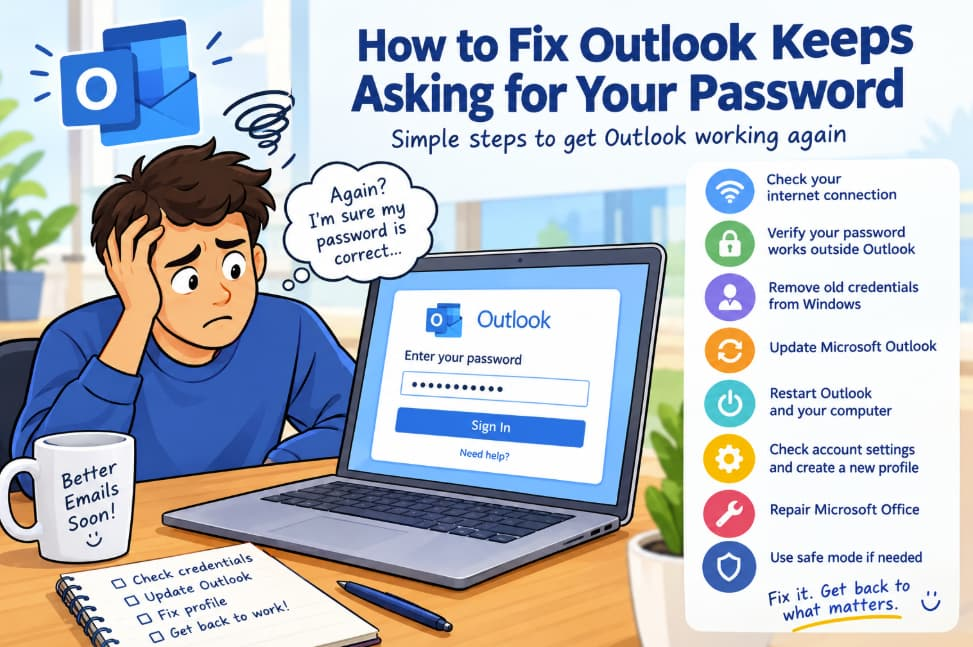
The Outlook keeps asking for your password problem can be annoying, especially when you’re certain that you’re entering the correct password. Fortunately, the issue is often caused by something relatively simple, such as an outdated saved credential, an old Outlook profile, or a temporary authentication problem.
Start with the basics: check your internet connection, confirm that your password works through your email provider’s website, and update Outlook. If that doesn’t work, remove outdated Windows credentials, create a new Outlook profile, or repair Microsoft Office.
For work and school accounts, remember that authentication policies can be controlled by your organization. If the problem started after a password change or security-policy update, your IT administrator may need to investigate the account.
The key is to avoid changing multiple settings at once. Work through the fixes methodically, and you’ll have a much better chance of identifying what’s causing the repeated password prompt.
Extra posts:
 How to Fix Outlook Notifications Not Working: A Complete Troubleshooting Guide
  Why Outlook Locks You Out After Deleting Thousands of Emails — And How to Fix It Fast
  How to Fix Copilot Not Working in Outlook: Easy Troubleshooting Guide
  Create Poll in Office outlook and outlook.com
  How to Resolve Common Microsoft Outlook Issues
  Outlook Mobile Is Getting Smarter: Emails Will Automatically Inherit Sensitivity Labels From Attachments