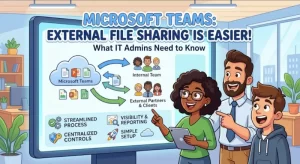
Microsoft Teams is changing how users share files with people outside their organizations. Starting in late October 2026, Microsoft will begin enabling file attachments and drag-and-drop sharing by default in external, or federated, Teams chats, with the rollout expected to finish by late November.
The change affects organizations that have left the relevant Teams file-sharing policy in its default state. Users in external one-to-one chats, group chats and meeting chats will be able to use the familiar paperclip attachment option or drag files directly into a conversation.
For IT and security teams, however, this is more than a small interface improvement. The update changes the default behavior around external file sharing, while leaving the underlying OneDrive and SharePoint security controls in place.
What Microsoft is changing
Until now, organizations generally had to explicitly enable file sharing in external Teams chats before users could attach files directly. Users could still paste links to files they already had stored in OneDrive or SharePoint, but the workflow was less direct.
Microsoft is now reversing that default for tenants that have not explicitly configured the relevant setting.
Once the update reaches a tenant, users will be able to:
- Attach files using the paperclip icon.
- Drag and drop files directly into external chats.
- Share files in external one-to-one, group and meeting chats.
- Have Teams automatically assign the required permissions for files shared through the attachment or drag-and-drop experience, where existing policies allow it.
- Review, change or revoke permissions before or after sharing.
The rollout covers Teams desktop and web experiences and is scheduled for both Targeted Release and General Availability, including Worldwide, GCC, GCC High and DoD environments.
When will the change arrive?
Microsoft’s updated Message Center notice, MC1479514, says the rollout will begin in late October 2026 and is expected to complete by late November 2026.
That gives administrators a relatively short window to confirm their policies and decide whether the new default fits their organization’s external collaboration model.
The important point is that organizations should not assume a previous configuration will necessarily preserve the old experience indefinitely. Microsoft specifically says tenants that want external file attachments to remain disabled need to explicitly configure the setting rather than rely on the former default.
What happens to uploaded files?
One of the most important details is where files actually live.
When a user uploads a file from their device through the Teams attachment or drag-and-drop experience, the file is stored in the sender’s OneDrive. If a user shares a file that is already stored in the cloud, the file remains in its existing OneDrive or SharePoint location.
Teams then handles the sharing experience by assigning permissions to participants when automatic permission assignment is enabled.
This distinction matters because Teams is not becoming a separate file-storage system. Instead, the chat interface is becoming a simpler front end for sharing content that continues to be governed by Microsoft’s existing cloud-storage and identity controls.
Microsoft’s documentation also makes clear that enabling Teams file sharing does not override existing OneDrive or SharePoint sharing restrictions. Sensitivity labels, domain restrictions and other security protections continue to apply.
Automatic permissions are the biggest practical change
For users, the most noticeable improvement may be the paperclip icon. For administrators, the more consequential change is likely to be automatic permission assignment.
Previously, an employee could have a file ready to send but still need to manually configure access for an external recipient.
With the new attachment workflow, Teams can automatically assign the necessary permissions to external chat participants, subject to the organization’s existing policies.
The sender still retains control. Microsoft says users can review, modify or remove access before sending, and permissions can also be changed or revoked after the file has been shared.
There is also an important distinction between a newly attached file and an existing link.
Pasting a file link does not trigger the same automatic permission-assignment behavior. A pasted link continues to use the file’s existing permissions. That means users could have two different sharing experiences depending on whether they attach a file or paste a link.
What isn’t changing
The announcement may sound like Microsoft is broadly opening the door to external file sharing, but the underlying security architecture remains largely intact.
Existing controls in OneDrive and SharePoint continue to determine whether external recipients can actually access content.
That includes organizational sharing restrictions and security measures such as:
- Sensitivity labels
- Domain restrictions
- Existing OneDrive and SharePoint sharing policies
- Malicious-link protections
- Other applicable access restrictions
Microsoft’s documentation emphasizes that enabling file sharing in Teams does not override those controls.
This is an important distinction for security teams. The Teams policy controls whether users get the attachment experience, while the organization’s broader Microsoft 365 sharing configuration still determines what recipients are ultimately allowed to access.
What administrators should check now
Organizations that use external Teams collaboration should review their configuration before the October rollout begins.
Microsoft recommends reviewing OneDrive, SharePoint and Microsoft Entra external-sharing settings and making sure they reflect the organization’s current collaboration requirements.
IT teams should also consider:
- Checking the current Teams file-sharing policy.
- Reviewing external sharing settings in OneDrive and SharePoint.
- Testing external chats with representative user accounts.
- Updating helpdesk documentation.
- Informing employees about the new attachment workflow.
- Reviewing security and compliance requirements for external collaboration.
- Confirming whether automatic permission assignment is appropriate.
Microsoft also notes that policy changes can take several hours to propagate before users see the resulting experience.
How to keep external attachments disabled
Organizations that do not want users to attach files directly in external Teams chats can explicitly disable the feature through Teams PowerShell.
The relevant command is:
Set-CsTeamsFilesPolicy -Identity Global -FileSharingInChatsWithExternalUsers DisabledAdministrators can verify the current setting with:
Get-CsTeamsFilesPolicy | Select Identity, FileSharingInChatsWithExternalUsersMicrosoft’s documentation confirms that the Teams file-sharing policy can be managed through PowerShell and that policy changes may take several hours to propagate.
There is also a separate control for automatic sharing permissions. Organizations can leave external file attachments available while disabling automatic permission assignment:
Set-CsTeamsMessagingPolicy -Identity Global -AutoShareFilesInExternalChats DisabledWith automatic permission assignment disabled, users may need to manually grant external recipients access before they can open shared files.
Why the distinction matters for security teams
The update creates a useful separation between collaboration convenience and access governance.
From a user’s perspective, sharing a document with an external colleague becomes much closer to sharing a document with an internal colleague: attach it, send it and let Teams handle the permission step where policy permits.
From an administrator’s perspective, however, the experience should be viewed as part of the organization’s wider external-sharing architecture.
The key questions are not simply whether Teams allows attachments, but:
Who can share? What can they share? Which external domains are permitted? What authentication is required? And what happens to the file after it has been shared?
Those answers continue to depend on Microsoft 365’s broader identity, SharePoint, OneDrive and security policies.
A small Teams change with a wider governance impact
Microsoft’s update is likely to be welcomed by users who regularly collaborate across organizational boundaries. Removing the need to switch to another sharing workflow or manually configure permissions can make external collaboration considerably smoother.
But the default change also illustrates a broader challenge for Microsoft 365 administrators: defaults matter.
An organization may have designed its external collaboration controls around a previously restrictive Teams default. Once that default changes, administrators need to know whether their intended security posture is still being enforced explicitly.
That is why the rollout should be treated as a policy review rather than simply a user-interface update.
What happens next?
The first major milestone is late October 2026, when Microsoft expects the new external attachment experience to begin rolling out. Completion is expected by late November.
Organizations that are comfortable with the change can allow the rollout to proceed while validating their existing OneDrive and SharePoint controls.
Those that want external attachments to remain disabled should explicitly configure the Teams policy and verify it before or during the rollout window.
The longer-term impact will likely depend less on the paperclip appearing in Teams and more on how organizations adapt their external-sharing governance. Microsoft is making the user experience simpler; administrators now need to make sure that simplicity remains aligned with their organization’s access and compliance policies.