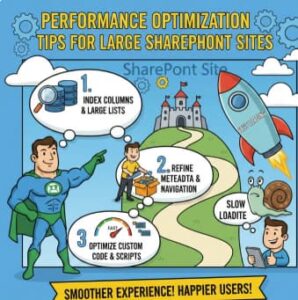
As SharePoint environments grow, performance issues are almost inevitable. What starts as a fast, responsive collaboration platform can slowly turn into a sluggish system with long page load times, delayed search results, and frustrated users. Large SharePoint sites—especially those with thousands of users, massive document libraries, and complex customizations—need deliberate performance optimization to stay healthy.
The good news? Most performance problems are predictable and fixable. In this post, we’ll walk through practical, technical performance optimization tips for large SharePoint sites, covering architecture, content management, search, customizations, and ongoing monitoring.
Whether you’re running SharePoint Online or SharePoint Server (on-premises), these best practices will help keep your environment fast, scalable, and user-friendly.
1. Start with a Scalable Information Architecture
Performance optimization begins long before users complain—it starts with how your site is designed.
Key Best Practices
- Avoid flat site structures with too many subsites under one root.
- Use hub sites to group related sites instead of deep subsite hierarchies.
- Break large business units into multiple site collections where possible.
Why It Matters
Large site collections with excessive subsites can cause:
- Slower permission checks
- Longer page render times
- Increased complexity during upgrades and migrations
A well-planned architecture distributes content and load more evenly across SharePoint.
2. Optimize Large Lists and Libraries (This Is Critical)
Large lists and document libraries are one of the most common causes of poor SharePoint performance.
Technical Steps
- Enable Indexed Columns
- Index frequently used columns such as
Created,Modified,Status, orCategory. - Index columns used in filters, views, and metadata navigation.
- Index frequently used columns such as
- Avoid the List View Threshold Trap
- Stay under 5,000 items per view.
- Use filtered views that rely on indexed columns.
- Use Folders Carefully
- Folders can help with organization, but don’t rely on them as a performance fix.
- Metadata-based navigation is usually better.
- Split Very Large Libraries
- Libraries with 100,000+ items should be split by year, department, or content type.
Under Library setting:
Why It Matters
Every unindexed query forces SharePoint to scan more items, increasing load times and risking throttling—especially in SharePoint Online.
3. Reduce Page Load Time with Modern Pages
Modern SharePoint pages are faster—but they can still be misused.
Optimization Tips
- Limit the number of web parts per page (especially custom ones).
- Avoid loading multiple data-heavy web parts on a single page.
- Prefer out-of-the-box web parts over custom SPFx solutions when possible.
- Use lazy loading techniques in SPFx web parts.
Technical Insight
Each web part adds:
- Additional API calls
- JavaScript execution
- Rendering overhead
The fewer moving parts on a page, the faster it loads.
4. Optimize Customizations and SPFx Solutions
Custom code is powerful—but it’s also one of the biggest performance risks.
Best Practices
- Audit all SPFx web parts and extensions regularly.
- Remove unused or redundant solutions.
- Minimize API calls:
- Batch REST calls
- Use Microsoft Graph selectively
- Avoid blocking JavaScript (no long-running scripts on page load)
Pro Tip
Run browser developer tools and:
- Check network requests
- Identify slow scripts
- Measure Time to Interactive (TTI)
If a custom solution slows down every page, it’s time to refactor or retire it.
5. Improve Search Performance for Large Content Repositories
Search performance often degrades as content grows.
Technical Optimization Steps
- Use managed metadata instead of free-text columns.
- Create search scopes and result sources for targeted queries.
- Refine search schema:
- Map crawled properties to managed properties
- Make frequently searched properties searchable and refinable
- Clean up unused content—search indexes everything.
Why This Works
Efficient metadata and schema configuration reduces index bloat and speeds up query processing.
6. Control Permissions and Break Inheritance Carefully
Permissions directly impact performance.
Best Practices
- Avoid excessive unique permissions at item or folder level.
- Use SharePoint groups instead of assigning users individually.
- Audit permissions regularly and remove unused groups.
Technical Impact
Every unique permission increases:
- Security trimming complexity
- Page rendering time
- Search query evaluation cost
Large environments should keep permission structures as simple as possible.
7. Leverage CDN and Caching
Static content doesn’t need to be reloaded every time.
Optimization Techniques
- Enable Office 365 CDN for:
- Images
- CSS
- JavaScript files
- Use browser caching headers for static assets.
- Minimize and bundle CSS/JS files in SPFx solutions.
8. Monitor Performance Continuously (Not Just When Things Break)
Performance optimization is not a one-time task.
Tools to Use
- Microsoft 365 Admin Center
- SharePoint Usage Reports
- Azure Application Insights (for custom solutions)
- Page diagnostics for SharePoint
What to Monitor
- Page load times
- API response times
- Search query performance
- User complaints and behavior patterns
Early detection prevents small issues from turning into major outages.
9. Clean Up Content Regularly
Content sprawl slows everything down.
Cleanup Strategy
- Archive old documents to separate sites or external storage.
- Apply retention policies.
- Remove unused workflows, lists, and features.
Technical Steps
1. Use Indexed Columns (This Is Mandatory)
Without indexed columns, SharePoint must scan the entire list—boom, threshold error.
Technical Steps
- Go to List or Library Settings
- Click Indexed Columns
- Click Create a new index
- Choose a column:
- Created
- Modified
- Status
- Department
- Content Type
- Save
Rules to Remember
- Index columns before the list grows large
- Single-column indexes work best
- Compound indexes help when filtering on multiple columns
📌 Why this works:
Indexed columns allow SQL to seek instead of scan, keeping queries efficient.
2. Filter Views Using Indexed Columns Only
A view without filters will try to load everything.
Correct Way to Create a View
- Go to Create View
- Choose Standard View
- Under Filter, set conditions like:
Created is greater than [Today] - 365Status equals ActiveDepartment equals Finance
- Ensure the filtered column is indexed
What NOT to Do
❌ Filtering on non-indexed columns
❌ Using “Contains” on large text fields
❌ Sorting on unindexed columns
📌 Golden rule:
The first filter applied must use an indexed column.
3. Use Date-Based Filtering (Best Practice)
Date columns are perfect for large libraries.
Example: Year-Based Views
Create views like:
- Documents – 2024
- Documents – 2023
- Documents – Older
4. Enable Metadata Navigation and Filtering
This lets users filter before hitting the threshold.
Technical Setup
- Go to List Settings
- Click Metadata navigation settings
- Add indexed columns to:
- Navigation Hierarchy
- Key Filters
- Save
Result
- SharePoint dynamically builds safe queries
- Users can drill down without errors
- No need to create dozens of static views
📌 This feature is specifically designed to handle large lists.
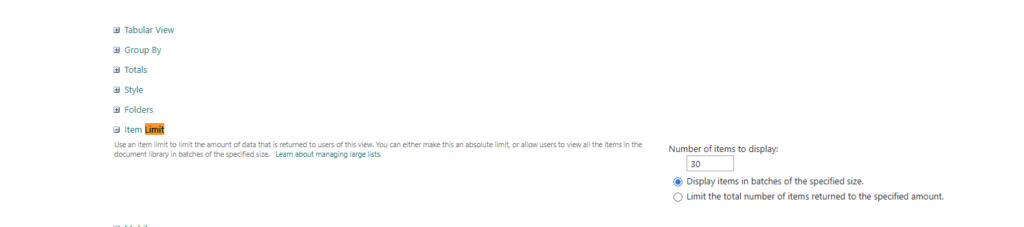
5. Limit Items Returned in Views
You can explicitly cap how many items load.
Steps
- Edit a view
- Scroll to Item Limit
- Set:
- Number of items to display:
100or500 - Display items in batches
- Number of items to display:
⚠ Important:
This helps UX but does NOT replace filtering.
If the underlying query still hits 5,000 items, you’ll still get blocked.
6. Use Folders Strategically (But Don’t Abuse Them)
Folders can help if used correctly.
Safe Folder Pattern
- One top-level folder per year or department
- Each folder contains fewer than 5,000 items
What to Avoid
❌ Deep nested folders
❌ Dumping 50,000 items into one folder
📌 Folders reduce query scope, but metadata is still more flexible long-term.
7. Split the Library When It’s Too Large
If optimization fails, split the data.
Options
- One library per year
- One library per department
- Archive old content to a separate site
Rule of Thumb
If a library exceeds 100,000 items, splitting is usually the healthiest option.
8. Use Search for Bulk Access (Bypasses Threshold)
Search does not use list view thresholds.
When to Use Search
- Finding older documents
- Cross-library queries
- Bulk reporting
Technical Tip
Create Search Result Pages or PnP Search Web Parts for power users.
9. Common Mistakes That Trigger Threshold Errors
🚫 Sorting by non-indexed columns
🚫 Grouping views on large lists
🚫 Using calculated columns in filters
🚫 Applying OR conditions on non-indexed fields
🚫 Power Automate flows querying entire libraries
Quick Technical Checklist
✔ Indexed columns created
✔ Views filtered on indexed fields
✔ No unfiltered default views
✔ Metadata navigation enabled
✔ Item limit set (optional)
Large SharePoint sites don’t become slow overnight. Performance issues build up over time through poor architecture, oversized libraries, unmanaged customizations, and unchecked content growth.
By focusing on:
- Smart information architecture
- Optimized lists and libraries
- Lean customizations
- Search tuning
- Continuous monitoring
You can keep even the largest SharePoint environments fast, scalable, and enjoyable to use.
Performance optimization isn’t about one magic fix—it’s about consistent, thoughtful maintenance.
Extra posts:
 Follow SharePoint Online Sites
  Leveraging SharePoint for Performance Tracking Monitoring Team and Project Progress
  A Complete Guide to Migrating from Google Sites to SharePoint Online
  Microsoft SharePoint Migration Tool now supports SharePoint Server 2010 available
  SharePoint Framework (SPFx) The Modern Development Model for SharePoint
  Best Travel Sites for Vacation Planning