
Ransomware is one of the most dangerous types of malware people face today. It locks your files and demands payment to release them. Many users think ransomware only affects businesses, but home computers are just as much at risk. Cyber-criminals often spread ransomware through websites, email attachments, or fake downloads. If your computer is not protected, you could lose important photos, documents, and personal information in seconds.
Thankfully, Windows 11 includes powerful ransomware protection features built right into the system. You do not need expensive paid antivirus tools to stay safe—Microsoft provides strong protection that only needs a little setup. In this guide, we explain step-by-step how to turn on ransomware protection in Windows 11, what features are included, and some extra tips to keep your files safe.
What is Ransomware?
Before we set up protection, it helps to understand what ransomware is. Ransomware is a type of malware that:
- Infects your computer
- Locks or encrypts your files
- Shows a message asking for money (a ransom)
- Threatens to delete your files if you do not pay
Even if someone pays, there is no guarantee they will get their files back. That is why prevention is always better than trying to recover after an attack. Windows 11 has a built-in feature called Ransomware Protection, located inside Windows Security, to protect your important files before something goes wrong.
Built-In Ransomware Protection in Windows 11
Windows 11 includes several layers of security. The main tool for ransomware defense is:
Controlled Folder Access
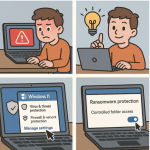
This tool stops suspicious apps from changing your protected files. If a strange app tries to access files in protected folders, Windows blocks it immediately and shows a warning. Even if ransomware slips past other security tools, Controlled Folder Access can stop it from locking your files.
How to Turn On Ransomware Protection in Windows 11
Now let’s go through the steps to enable it:
Step 1 – Open Windows Security
- Click the Start button
- Type Windows Security
- Click the app to open it
Step 2 – Open Virus & Threat Protection
Inside Windows Security, click Virus & threat protection. This section controls malware defenses and scanning tools.
Step 3 – Find Ransomware Protection
Scroll down the page until you see Ransomware protection. Click the link to open it.
Step 4 – Enable Controlled Folder Access
You will now see the main ransomware settings page. Find Controlled folder access and turn the toggle On. Windows may ask for permission from an administrator—click Yes to confirm.
Once activated, this feature starts protecting your files immediately.
Customizing Ransomware Protection Settings
1. Add More Folders to Protect
Windows automatically protects important system folders, such as:
- Documents
- Pictures
- Videos
- Music
However, you may have files stored in other folders—for example, on the desktop or in a custom project folder. To protect them:
- Under Controlled Folder Access, click Protected folders
- Click Add a protected folder
- Browse and choose the folder you want to secure
Now ransomware cannot modify files inside that folder without your permission.
2. Allow Apps You Trust
Sometimes Windows may block a safe app that needs access to your folders. For example, video editing or backup apps might need permission. If that happens:
- Go back to the Controlled Folder Access settings
- Click Allow an app through Controlled folder access
- Choose the app you trust
This keeps protection active while letting your programs work normally.
Turn On Cloud-Based Protection
Windows Security also includes cloud-based protection and real-time scanning. These help Microsoft detect new malware threats faster.
To check if they are on:
- Open Windows Security
- Click Virus & threat protection
- Click Manage settings under Virus & threat protection settings
Make sure the following are turned On:
- Real-time protection
- Cloud-delivered protection
- Automatic sample submission
Together, these tools make your system much harder for ransomware to attack.
Enable OneDrive Backup for Extra Safety
Even with strong protection, it is possible for malware to sneak through. That is why backups are important. Windows 11 works well with OneDrive, a cloud backup service that can automatically save your files online. If something goes wrong, you can restore your folders later.
To set up OneDrive backup:
- Open Settings
- Go to Accounts
- Select Windows Backup
- If OneDrive is not active, sign in and set up backup
This gives you another layer of security because even if ransomware encrypts your files, you can restore clean versions from the cloud.
How to Stay Safe from Ransomware – Extra Tips
Windows 11 protection is strong, but your habits also matter. Follow these tips:
- Do not open email attachments from unknown senders
- Avoid unofficial download websites
- Keep apps and Windows updated
- Use a strong antivirus if available
- Do not click suspicious links
- Use a strong password or password manager
Cyber-criminals often trick users into installing ransomware without realizing it. Safe browsing habits can make a huge difference.
What If You Get Infected Anyway?
If ransomware has infected your computer:
- Disconnect from the internet immediately
- Open Windows Security and run a Full scan
- Check backups to see if your files can be restored
- Do not pay the ransom—there is no guarantee
You can contact professional support if necessary, but having protection enabled early keeps you out of most trouble.
Ransomware is a serious threat, but Windows 11 gives users effective protection tools for free. By turning on Controlled Folder Access, enabling real-time and cloud security features, and using good backup habits, you greatly reduce the risk of losing important files. The setup only takes a few minutes, but it can save you hours of stress and possibly years of memories stored on your device.
With everything working together—Windows security settings, safe browsing habits, and backup strategies—you can use your computer with confidence knowing your personal files are safe from ransomware attacks.
Extra posts:
 How to Enable Ransomware Protection in Windows 11
  Setting Up Windows Hello Face and Fingerprint Sign-In A Step-by-Step Guide
  The Complete Guide to Widgets in Windows 11
  Complete Guide to Windows 11 Themes and Wallpapers
  How to Build and Save Your Own Theme Pack in Windows 11 A Complete Guide
  Managing App Permissions for Better Privacy in Windows 11 A Complete Guide