
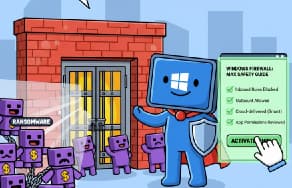
Windows computers are used everywhere—at home, in schools, and in businesses. Because they are connected to the internet, they face many security risks such as malware, hackers, and network attacks. One of the most important built-in security tools in Windows is Windows Firewall. When configured correctly, it can protect your system from unwanted access and keep your data safe.
In this blog, we will explain what the Windows Firewall is, why it matters, and how to configure it step by step for maximum safety.
What Is Windows Firewall?
Windows Firewall is a security feature built into the Windows operating system. Its main job is to control incoming and outgoing network traffic.
Think of it like a digital security guard. It checks who or what is trying to enter or leave your computer network and decides whether to allow or block the connection.
Some of the tasks Windows Firewall handles include:
- Blocking suspicious programs
- Preventing unauthorized users from accessing your computer
- Controlling which applications can access the internet
- Managing network access in home, work, or public locations
Because it works in the background, many users never notice it running. But having it properly configured is very important.
Why Configure Windows Firewall?
Even though the firewall is enabled by default, the basic settings might not offer the strongest protection. Configuring Windows Firewall makes your system safer in several ways:
1. Blocks hackers and malicious traffic
Cyber-attacks often begin by scanning for open ports in your system. A properly configured firewall can close those doors before anything harmful can get through.
2. Controls which apps can communicate online
Many programs try to connect to the internet without asking. Windows Firewall lets you decide which apps should be allowed or blocked.
3. Helps protect personal and business data
If an unauthorized program tries to send information from your computer, the firewall can stop it.
4. Offers protection on different networks
For example:
- Home networks are usually safer
- Public networks (cafés, airports) are more dangerous
The firewall can behave differently depending on where you are connected.
How to Open Windows Firewall
Before configuring anything, you need to open the firewall settings:
- Click the Start Menu
- Type Windows Security and open it
- Select Firewall & network protection
From here, you can see your active network and firewall status.
How to Configure Basic Firewall Settings
1. Check if the Firewall is On
In the Firewall window, look at three network types:
- Domain network
- Private network
- Public network
Make sure each one shows “Firewall is on.” If not, click and turn it on.
2. Configure Allowed Apps
Some applications need internet access to work, such as browsers, video conferencing tools, or online games. But others might not be safe. To manage allowed apps:
- In the Firewall menu, click Allow an app through firewall
- Press Change settings
- Review the list of apps
- Check or uncheck apps based on whether you trust them
As a rule:
- Allow apps only if needed
- Never allow unknown or suspicious programs
3. Adjust Notifications
Windows Firewall can notify you when a program tries to connect to the internet. To enable notifications:
- Go to Firewall & network protection
- Click Firewall notification settings
- Turn on notifications for all network types
This ensures you are always informed when new applications want access.
Advanced Configuration for Maximum Safety
1. Using Advanced Security Panel
Windows also includes Windows Defender Firewall with Advanced Security, which gives deeper control. To open it:
- Search for Advanced Firewall in the Start Menu
Here, you can control:
- Inbound rules – incoming connections
- Outbound rules – outgoing traffic
- Connection security rules
This area is powerful and perfect for advanced users or business environments.
2. Create Custom Firewall Rules
You can block or allow connections based on:
- Application
- Port number
- Specific network addresses
For example, to block outbound traffic for a specific app:
- Go to Outbound Rules
- Click New Rule
- Choose Program
- Select the application’s file
- Choose Block the connection
- Apply to all profiles
- Name the rule and save
This helps prevent unauthorized apps from sending data.
3. Block Unused Ports
Hackers often scan for open ports. If you do not use certain ports, block them:
- Go to Inbound Rules → New Rule
- Choose Port
- Select TCP or UDP
- Enter port numbers
- Choose Block the connection
Blocking unused ports reduces attack surfaces.
4. Enable Logging for Monitoring
Firewall logs help you track suspicious activity. To turn on logging:
- Open Advanced Firewall
- Right-click Windows Firewall Properties
- Go to Logging
- Enable logging and choose file location
This can help detect hacking attempts or blocked software.
Best Security Practices
Keep Your System Updated
Firewall protection is strongest when Windows is up to date. Always install updates promptly.
Use Antivirus Alongside Firewall
Windows Firewall is strong, but working with antivirus software provides stronger defense.
Avoid Allowing Unknown Apps
If you don’t recognize a program asking for access—block it.
Use Public Networks Carefully
In public Wi-Fi:
- Disable file sharing
- Keep firewall enabled
- Avoid sensitive activities if possible
Windows Firewall is a powerful tool that provides essential security for your computer. With the right configuration, it can block attackers, control network activity, protect personal information, and help keep your system safe.
By following the steps in this guide—such as enabling notifications, managing allowed apps, setting custom rules, and enabling logging—you gain stronger control over your digital security.
You do not need to be a technical expert. Even basic settings can make a big difference. With proper configuration, Windows Firewall becomes a strong and reliable defense that protects you every time you connect to the internet.
Extra posts:
 How to Set Up Parental Controls with Microsoft Family Safety
  Best Practices for Configuring Administrative Roles Secure, Scalable, and Sensible
  Best Prompts to Use with Microsoft 365 Copilot for Maximum Efficiency
  Action Required New Power Apps Endpoint Requires Firewall Update by March 31, 2025
  How to Move the Start Menu to the Left in Windows 11 (Like Windows 10 Style)
  Setting Up Windows Hello for Faster Logins in Windows 11