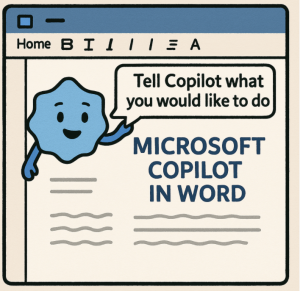
In today’s fast-paced digital world, writing isn’t just about putting words on a page—it’s about doing it faster, smarter, and with more impact. Whether you’re drafting a report, creating content for your business, or just trying to get through your academic writing, Microsoft Copilot in Word can be a powerful partner in the process.
Here’s how Copilot is changing the way we write—and how you can start taking full advantage of it.
What is Microsoft Copilot?
Microsoft Copilot is an AI-powered writing assistant built directly into Microsoft 365 apps like Word, Excel, PowerPoint, and Outlook. It’s powered by advanced large language models (like GPT-4) and trained on a massive corpus of data. In Word, Copilot helps you generate content, refine drafts, summarize documents, and even suggest better wording—right within your writing environment.
It’s not just spell check 2.0—it’s like having an intelligent co-author that understands your goals.
Key Features of Copilot in Word
Here’s what you can do with Copilot in Word:
1. Generate Drafts
Staring at a blank page? Just type a prompt like “Draft a cover letter for a marketing job” and Copilot will generate a solid starting point. You can tweak the tone, structure, or length, and regenerate until it fits your needs.
2. Rewrite or Improve Text
Select a paragraph and ask Copilot to “make it more concise” or “change tone to professional.” It’s a huge time-saver for editing, especially when working under tight deadlines.
3. Summarize Long Documents
Need to quickly understand a long report or proposal? Copilot can summarize key points in seconds, helping you focus on what matters most without reading line-by-line.
4. Insert Data and Context from Other Files
Copilot can pull information from other Microsoft 365 documents, emails, or calendars to help you write in context. For example, if you’re writing a status update, it can incorporate recent project milestones automatically.
5. Brainstorm Ideas
Need title ideas for a blog post? A catchy opening line? A list of pros and cons? Copilot can assist with idea generation, making it a great tool for creatives and content marketers.
How to Use Copilot in Word
Using Copilot is simple:
- Open Microsoft Word (desktop or web).
- Look for the Copilot icon (usually top right).
- Click it and type your prompt or select existing text to improve.
- Review and edit Copilot’s suggestions to suit your voice and goals.
You’re always in control. Think of Copilot as your brainstorming partner—not a replacement for your ideas, but a way to amplify them.
Why It’s a Game-Changer
✅ Boosts Productivity
You can go from concept to draft in minutes, cutting down hours of writing time.
✅ Improves Quality
With grammar fixes, tone adjustments, and style suggestions, your writing sounds more polished and professional.
✅ Reduces Writer’s Block
Stuck on what to say next? Copilot gets the words flowing again.
✅ Customizable and Context-Aware
Unlike generic AI tools, Copilot understands your Microsoft 365 data (when allowed), helping it provide smarter, more relevant suggestions.
Tips to Get the Most Out of Copilot
- Be specific with prompts. “Write an executive summary for a sales pitch” works better than “write something.”
- Always review the output. Copilot is smart but not perfect. Make sure it aligns with your intent.
- Use it as a learning tool. Watch how it structures content and suggests phrasing—you can learn from its style over time.
- Combine with your expertise. The best results happen when you blend Copilot’s speed with your personal touch.
Microsoft Copilot in Word is not just a writing assistant—it’s a writing accelerator. Whether you’re a student, a professional, or a creative, it can help you write faster, smarter, and with more confidence. As AI continues to evolve, tools like Copilot will become even more powerful—and those who learn to use them now will have a serious edge.
So next time you open Word, don’t go it alone. Let Copilot help you bring your best writing to life.
Extra posts:
 Win More Bids How to Use GitHub Copilot to Write Winning RFP Responses Faster Work Smarter, Not Harder Automating Repetitive Tasks with Microsoft 365 Copilot
  How AI is Transforming DevOps Smarter, Faster, and More Reliable Software Delivery
  How to Ask Copilot to Improve Tone and Clarity in Microsoft Word
  Smarter Note-Taking and Better Organization with Microsoft OneNote and Copilot
  The Best AI Photo Editing Software in 2025 Smarter, Faster, and Stunning