
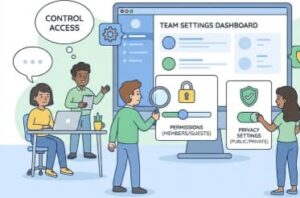
In today’s remote and hybrid work environment, collaboration tools like Microsoft Teams have become the backbone of daily communication. From quick chats to full-scale project collaboration, Teams makes it easy for people to work together. However, with great convenience comes great responsibility. If permissions and privacy settings are not managed properly, organizations can face issues such as data leaks, unauthorized access, and general confusion among team members.
Managing Teams permissions and privacy settings is not just an IT task—it’s a critical part of maintaining productivity, security, and trust within your organization. In this blog, we’ll explore how Teams permissions work, why privacy settings matter, and practical steps you can take to manage them effectively.
Understanding Microsoft Teams Permissions
Before you can manage permissions, it’s important to understand how Microsoft Teams structures access and control. Permissions in Teams are primarily role-based, meaning what a user can do depends on the role assigned to them.
Team Roles Explained
Microsoft Teams has three main roles:
- Owners
Owners have full control over the team. They can add or remove members, change team settings, manage channels, and adjust privacy options. Typically, team creators or managers are assigned this role. - Members
Members can participate in conversations, share files, and collaborate within the team. Depending on the settings defined by the owner, members may also be allowed to create channels or add apps. - Guests
Guests are external users invited to collaborate. Their permissions are limited by default, making this role ideal for vendors, partners, or clients who need temporary or restricted access.
Understanding these roles is the foundation of effective permission management. Assigning the right role to the right person helps prevent accidental changes and protects sensitive information.
Why Privacy Settings Matter in Teams
Privacy settings control who can see a team, join it, and access its content. Poorly configured privacy options can expose internal discussions or confidential files to unintended audiences.
Types of Teams: Public vs. Private
- Public Teams
Anyone within your organization can find and join a public team. These are useful for open collaboration, company-wide initiatives, or knowledge-sharing groups. - Private Teams
Private teams require approval from an owner to join. They are ideal for departments, leadership groups, or projects involving sensitive information.
Choosing between public and private should always be a deliberate decision based on the nature of the work and the data involved.
Managing Team Permissions Step by Step
1. Assign Owners Carefully
Every team should have at least two owners. This ensures continuity if one owner leaves the organization or becomes unavailable. Owners should be trusted individuals who understand both the collaboration goals and security implications.
2. Control Member Capabilities
Team owners can decide what members are allowed to do. For example, you can:
- Allow or restrict members from creating or deleting channels
- Prevent members from editing or deleting messages
- Control whether members can add apps or bots
These settings are especially useful in large teams where unrestricted permissions could lead to clutter or misuse.
3. Manage Guest Access Thoughtfully
Guest access is a powerful feature, but it should be used cautiously. When inviting guests:
- Ensure guest access is enabled at the organization level
- Limit what guests can do within teams and channels
- Regularly review and remove guests who no longer need access
A good practice is to periodically audit guest accounts to maintain security and compliance.
Channel-Level Privacy and Permissions
Channels are where most collaboration happens, and they also have their own privacy considerations.
Standard Channels
Standard channels are visible to all team members. They work well for general discussions and shared resources.
Private Channels
Private channels allow a subset of team members to collaborate privately. Only selected users can see and participate in these channels. This is useful for sensitive discussions within a larger team.
Shared Channels
Shared channels enable collaboration with people outside the team or even outside the organization, without granting them full team access. While convenient, shared channels should be monitored closely to ensure data is shared appropriately.
Managing File and Data Privacy
Since Microsoft Teams is tightly integrated with SharePoint and OneDrive, file permissions play a major role in privacy management.
- Files shared in a team are stored in SharePoint
- Private channel files are stored in separate SharePoint sites
- Chat files are stored in OneDrive
Team owners should regularly review file permissions and ensure that sensitive documents are not accessible to unauthorized users. Using clear folder structures and naming conventions can also reduce accidental sharing.
Best Practices for Teams Permissions and Privacy
To keep your Teams environment secure and easy to manage, consider these best practices:
- Follow the principle of least privilege: Give users only the access they need to do their jobs.
- Review permissions regularly: Teams evolve over time, and permissions should evolve with them.
- Train team owners: Make sure owners understand how to manage settings responsibly.
- Use naming conventions: Clear team and channel names help users understand purpose and sensitivity.
- Document policies: Establish guidelines for when to use public vs. private teams and how to invite guests.
Common Mistakes to Avoid
Even experienced administrators can make mistakes. Some common pitfalls include:
- Assigning too many owners, which can lead to inconsistent settings
- Leaving inactive users or guests in teams
- Creating too many private channels, making collaboration harder
- Ignoring organization-wide Teams policies
Being aware of these issues can help you avoid security gaps and operational inefficiencies.
Managing Teams permissions and privacy settings is an ongoing process, not a one-time setup. As teams grow, projects change, and new people join, permissions must be reviewed and adjusted accordingly. When done right, proper permission and privacy management empowers collaboration while protecting your organization’s data.
By understanding roles, configuring privacy settings thoughtfully, and following best practices, you can create a Microsoft Teams environment that is both secure and productive. Whether you’re a team owner, IT administrator, or business leader, investing time in managing these settings will pay off in the long run.
Extra posts:
 Microsoft Teams Tightens Meeting Privacy: Lobby Visibility Will Now Follow Admission Permissions
  How to Create and Manage Approvals Flow in Microsoft Teams
  Microsoft Teams Is Getting a Smarter Way to Manage Channel Notifications
  Windows 11 Privacy Settings You Should Change Right Now
  Managing App Permissions for Better Privacy in Windows 11 A Complete Guide
  How do I manage app permissions in Windows 11?