

Most people use Outlook for sending and receiving emails… and that’s about it. But buried inside are tools that can save you time, keep you organized, and make your workday smoother. Here are 10 features you probably didn’t know you needed — and exactly how to use them.
1. Delay or Schedule Email Delivery
Ever wanted to write an email now but send it later? Outlook lets you schedule messages.
How to do it:
- Compose your email as usual.
- In the message window, click Options → Delay Delivery.
- Under Delivery options, check Do not deliver before and choose a date and time.
- Click Close, then send the email — it will stay in your Outbox until the scheduled time.
2. Use Email Templates for Repeated Messages
If you send similar emails often, save them as templates to reuse.
How to do it:
- Write the email.
- Go to File → Save As.
- Choose Outlook Template (*.oft) and save.
- To use it later: Home → New Items → More Items → Choose Form → pick your template.
3. Color-Code Emails Automatically with Conditional Formatting
Make important emails stand out without manually tagging them.
How to do it:
- Go to View → View Settings → Conditional Formatting.
- Click Add, name your rule, and choose a color.
- Click Condition, set your criteria (e.g., emails from your manager), then save.
4. Ignore Entire Email Conversations
Tired of reply-all chains? You can mute them.
How to do it:
- Select the email in the conversation.
- Go to Home → Ignore.
- All future replies will skip your inbox and head to Deleted Items.
5. Use Quick Steps for One-Click Actions
Quick Steps let you combine multiple actions (e.g., move email + mark as read + forward) into a single click.
How to do it:
- Go to Home → Quick Steps → Create New.
- Name it, add actions, and assign a shortcut key if you like.
- Select an email and run your Quick Step to save time.
6. Search Folders for Instant Organization
Search Folders are like virtual folders that show all emails matching certain rules without moving them.
How to do it:
- Go to Folder → New Search Folder.
- Choose from built-in options (e.g., “Mail from specific people”) or create a custom search.
- Access it from the navigation pane like a normal folder.
7. Drag and Drop Emails to Create Calendar Events
Turn any email into a meeting request instantly.
How to do it:
- Click and hold the email.
- Drag it to the Calendar icon in the navigation bar.
- Outlook will create a new event with the email’s content in the body.
8. Turn On Focused Inbox for a Cleaner View
Focused Inbox separates important emails from less critical ones.
How to do it:
- Go to View → Show Focused Inbox.
- Outlook will create two tabs: Focused and Other.
- Move emails between tabs to train it.
9. Convert Emails to Tasks
Stop using your inbox as a to-do list — make real tasks instead.
How to do it:
- Drag an email to the Tasks icon in the navigation bar.
- Set a due date, priority, and reminders.
- Save it — now it’s in your task list.
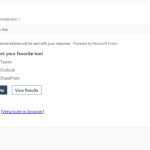
10. Use Voting Buttons for Quick Polls
Need a team decision fast? Let people vote directly from your email.
How to do it:
- Create a new email.
- Go to Options → Use Voting Buttons.
- Choose preset options or create your own (separated by semicolons).
- Recipients can click their choice, and Outlook will track responses.
Outlook isn’t just a mailbox — it’s a full productivity toolkit. Try one or two of these features this week, and you might never go back to your old email habits.
Extra posts:
 Lesser-Known Microsoft 365 Features That Save Hours (Beyond Teams and Outlook)
  How to Resolve Common Microsoft Outlook Issues
  Create Poll in Office outlook and outlook.com
  How to Roll Out Microsoft 365 Features Without Overwhelming Employees
  Accessibility Features in Microsoft 365 That Most Admins Forget to Enable
  How to Test and Roll Out New Features Without Disrupting Users in Microsoft 365