
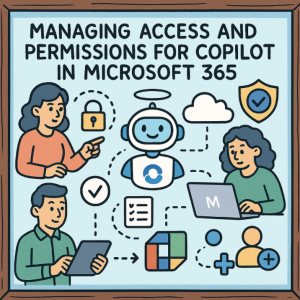
As Microsoft 365 Copilot becomes a central part of workplace productivity, organizations face a critical challenge: enabling powerful AI capabilities while keeping sensitive data secure. Managing access and permissions effectively ensures that Copilot delivers value without creating compliance or security risks. This guide walks you through the essential roles, tools, and best practices for controlling who can use Copilot, what data it can access, and how to govern its behavior across your Microsoft 365 environment.
1. Administrator Roles & Licensing Foundations
Managing Copilot access begins with assigning the right administrative roles:
- AI Admin, Global Admin, and Global Reader can configure Copilot agents and connectors in the Microsoft 365 admin center.
- Global Admin in Azure controls tenant-wide Copilot settings and per-user/group access.
- Copilot requires its own licenses, assigned to users through the admin center. Additional licenses may be necessary for advanced features like Microsoft Purview or SharePoint Advanced Management.
2. Managing Copilot Agents & Extensibility
Copilot agents—AI assistants that interact with your organization’s data—are managed via Integrated Apps in the admin center:
- Admins can enable, deploy, block, or assign agents at the tenant, group, or user level.
- The Copilot Control System offers a central location to manage agents and connectors.
- Extensibility settings let you limit agent usage to all users, no users, or specific groups.
- AI Administrators can be granted delegated permissions to register applications and consent to relevant Microsoft Graph API scopes for connectors.
3. Connectors & Access Permissions
Connectors integrate external data sources into Copilot Search. Their permissions are crucial to protecting data:
- Each connector can be configured to either respect source access control lists (ACLs) or make data visible to the entire organization.
- If permissions are set incorrectly, you may need to delete and recreate the connector—post-creation edits are not supported for certain configurations.
4. Access in Viva & Azure Environments
- In Viva apps, Copilot access can be enabled or disabled by default, or customized for specific users or groups.
- In Azure, Global Admins can toggle Copilot access and assign the Copilot for Azure User role, with all standard Azure RBAC and policy controls applying.
5. Security & Governance — Oversharing, Sensitivity, & Auditing
Data security is central to responsible Copilot deployment:
- SharePoint Advanced Management offers features like restricted access controls and scoped permission reports to limit sensitive content exposure.
- Sensitivity labels from Microsoft Purview can hide sensitive files from Copilot, even if a user normally has access.
- Purview provides auditing, retention, and prompt monitoring to maintain governance and compliance.
- Copilot always respects the user’s existing data access permissions—if a user cannot open a file, Copilot cannot surface it.
6. Practical Tips & Lessons Learned
- Watch for “anyone” links in Teams or SharePoint, as they can unintentionally expose content to Copilot.
- Configure cross-tenant access carefully if Copilot needs to work across organizations.
- Apply least-privilege principles when delegating permissions for connectors and AI Admin roles.
Conclusion: Best Practices at a Glance
| Category | Key Takeaways |
|---|---|
| Roles & Licensing | Assign appropriate roles and ensure Copilot and related licenses are in place. |
| Agents & Extensibility | Use admin tools to control deployment, sharing, and operation of agents. |
| Connectors | Configure permissions correctly from the start to avoid recreating connectors. |
| App Access | Manage access through Viva and Azure settings for precise control. |
| Governance | Use Purview, sensitivity labels, and reporting to maintain security and compliance. |
| Community Tips | Monitor sharing links, enforce cross-tenant policies, and minimize permissions. |
By combining robust access controls, thoughtful permissions management, and vigilant governance, your organization can maximize the benefits of Microsoft 365 Copilot while keeping security and compliance firmly in place.
Extra posts:
 Best Prompts to Use with Microsoft 365 Copilot for Maximum Efficiency
  GPT‑5 Finally Arrives in Microsoft 365 Copilot
  Writing Effective Prompts for Microsoft 365 Copilot
  10 Ways Microsoft 365 Copilot Can Supercharge Your Daily Workflow
  How Microsoft 365 Copilot Is Changing Project Management in Teams
  Microsoft 365 Copilot and the Future of Visual Agent Is It Deprecated or Replaced?