
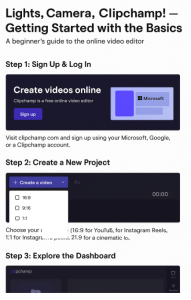
“Lights, Camera, Clipchamp! – Getting Started with the Basics”
If you’ve ever wanted to edit videos but felt overwhelmed by complicated software, you’re going to love Clipchamp. It’s Microsoft’s free, browser-based video editor designed for beginners and creators who want professional-looking videos without a steep learning curve.
This blog will walk you through the basics of getting started — from logging in to creating your very first project. Let’s dive in!
✨ Why Choose Clipchamp?
Clipchamp is perfect if you:
- Create content for YouTube, TikTok, Instagram, or business presentations
- Want a tool that runs in your browser with no downloads required
- Prefer a drag-and-drop editor that’s simple but powerful
Think of it as your personal video studio in the cloud.
🔑 Step 1: Sign Up & Log In
To begin, go to clipchamp.com.
- Click Sign up for free
- Choose to log in with:
- Your Microsoft account (best option for Windows users)
- Or create a standalone Clipchamp account
Once you’re logged in, you’ll land on the dashboard, your creative hub.
👉 Pro Tip: If you’re on Windows 11, Clipchamp is already built in — just search “Clipchamp” in your Start menu.
🎬 Step 2: Create a New Project
Now it’s time to start editing.
- Click the big purple Create a video button
- Choose your aspect ratio (this determines your video’s shape):
- 16:9 (landscape) → perfect for YouTube or presentations
- 9:16 (vertical) → ideal for TikTok, Instagram Reels, or Shorts
- 1:1 (square) → Instagram feed posts
- 21:9 (cinematic) → widescreen for dramatic videos
👉 Pro Tip: If you’re not sure which to choose, go with 16:9 — it’s the most versatile format.
🖥️ Step 3: Explore the Dashboard
Before jumping into editing, let’s get familiar with the workspace:
- Media Library (left side): where you upload your video clips, images, and audio
- Timeline (bottom): the heart of editing — drag and arrange clips here
- Toolbar (top left): access text, transitions, filters, and stock media
- Preview Window (center): play your video and see changes in real time
👉 Pro Tip: Clipchamp autosaves your project as you work, but it’s still smart to give your project a clear name (e.g., “Travel_Vlog_Intro”).
Congratulations! 🎉 You’ve taken your first steps into Clipchamp. You now know how to:
- Sign up and log in
- Start a new project with the right aspect ratio
- Navigate the dashboard confidently
In the next blog, we’ll move on to basic editing — trimming, cutting, and arranging clips to shape your story.
Extra posts:
 Mastering Clipchamp – From Beginner to Pro 2
  Mastering Clipchamp – From Beginner to Pro 3
  Mastering Clipchamp – From Beginner to Pro 4
  How to Record Audio and Screen Together in Windows 11: A Complete Beginner-to-Pro Guide
  How to Use Clipchamp A Beginner’s Guide
  Creating Videos Using Clipchamp and AI