
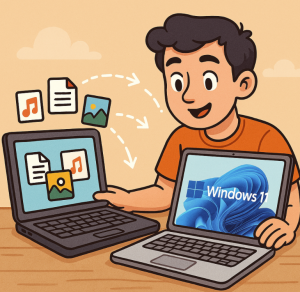
Upgrading to a shiny new laptop is exciting—but moving all your files, settings, and apps can feel overwhelming. The good news? With the right tools and steps, you can transfer everything from your old computer to your new Windows 11 laptop smoothly, without losing important data or having to reinstall all your apps manually.
Step 1: Prepare Both Laptops
Before you begin, make sure:
- Both laptops are updated with the latest Windows updates.
- Your old laptop is backed up (use an external hard drive, cloud storage, or both).
- You know your Microsoft account login details, since syncing with your account will simplify the process.
Step 2: Use Windows’ Built-In Tools
Windows 11 doesn’t have the old “Easy Transfer” tool, but you can still migrate your data in a few ways:
Option A: OneDrive for Files and Settings
If you use a Microsoft account, OneDrive is built-in and automatically syncs your files, documents, and even desktop settings.
- Sign in with the same Microsoft account on both laptops.
- Enable OneDrive sync on your old laptop (Settings → Accounts → Windows backup → Remember my apps and preferences).
- Once your new laptop is signed in, your files and preferences will begin downloading.
This method is best if most of your important files are in Documents, Pictures, Desktop, or OneDrive folders.
Option B: External Drive Transfer
If you prefer local storage:
- Plug in an external hard drive.
- Copy over important folders (Documents, Downloads, Desktop, Pictures, Music, etc.).
- Plug the drive into your new laptop and copy everything back.
This won’t move apps, but it’s a simple way to ensure no personal files are left behind.
Option C: PC-to-PC Transfer Tools
If you want to move apps and programs as well as files, you’ll need a third-party migration tool such as:
- Laplink PCmover – officially recommended by Microsoft for app transfers.
- Zinstall WinWin – copies apps, settings, and files to your new PC.
These tools save you the time of reinstalling each program one by one.
Step 3: Reinstall or Restore Your Apps
If you don’t use a migration tool for apps, you’ll need to reinstall them manually:
- For apps from the Microsoft Store: log in with your account → Open Microsoft Store → Library → Download your previous apps.
- For traditional desktop apps: visit the official websites or use your installation files/licenses.
Step 4: Double-Check After the Move
Once everything is set up:
- Browse through your new laptop and confirm your documents, photos, and key apps are there.
- Check browser bookmarks and passwords (use Chrome/Edge/Firefox sync to carry these over).
- Make sure your email accounts, Wi-Fi connections, and printers are set up again.
Bonus Tips for a Smooth Transition
- Back up your old laptop one last time before erasing or selling it.
- Export license keys for premium apps (use a tool like Belarc Advisor to scan them).
- Clean up your new laptop after migration by uninstalling bloatware and disabling startup apps.
Moving to a new Windows 11 laptop doesn’t have to be stressful. Whether you rely on Microsoft’s cloud sync, a simple external drive, or a migration tool that transfers apps as well, you can make the transition seamless.
With your files, apps, and settings ready to go, you can enjoy the speed and features of your new laptop right away—without missing a beat.
Extra posts:
 How to Run Windows 11 Smoothly on a 5- or 7-Year-Old Laptop/PC
  How to Transfer Files and Apps from Old PC to Windows 11
  Common Mistakes When Upgrading from Older Office Versions to Microsoft 365
  How to Move the Start Menu to the Left in Windows 11 (Like Windows 10 Style)
  Setting Up Windows Hello for Faster Logins in Windows 11
  Windows 11: What’s New Compared to Windows 10