Step-by-Step Optimizations for Low-Spec or Aging Hardware
If you are using an older laptop or desktop from around 2017 to 2019 you may have asked whether Windows 11 can run smoothly on your device. Good news it absolutely can as long as you set it up right. Many people report that a well optimized older system with Windows 11 actually performs better than Windows 10 because of the improved memory management and a cleaner overall interface.
In this blog, we will go through practical, step-by-step optimizations to help Windows 11 run fast and stable on aging hardware, including systems with older CPUs, mechanical hard drives, or limited RAM.
Whether your computer just barely meets the Windows 11 requirements or you installed it using a bypass method these steps will help you squeeze the most performance out of it.
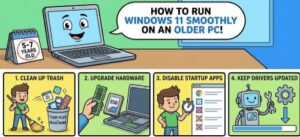
Step 1: Start With a Clean Windows 11 Installation
If your laptop/PC has been through years of updates, software clutter, or leftover Windows versions, the best way to restore performance is to start fresh.
Why a clean install?
- Removes bloatware and vendor apps
- Eliminates registry junk
- Saves disk space
- Restores baseline system responsiveness
If you have already installed Windows 11, consider running Reset this PC → Remove everything, which is simpler and often just as effective as a manual reinstall.
Step 2: Upgrade Your Hardware (The Two Best Improvements)
You do not need new hardware but a single upgrade can transform even a 10-year-old system.
1. Switch to an SSD (if you haven’t already)
This is the most noticeable performance upgrade you can make.
Signs you’re still on a mechanical HDD:
- Your laptop takes 2+ minutes to boot
- Apps take a long time to open
- The disk hits 100% usage in Task Manager
An SSD upgrade will:
- Reduce boot times to under 20 seconds
- Make the system feel dramatically faster
- Improve reliability
Even a cheap SATA SSD is a night-and-day difference.
2. Increase RAM (ideally to 8GB or 16GB)
Windows 11 can run on 4GB, but it will feel slow.
- For light work: 8GB is enough
- For multitasking or Chrome-heavy users: 16GB makes a major difference
RAM is inexpensive and easy to install on most laptops/desktops.
Step 3: Disable Startup Programs
This step alone can turn a struggling computer into a usable one.
- Open Task Manager
- Go to the Startup apps tab
- Disable anything you don’t need, such as:
- Xbox services
- Adobe Updater
- Spotify
- OneDrive (optional)
- Microsoft Teams
- Printer utilities
- OEM update tools
Choose Impact → High items to disable first.
Your system will boot noticeably faster.

Step 4: Turn Off Unnecessary Visual Effects
Windows 11 includes animations and transparency effects that look nice but slow down older GPUs and integrated graphics.
Turn off visual effects:
- Search “Adjust the appearance and performance of Windows”

Select Adjust for best performance
Or manually disable:
- Animations
- Shadows
- Transparency
Turn off transparency:
- Settings → Personalization → Colors
- Toggle Transparency effects OFF
This alone can improve responsiveness on older Intel HD graphics systems.

Step 5: Reduce Background Services
Windows 11 runs many services by default, but some can be safely disabled.
Disable optional features
- Settings → Apps → Optional Features
- Remove features you never use (Internet Explorer mode, legacy fonts, etc.)
Disable background apps
- Settings → Apps → Installed Apps
- Click apps → Advanced Options
- Under Background apps permissions, choose Never
You don’t need messaging apps, games, or cloud apps running all the time.
Step 6: Optimize Power Settings
Laptops, especially older ones, may throttle performance to extend battery life.
Set performance mode:
- Settings → System → Power & Battery
- Change Power mode to Best performance (or Balanced if you’re on battery)
Change advanced settings:
- Control Panel → Power Options
- Choose High performance
This ensures your older CPU isn’t held back.
Step 7: Keep Drivers Lightweight and Updated
For older PCs, it’s usually best not to rely on OEM “utility suites” or outdated vendor apps.
Update only:
- Chipset drivers
- GPU drivers
- Wi-Fi drivers
- Audio drivers
Avoid installing OEM bloatware like “support assistants” or “performance dashboards.” They often use more CPU and RAM than they help.
For older NVIDIA or AMD GPUs:
Use the Studio drivers instead of Game Ready ones—they’re more stable and consume fewer resources.
Step 8: Clean Up Your Disk
Old systems often struggle simply because storage is full.
Run Disk Cleanup
- Search Disk Cleanup
- Delete:
- Temporary files
- Windows update leftovers
- Recycle Bin
Clean with Windows 11 Storage Sense
- Settings → System → Storage
- Enable Storage Sense to automatically clear temp files.
Try to keep at least 15–20% free storage for Windows to run smoothly.
Step 9: Disable Widgets, Chat, and Other Heavy Features
Windows 11 includes modern UI features meant for newer machines.
Turn off these for better speed:
- Right-click taskbar → Taskbar settings
- Disable:
- Widgets
- Chat
- Task view (optional)
Disable Widgets fully:
Open Group Policy (if available):
- Computer Configuration → Administrative Templates → Windows Components → Widgets → Disable
This can reduce RAM usage and background CPU usage.
Step 10: Limit Windows Security Scans
Windows Security is essential, but on old machines it can be heavy.
Optimize scan schedule:
- Task Scheduler → Microsoft → Windows → Windows Defender
- Change triggers so scans run weekly instead of daily.
Avoid third-party antivirus—they use far more RAM/CPU.
Bonus Tips
Use Lightweight Apps
On older hardware, choose apps optimized for performance:
- Use Edge or Firefox instead of Chrome
- Use VLC instead of Movies & TV
- Use Notepad++ instead of heavier editors
Increase Virtual Memory
Set a manual paging file:
- System Properties → Performance → Advanced
- Virtual memory → Custom size
- Initial size: 4096
- Maximum: 8192
Helpful for systems with low RAM.
Running Windows 11 on a 5- or 7-year-old PC is absolutely possible and often surprisingly smooth with the right optimizations. By upgrading storage and RAM where possible, cleaning background tasks, disabling heavy visual features, and tuning power and startup settings, you can give your older machine a second life.
Whether you’re preparing for school, work, or general home use, these steps will help your aging hardware deliver a noticeably faster, more responsive Windows 11 experience.