
In today’s fast-paced business environment, executives don’t have time to sift through raw spreadsheets, scattered dashboards, or lengthy email threads. They need clear, concise, and data-driven insights fast. That’s where Windows 11 Copilot steps in.
With artificial intelligence now embedded directly into the operating system, organizations can transform how they gather, analyze, and present executive-level reports. Powered by innovations from Microsoft, Windows 11 Copilot acts as a built-in AI assistant that simplifies data analysis, accelerates report creation, and improves decision-making workflows.
In this article, we’ll explore how Windows 11 Copilot makes executive reporting easier, more accurate, and significantly more efficient along with practical technical steps you can follow today.
Why Executive Reporting Is Often Complicated
Before we dive into solutions, let’s briefly understand the problem.
Executive reporting typically involves:
- Collecting data from multiple departments
- Cleaning and validating large datasets
- Building visual dashboards
- Writing summaries and insights
- Formatting presentations for leadership meetings
This process is often manual, repetitive, and time consuming. Small inefficiencies add up quickly. Even worse, inconsistent reporting can lead to misinformed decisions.
Windows 11 Copilot changes this dynamic by bringing AI-powered assistance directly into your workflow.
What Is Windows 11 Copilot?
Windows 11 Copilot is an AI powered productivity assistant built into Windows 11. It integrates with Microsoft 365 apps like Excel, Word, PowerPoint, and Teams, helping users automate tasks, generate content, analyze data, and summarize information.
Instead of switching between multiple tools or manually creating executive summaries, users can:
- Ask natural-language questions about data
- Generate reports automatically
- Create charts and insights in seconds
- Convert raw data into executive-ready summaries
The result? Faster reporting cycles and more strategic focus.
How Windows 11 Copilot Simplifies Executive Reporting
Let’s break down its impact across the reporting lifecycle.
1. Automated Data Analysis in Excel
One of the most powerful applications of Copilot is inside Excel.
Instead of manually building formulas or pivot tables, you can type prompts like:
“Analyze quarterly revenue and highlight top-performing regions.”
“Create a forecast for the next two quarters based on historical trends.”
Copilot can:
- Generate pivot tables automatically
- Create data visualizations
- Identify trends and anomalies
- Suggest KPIs
This eliminates hours of manual spreadsheet manipulation.
Technical Steps: Using Copilot in Excel for Executive Insights
- Open your dataset in Excel (Microsoft 365 version).
- Click the Copilot icon in the ribbon.
- In the prompt box, type a command such as:
- “Summarize revenue growth by product line.”
- Review the generated summary and charts.
- Click Insert into Sheet to embed the analysis directly.
- Refine with follow-up prompts like:
- “Highlight risks and declining segments.”
Within minutes, you have analysis ready for leadership review.
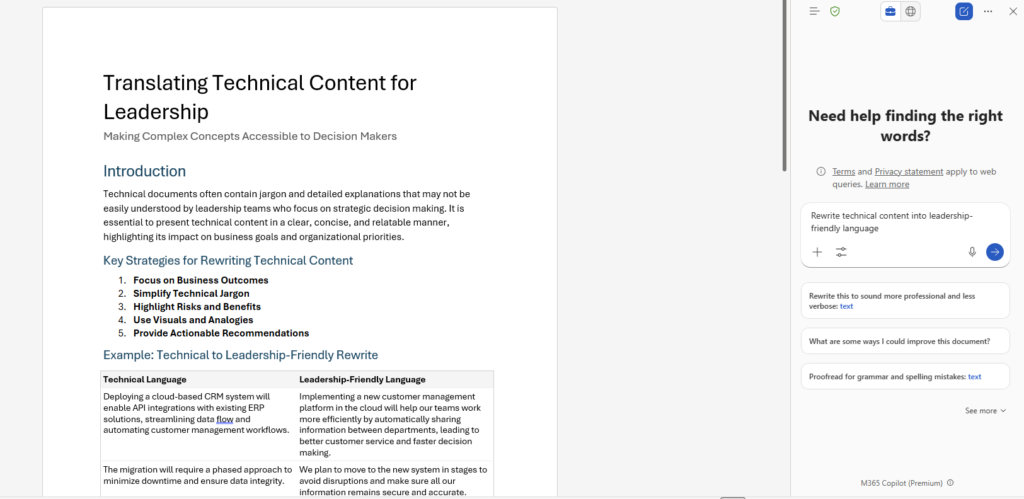
2. Executive Summaries in Word
Executives rarely want raw data—they want insights.
Copilot in Word allows you to:
- Convert analytical output into executive summaries
- Rewrite technical content into leadership-friendly language
- Adjust tone (formal, strategic, concise)
- Generate structured business reports
Technical Steps: Generating an Executive Summary
- Open a new Word document.
- Launch Copilot from the sidebar.
- Paste or reference your Excel data.
- Enter a prompt like: “Create a one-page executive summary highlighting key financial performance indicators, risks, and recommendations.”
- Review the draft.
- Ask Copilot to refine: “Make this more concise and board-ready.”
This reduces report-writing time dramatically while improving clarity.
3. Presentation-Ready Reports in PowerPoint
Creating leadership presentations used to mean hours of slide formatting.
With Copilot:
- Generate slides from a Word report
- Create charts automatically
- Add talking points
- Maintain consistent formatting
Technical Steps: Converting a Report into Slides
- Open PowerPoint.
- Click Copilot.
- Enter: “Create a 10-slide executive presentation from this document.”
- Attach your Word file.
- Review auto-generated slides.
- Adjust slide titles or visuals with prompts like: “Add a slide showing quarterly trend comparison.”
Now your executive deck is ready in a fraction of the time.
4. Real-Time Meeting Summaries in Teams
Executive reporting doesn’t stop at formal presentations. Many insights are discussed in meetings.
Copilot in Teams can:
- Transcribe meetings
- Summarize discussions
- Extract action items
- Highlight decisions
This ensures reporting includes qualitative insights—not just numbers.
Technical Steps: Capturing Meeting Insights
- Schedule a Teams meeting.
- Enable transcription.
- After the meeting, open Copilot.
- Ask: “Summarize key decisions and action items.”
- Export the summary into Word or PowerPoint.
This creates a seamless reporting loop from discussion to documentation.
Advanced Use Cases for Executive Reporting
Beyond basic summaries, Copilot enables more sophisticated reporting workflows.
Scenario 1: Risk Assessment Reporting
Prompt example:
“Identify revenue risks based on declining sales trends and customer churn data.”
Copilot can analyze datasets and flag potential red areas before executives even ask.
Scenario 2: KPI Monitoring Dashboard Creation
You can request:
“Build a KPI dashboard showing revenue, operating margin, customer acquisition cost, and churn rate.”
Copilot generates structured dashboards without manual setup.
Scenario 3: Multi-Source Data Reporting
When combining data from:
- CRM systems
- ERP tools
- Financial reports
Copilot helps summarize cross-platform insights into one unified executive narrative.
Best Practices for Using Copilot in Executive Reporting
To maximize results:
1. Use Clear, Specific Prompts
Instead of:
“Analyze this.”
Try:
“Compare year-over-year growth and identify underperforming regions.”
The more specific your instruction, the better the output.
2. Validate Critical Data
AI accelerates reporting but always review:
- Financial calculations
- Compliance-sensitive metrics
- Strategic recommendations
Executive reporting requires accuracy above all.
3. Create Standard Prompt Templates
For recurring reports, save prompts like:
- “Generate monthly board summary.”
- “Create quarterly financial performance overview.”
- “Summarize operational risks and mitigation plans.”
This ensures consistency across reporting cycles.
Benefits for Organizations
Implementing Windows 11 Copilot for executive reporting delivers measurable advantages:
Faster Reporting Cycles
Reports that once took days now take hours.
Improved Decision-Making
Executives receive clearer, more structured insights.
Reduced Manual Work
Less time formatting and more time analyzing.
Enhanced Collaboration
Integrated across Excel, Word, PowerPoint, and Teams.
The Future of Executive Reporting
AI-assisted reporting is not just a productivity boost—it’s a strategic transformation.
As AI becomes more deeply embedded into operating systems and productivity tools, executives will increasingly expect:
- Real-time reporting
- Predictive insights
- Automated summaries
- Intelligent risk alerts
Windows 11 Copilot represents the first major step toward that future.
Executive reporting doesn’t have to be complex, time-consuming, or stressful. With Windows 11 Copilot, organizations can streamline the entire reporting workflow—from raw data to boardroom-ready presentations.
By combining automation, AI-driven insights, and seamless integration across productivity tools, Copilot empowers teams to focus less on formatting reports and more on driving strategy.
If your organization is still relying on manual processes for executive reporting, now is the time to rethink your workflow. AI isn’t replacing strategic thinking—it’s enhancing it.
And when used correctly, it makes executive reporting not just easier—but smarter.