
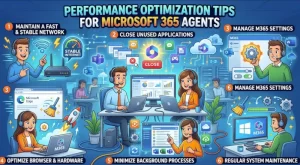
A Microsoft 365 agent can answer questions, summarize documents, retrieve business information, and automate everyday tasks. But when responses take too long, integrations fail, or answers become inconsistent under load, users quickly lose confidence in the experience.
For solution architects, IT professionals, and developers, optimizing an agent means looking beyond the model itself. Response time depends on several factors: the quality of the underlying knowledge sources, the number of external calls, authentication and permissions, prompt design, and the way the agent handles failures.
The good news? Most performance problems can be investigated systematically. By measuring the right metrics, simplifying workflows, improving retrieval, and testing realistic usage patterns, teams can make Microsoft 365 agents faster, more reliable, and easier to maintain.
1. Measure Agent Performance Before Making Changes
The first step in Microsoft 365 agents performance optimization is establishing a baseline. Without reliable measurements, it’s difficult to distinguish a genuine improvement from a change that simply shifts the bottleneck elsewhere.
Start by tracking these metrics:
- Response latency: How long users wait for an initial response and a complete answer.
- Task completion rate: How often the agent successfully completes the requested task.
- Tool and connector latency: How long APIs, Power Automate flows, and external systems take to respond.
- Failure rate: How often requests fail because of timeouts, permissions, invalid inputs, or service errors.
- Answer quality: Whether responses are accurate, relevant, and grounded in authorized information.
For example, suppose an agent takes eight seconds to answer a question about a SharePoint policy. Is the delay caused by document retrieval, an unnecessarily complex prompt, or a slow downstream service? Measuring individual workflow steps helps identify the actual cause.
Use the right monitoring tools
For agents built with Microsoft Copilot Studio, use the built-in analytics and testing capabilities to investigate conversational performance, failed interactions, and usage patterns. Use Power Platform monitoring capabilities and, where applicable, Application Insights or Azure Monitor to investigate custom integrations and supporting services.
For Microsoft 365 agents that use Microsoft Graph or custom APIs, instrument the relevant requests with timestamps, correlation identifiers, and error details. This makes it easier to trace a slow user interaction across multiple components.
Practical tip: Record baseline performance before changing prompts, connectors, or orchestration logic. Compare the same representative tasks after each optimization so you can identify which change actually helped.
2. Optimize Prompts and Reduce Unnecessary Processing
A long prompt isn’t automatically a better prompt. Excessive instructions, duplicated context, and irrelevant examples can increase processing overhead and make an agent less predictable.
The objective is to give the agent enough information to perform its task accurately without forcing it to process unnecessary material.
Make instructions specific and task-oriented
Instead of telling an agent to “help employees with all their IT-related questions,” define its responsibilities more precisely.
For example:
- Identify whether the user is asking about access, software, hardware, or troubleshooting.
- Retrieve relevant information from approved IT documentation.
- Ask for missing details when they affect the recommended solution.
- Provide concise troubleshooting steps and link to the authoritative source.
- Escalate unresolved issues through the appropriate support workflow.
These instructions establish clear boundaries and reduce ambiguity.
Limit context to what the task requires
Avoid passing entire documents, lengthy conversation histories, or large collections of records when only a small subset is relevant.
For a SharePoint knowledge agent, retrieve the most relevant document passages rather than supplying every document in a library. For an agent that summarizes meeting information, provide the relevant meeting notes and requested output format rather than unrelated organizational context.
Keep in mind that prompt size is only one factor. Smaller prompts do not guarantee faster responses if the workflow still performs slow retrieval or external calls.
Optimization checklist:
- Remove duplicate instructions and outdated examples.
- Define the agent’s scope and expected output.
- Separate essential instructions from optional guidance.
- Avoid repeating information already available through the conversation or a retrieval tool.
- Test changes against representative questions to confirm that shorter instructions haven’t reduced answer quality.
3. Improve Knowledge Retrieval and Data Quality
An agent is only as useful as the information it can access. Poorly structured content, outdated documents, and inefficient retrieval can produce slow or inaccurate answers even when the underlying model performs well.
This matters particularly for Microsoft 365 agents that rely on SharePoint sites, OneDrive files, Microsoft Graph, or other enterprise knowledge sources.
Organize knowledge sources around real user needs
Start by identifying the questions employees actually ask. A support agent might need access to troubleshooting guides, device policies, software installation instructions, and escalation procedures.
Organize those resources so the agent can identify relevant content efficiently.
Useful practices include:
- Remove obsolete documents and duplicate versions.
- Use descriptive document titles and meaningful headings.
- Keep frequently referenced procedures concise and well structured.
- Review indexing and retrieval configuration where those controls are available.
- Ensure users have appropriate access to the underlying content.
Where a solution supports configurable retrieval, evaluate how many passages or documents are returned. Retrieving too much content can add processing overhead and introduce irrelevant information. Retrieving too little can omit important context.
The best configuration depends on the complexity of the questions and the quality of the source material.
Preserve security trimming
Performance optimization must not weaken access controls. An agent should only retrieve and disclose information that the requesting user is authorized to access.
Test with users who have different permissions, including users who should not be able to access sensitive documents. Validate the effective permissions of knowledge sources and connectors instead of assuming that a successful administrator test proves the experience is secure for everyone.
For content-heavy workloads, improve document quality and retrieval relevance before attempting more complex architectural changes.
4. Streamline Connectors, APIs, and Power Automate Flows
External dependencies are a common source of slow agent responses. An agent might need to query SharePoint, retrieve a customer record, call an internal API, and trigger a Power Automate flow before producing its final answer.
Every additional operation introduces latency and another potential failure point.
Reduce unnecessary tool calls
Review each workflow and ask whether every connector call is essential.
For example, an employee asking for the status of a support request may need only one API call. A poorly designed workflow might retrieve the employee’s profile, query several unrelated systems, and execute multiple flows before checking the ticket.
Simplify the workflow so it requests only the required information.
Where supported and appropriate, consider:
- Combining related reads into a single API request.
- Using selective queries and returning only necessary fields.
- Avoiding repeated lookups for information already retrieved during the same task.
- Moving nonessential work outside the critical response path.
- Reusing cached, non-sensitive reference data when freshness requirements permit.
Caching requires careful design. Permissions, data freshness, and tenant boundaries must remain intact. Never reuse a cached result across users when doing so could expose information they aren’t authorized to see.
Handle throttling and failures properly
Microsoft Graph and other APIs can enforce throttling limits. A workflow that works well for a few users may struggle when usage increases.
Implement appropriate timeout handling, bounded retries, and exponential backoff for transient failures. Honor service-provided retry guidance, including Retry-After where applicable. Avoid repeatedly retrying permanent errors such as invalid requests or authorization failures.
For Power Automate flows, inspect run history to identify slow actions, connector failures, and unnecessary sequential steps. Parallelize independent operations only when the platform supports it and the operations don’t depend on each other’s results.
Key takeaway: Faster orchestration comes from fewer unnecessary operations, efficient queries, and predictable failure handling—not simply from adding more connectors or retries.
5. Design for Concurrency and Scalability
An agent that performs well during a developer demo may behave very differently when hundreds of employees start using it. Production performance depends on request volume, downstream service capacity, API limits, and the complexity of individual conversations.
Test realistic usage patterns
Don’t evaluate scalability using a single test conversation. Build a test set that represents common tasks, complex requests, and expected peak usage.
Include scenarios such as:
- Multiple users asking similar questions simultaneously.
- Users requesting information from large knowledge sources.
- Workflows that call multiple APIs or trigger Power Automate flows.
- Temporary failures in downstream services.
- Long conversations that accumulate context over multiple turns.
Measure latency at different load levels and watch for rising error rates, throttling, and queueing delays.
Avoid unnecessary sequential execution
Suppose an agent needs information from two independent systems before answering a question. If both operations can run concurrently, the total waiting time may be reduced from approximately the sum of their individual durations to something closer to the duration of the slower operation.
However, parallel execution isn’t always appropriate. Operations that depend on earlier results must remain ordered, and excessive concurrency can overload downstream systems.
Review the limits and execution behavior of the specific agent platform, connectors, and APIs you use. Don’t assume that increasing concurrency automatically increases throughput.
6. Build Reliable Responses with Timeouts and Fallbacks
Performance isn’t just about speed. An agent that responds in two seconds with an error is not more useful than one that takes slightly longer and completes the task correctly.
Reliable agents should handle unexpected conditions without leaving users confused.
Set clear failure-handling rules
For each external dependency, determine what should happen when a request times out, returns incomplete data, or fails authentication.
A practical design includes:
- Timeouts: Prevent a slow dependency from holding the entire interaction indefinitely.
- Bounded retries: Retry transient failures selectively rather than indefinitely.
- Fallback responses: Explain when information couldn’t be retrieved and offer a useful next step.
- Graceful degradation: Allow the agent to answer the parts of a request that don’t depend on the failed service, when appropriate.
- Escalation: Direct users to a support channel or alternative process when the task cannot be completed safely.
For example, if a service-status API is temporarily unavailable, an IT support agent should say that it couldn’t verify the current status rather than inventing an answer.
Avoid hiding failures behind generic success messages. Capture the underlying error for troubleshooting, while keeping internal stack traces, credentials, and sensitive implementation details out of user-facing responses.
7. Monitor, Test, and Improve Continuously
Optimization isn’t a one-time configuration exercise. Microsoft 365 environments change as teams update documents, modify permissions, add integrations, and introduce new workflows.
A practical monitoring process helps teams catch regressions before users report them.
Establish a repeatable optimization cycle
1. Measure
Capture baseline latency, task completion, errors, and downstream service timings.
2. Diagnose
Identify whether the bottleneck sits in instructions, retrieval, connectors, APIs, or orchestration.
3. Optimize
Change one major variable at a time and document the expected outcome.
4. Validate
Rerun functional, performance, and permission tests before deploying the change.
For agents built with Copilot Studio, review available analytics and test results regularly. For custom services, use distributed tracing and centralized logs where appropriate. Correlation IDs can help connect an agent interaction to its downstream API requests and flow executions.
Define service targets that reflect actual business needs. A frequently used internal FAQ agent may need a different response-time target from an agent that performs a complex, multi-system business transaction.
Track the distribution of response times—not just the average. The 95th percentile, often written as p95, reveals how long the slowest portion of requests takes and can expose problems hidden by an otherwise healthy average.
Practical Takeaways: Start with the Biggest Bottleneck
The most effective Microsoft 365 agents performance optimization strategy starts with evidence, not guesswork.
If your agent is slow, resist the temptation to rewrite every prompt or redesign the entire solution at once. Measure a representative set of interactions, trace the slowest steps, and prioritize changes that remove unnecessary work.
Use this order of operations:
- First: Establish baseline latency, completion rates, and error rates.
- Second: Simplify prompts and improve the relevance of retrieved content.
- Third: Reduce unnecessary connector calls and optimize API queries.
- Fourth: Test concurrency, throttling behavior, and failure recovery.
- Finally: Add regression tests and monitor performance after deployment.
For solution architects and IT teams, the next logical step is a focused performance review of one production agent. Select its most common user tasks, measure the complete request path, and identify the largest source of delay. That gives you a defensible starting point for improvement.
A well-optimized agent doesn’t just respond quickly. It retrieves the right information, respects permissions, handles failures predictably, and remains useful as adoption grows.
Extra posts:
 Performance Optimization Tips for Large SharePoint Sites
  From Chaos to Clarity Governance Tips for Organizations Rolling Out Microsoft 365 Copilot
  Cost Optimization for Copilot and AI Agents on Azure
  How to Reduce AI Hallucinations in Microsoft 365 Agents
  Microsoft 365 Copilot & Agents Fundamentals
  10 Best Practices for Designing Effective Microsoft 365 Agents