
Bluetooth technology has become an essential part of modern computing. Whether you’re connecting wireless headphones, a keyboard, a mouse, a printer, or even transferring files between devices, Bluetooth makes communication seamless and cable-free. Windows 11 comes with an improved Bluetooth interface that makes it easier than ever to connect, manage, and troubleshoot Bluetooth devices.
In this guide, we’ll walk through everything you need to know about managing Bluetooth devices and settings in Windows 11, helping you get the most out of your wireless accessories and connections.
Understanding Bluetooth in Windows 11
Bluetooth is a wireless communication technology that allows devices to exchange data over short distances. Windows 11 includes built-in Bluetooth support for most modern PCs and laptops, enabling users to connect various peripherals without needing additional cables.
The redesigned Settings app in Windows 11 provides a centralized location where users can manage all connected devices, monitor Bluetooth status, and troubleshoot connection issues.
How to Turn Bluetooth On or Off
Before connecting any device, Bluetooth must be enabled on your computer.
Method 1: Using Quick Settings
- Click the network, volume, or battery icon on the taskbar.
- The Quick Settings panel will open.
- Locate the Bluetooth icon.
- Click the icon to turn Bluetooth on or off.
When Bluetooth is enabled, the icon will appear highlighted.
Method 2: Using Windows Settings
- Press Windows + I to open Settings.
- Select Bluetooth & devices from the left menu.
- Use the Bluetooth toggle switch at the top of the page.
- Turn it on or off as needed.
This method provides access to additional Bluetooth management options.
How to Pair a Bluetooth Device
Pairing creates a trusted connection between your computer and another Bluetooth device.
Steps to Pair a Device
- Open Settings.
- Click Bluetooth & devices.
- Ensure Bluetooth is turned on.
- Click Add device.
- Select Bluetooth.
- Put your Bluetooth device into pairing mode.
- Wait for Windows 11 to discover the device.
- Click the device name when it appears.
- Follow any on-screen instructions to complete pairing.
Once paired, the device will be listed under your connected devices and can reconnect automatically when in range.
Managing Connected Bluetooth Devices
Windows 11 allows users to view and manage all paired devices from one location.
Viewing Connected Devices
- Open Settings.
- Navigate to Bluetooth & devices.
- Scroll through the device list.
You’ll see connected devices such as:
- Wireless headphones
- Bluetooth speakers
- Keyboards
- Mice
- Smartphones
- Game controllers
- Printers
Each device displays its connection status, making it easy to identify active connections.
Removing a Bluetooth Device
If you no longer use a device or experience connection issues, removing and re-pairing it can often solve the problem.
- Go to Bluetooth & devices.
- Find the device you want to remove.
- Click the three-dot menu beside it.
- Select Remove device.
- Confirm the action.
The device will be deleted from your paired devices list.
Customizing Bluetooth Settings
Windows 11 provides several options for improving your Bluetooth experience.
Device Discovery
Bluetooth discovery determines whether other devices can detect your computer. Most users leave this setting enabled only when pairing new devices.
Audio Device Management
For Bluetooth headphones and speakers, Windows 11 automatically manages audio routing. However, you can manually select audio output devices through:
- Right-click the speaker icon on the taskbar.
- Select Sound settings.
- Choose your preferred Bluetooth audio device.
This is especially useful when multiple audio devices are connected.
Battery Monitoring
Many Bluetooth accessories display battery information directly within Windows 11.
To check battery status:
- Open Settings.
- Click Bluetooth & devices.
- View connected devices.
Supported devices will show remaining battery levels, helping you avoid unexpected disconnections.
Transferring Files via Bluetooth
Although cloud services and Wi-Fi sharing are more common today, Bluetooth file transfers remain useful for quick exchanges between nearby devices.
Sending Files
- Open Bluetooth & devices.
- Click Devices.
- Scroll down and select Send or receive files via Bluetooth.
- Choose Send files.
- Select the target device.
- Browse and select the file.
- Complete the transfer.
Receiving Files
- Open the Bluetooth file transfer window.
- Select Receive files.
- Send the file from the other device.
- Save the file to your preferred location.
Common Bluetooth Problems and Solutions
Even with Windows 11’s improvements, occasional Bluetooth issues can occur.
Device Not Found
If your device doesn’t appear during pairing:
- Ensure Bluetooth is enabled.
- Confirm the device is in pairing mode.
- Move the device closer to the computer.
- Restart both devices.
Connection Drops Frequently
Intermittent disconnections may be caused by:
- Low battery levels.
- Wireless interference.
- Outdated Bluetooth drivers.
- Devices being too far apart.
Updating drivers often resolves these issues.
Audio Delays or Poor Sound Quality
Bluetooth audio problems can result from:
- Weak signal strength.
- Driver compatibility issues.
- Multiple active Bluetooth connections.
Disconnecting unused devices can improve performance.
Updating Bluetooth Drivers
Keeping Bluetooth drivers updated ensures compatibility and stability.
Using Device Manager
- Press Windows + X.
- Select Device Manager.
- Expand Bluetooth.
- Right-click your Bluetooth adapter.
- Choose Update driver.
- Select Search automatically for drivers.
Windows will search for and install available updates.
Bluetooth Security Best Practices
Bluetooth is generally secure, but following a few precautions can help protect your devices.
Use Trusted Devices
Only pair devices you recognize and trust.
Remove Unused Connections
Delete old or unused Bluetooth devices to reduce security risks.
Keep Software Updated
Install Windows updates regularly to receive security improvements and bug fixes.
Disable Bluetooth When Not Needed
Turning Bluetooth off when not in use reduces unnecessary exposure and may also conserve battery life on portable devices.
Benefits of Managing Bluetooth Effectively
Proper Bluetooth management offers several advantages:
- Faster device connections.
- Improved battery efficiency.
- Better wireless audio performance.
- Reduced connectivity issues.
- Enhanced security.
- Cleaner device organization.
By regularly reviewing connected devices and updating settings, users can maintain a smooth and reliable Bluetooth experience.
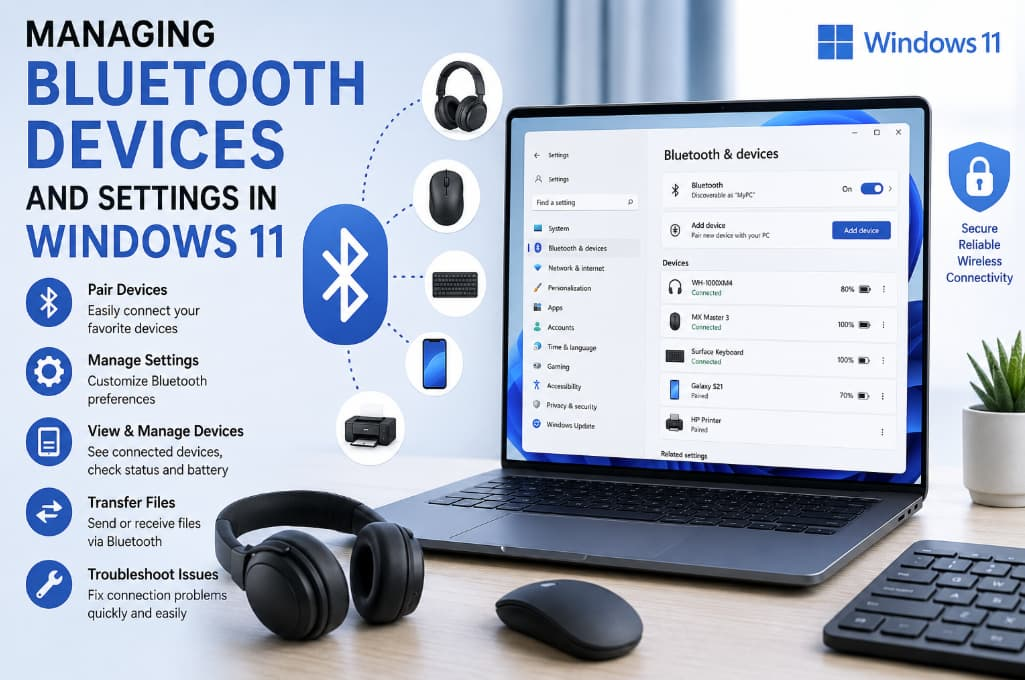
Windows 11 simplifies Bluetooth management with a clean, intuitive interface that makes connecting and controlling wireless devices straightforward. Whether you’re using headphones for work, a wireless mouse for productivity, or transferring files between devices, understanding Bluetooth settings can help you avoid common problems and maximize convenience.
By learning how to pair devices, customize settings, monitor connections, update drivers, and troubleshoot issues, you’ll be able to enjoy a more stable and efficient wireless experience on your Windows 11 computer.
Extra posts:
 Managing App Permissions for Better Privacy in Windows 11 A Complete Guide
  Solving Wi-Fi and Bluetooth Connectivity Issues in Windows 11
  The Complete Guide to Widgets in Windows 11
  How to Secure Your Windows 11 PC (Complete Guide)
  Complete Guide to Windows 11 Themes and Wallpapers
  Understanding the New Task Manager in Windows 11 (Complete Guide)