
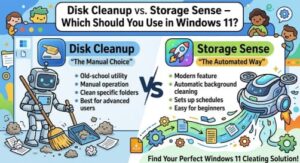
Keeping your Windows 11 PC running smoothly requires regular maintenance, and one of the easiest ways to improve performance is by managing your storage. Over time, your computer collects temporary files, old update files, cache data, delivery optimization files, and other digital clutter that can consume valuable disk space.
Windows 11 gives users two built-in tools for cleaning up storage: Disk Cleanup and Storage Sense. Both tools help remove unnecessary files, but they work differently. So, which one should you use? The answer depends on how much control you want, how often you want cleanup to happen, and what type of files you need to remove.
In this guide, we will compare Disk Cleanup vs Storage Sense in Windows 11, explain their differences, benefits, limitations, and help you choose the right option for your PC.
What Is Disk Cleanup in Windows 11?
Disk Cleanup is a classic Windows utility that has been available for many years. It is designed to help users manually remove unnecessary files from their system drive.
When you open Disk Cleanup, Windows scans your computer and shows categories of files that can be safely deleted. These may include:
- Temporary internet files
- System temporary files
- Windows update cleanup files
- Recycle Bin contents
- Delivery Optimization files
- Device driver packages
- Previous Windows installations
One of the biggest advantages of Disk Cleanup is that it gives you detailed control. You can review exactly what will be deleted before starting the cleanup process.
For advanced users, Disk Cleanup also includes a “Clean up system files” option. This performs a deeper scan and can remove old Windows installation files or leftover update data that may take up many gigabytes of space.
However, Disk Cleanup is mostly a manual tool. You need to open it and run it whenever you want to clean your system.
What Is Storage Sense in Windows 11?
Storage Sense is the newer storage management feature built into Windows 11. Instead of waiting until your drive is full, Storage Sense can automatically clean unnecessary files in the background.
Storage Sense can automatically remove:
- Temporary files
- Recycle Bin items after a chosen period
- Files in the Downloads folder after a chosen period
- Local OneDrive files that are not frequently used
The main idea behind Storage Sense is automation. Once configured, it can regularly maintain your storage without requiring you to remember to run a cleanup tool.
You can customize Storage Sense settings by choosing when Windows should run cleanup, such as daily, weekly, monthly, or when storage space is low.
For most everyday users, Storage Sense provides a simple “set it and forget it” approach.
Disk Cleanup vs Storage Sense: Main Differences
Although both tools remove unnecessary files, they are built for different purposes.
1. Manual Control vs Automation
The biggest difference is how they work.
Disk Cleanup is manual. You open it, select what you want removed, and start the process.
Storage Sense is automatic. Once enabled, Windows manages cleanup based on your settings.
If you like checking everything before deleting files, Disk Cleanup gives you more control. If you prefer convenience, Storage Sense is easier.
2. Cleanup Options
Disk Cleanup generally provides more detailed cleanup categories, especially when scanning system files.
Storage Sense focuses on common storage problems and ongoing maintenance.
For example, if you recently upgraded Windows and have a large “Previous Windows installation” folder, Disk Cleanup may be the better option.
For regular removal of temporary files, Storage Sense is usually enough.
3. Frequency of Use
Disk Cleanup works well when you need a one-time cleanup.
Examples:
- Your hard drive is almost full
- Windows updates created large leftover files
- Your PC feels slower than usual
Storage Sense is better for regular maintenance because it runs automatically.
4. User Experience
Storage Sense is easier for beginners because it is integrated into Windows Settings.
You can find it by going to:
Settings → System → Storage → Storage Sense
Disk Cleanup is a traditional desktop utility and may feel less modern, but it still remains useful.
Which One Should You Use?
For most Windows 11 users, Storage Sense is the better everyday choice.
It keeps your computer clean automatically and reduces the chance of running out of storage unexpectedly. You do not need to remember monthly maintenance because Windows handles it for you.
However, Disk Cleanup is still valuable when you need deeper cleaning.
A good strategy is to use both:
- Enable Storage Sense for automatic maintenance
- Use Disk Cleanup occasionally for deeper cleanup
This combination gives you convenience and control.
How to Enable Storage Sense in Windows 11
To turn on Storage Sense:
- Open Windows Settings
- Select System
- Click Storage
- Choose Storage Sense
- Turn it on
- Adjust cleanup preferences
You can decide how often Windows runs cleanup and what files it should remove.
For example, you may want Windows to automatically clear temporary files but keep your Downloads folder untouched.
How to Run Disk Cleanup in Windows 11
To use Disk Cleanup:
- Press Windows + S
- Search for Disk Cleanup
- Open the application
- Choose your drive
- Select the files you want removed
- Click OK
For deeper cleanup:
- Open Disk Cleanup
- Select your drive
- Click “Clean up system files”
- Review the available options
- Start cleanup
Always review the selected items before deleting, especially if you are unsure about a file category.
Does Storage Sense Delete Important Files?
Storage Sense is designed to remove unnecessary files, but settings matter.
The Downloads folder option deserves attention. If enabled, Storage Sense can remove files from Downloads after a certain period. If you store important documents there, adjust the setting carefully.
Most temporary files and system cache files are safe to remove.
Does Disk Cleanup Improve PC Performance?
Disk Cleanup does not magically make your computer faster, but it can help when storage space is low.
A nearly full drive can affect Windows performance, updates, and application behavior. Removing unnecessary files creates more free space and can help your system run more smoothly.
For SSD users, keeping reasonable free space is especially helpful for maintaining good performance.

The winner depends on your needs.
Choose Storage Sense if:
- You want automatic cleanup
- You do not want to manage files manually
- You want simple Windows maintenance
Choose Disk Cleanup if:
- You need deeper cleanup
- You want full control
- You need to remove old Windows files
For the best Windows 11 experience, use Storage Sense as your regular maintenance tool and keep Disk Cleanup as a backup option for occasional deep cleaning.
Both tools are useful, but Storage Sense is the modern solution for most users.
Extra posts:
 Free Up Disk Space with Storage Sense & Disk Cleanup in Windows 11 A Complete Guide
  Storage Sense and Disk Cleanup Tips in Windows 11
  How to Fix 100% Disk or CPU Usage in Windows 11
  Understanding OneDrive for Business and Personal Storage
  How to Move the Start Menu to the Left in Windows 11 (Like Windows 10 Style)
  Setting Up Windows Hello for Faster Logins in Windows 11