
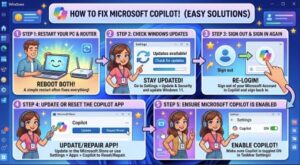
Microsoft Copilot can be a genuinely useful Windows companion. Whether you use it to brainstorm ideas, summarize information, create images, find answers, or get help with Windows settings, it can save a surprising amount of time. But when Copilot suddenly refuses to open, gets stuck loading, crashes, shows a blank screen, or simply stops responding, the experience can be frustrating.
The good news is that Microsoft Copilot not working on Windows is often caused by something relatively simple, such as an outdated app, a temporary Windows glitch, corrupted app data, an account problem, or an internet connection issue.
Microsoft says the Copilot app is available on Windows and, on new Windows 11 PCs, should generally be installed by default. If it isn’t available, Microsoft provides the app through the Microsoft Store.
In this guide, we’ll walk through practical solutions, starting with the easiest ones and moving toward more advanced fixes.
Why Is Microsoft Copilot Not Working on Windows?
Before changing anything, it helps to understand what might be causing the problem.
Copilot is a connected application, so it depends on several things working correctly at the same time. A weak internet connection, outdated Windows components, an outdated Copilot app, damaged app data, or a Microsoft account sign-in problem can all affect the experience.
You might notice symptoms such as:
- Copilot won’t open.
- Copilot opens and immediately closes.
- The Copilot window stays blank.
- Copilot keeps loading without displaying a response.
- The Copilot shortcut does nothing.
- Copilot won’t sign you in.
- Copilot crashes when you try to send a prompt.
- Certain Copilot features are missing.
The important thing is not to assume that you need to reinstall Windows just because Copilot isn’t responding. In most cases, there are much simpler fixes to try first.
1. Check Your Internet Connection
The first thing to check is your internet connection.
Copilot relies on online services, so even if other Windows applications appear to work, a temporary connection problem can prevent Copilot from responding properly.
Open your browser and visit a few websites. If pages are loading slowly or not loading at all, restart your Wi-Fi router or switch to another network if possible.
You can also disconnect and reconnect to your Wi-Fi network from Windows.
If websites work normally but Copilot doesn’t, continue with the next steps.
2. Close Copilot and Restart It
Sometimes the problem is nothing more than a temporary application glitch.
Close the Copilot window completely and open it again from the Start menu.
If Copilot appears to be frozen, give Windows a moment to close it before trying again.
Microsoft also recommends closing and reopening Microsoft Store apps when they aren’t behaving correctly.
If Copilot still doesn’t work, move on.
3. Restart Your Windows PC
It sounds almost too simple, but restarting Windows can fix temporary problems with applications, background services, memory, and network connections.
Select Start > Power > Restart and wait for Windows to boot again.
After signing in, launch Copilot and test it.
A restart is particularly worthwhile if Copilot stopped working after a Windows update, after waking the PC from sleep, or after installing another application.
4. Update Windows
An outdated version of Windows can sometimes cause compatibility problems with newer applications and features.
To check for updates:
- Open Settings.
- Select Windows Update.
- Click Check for updates.
- Install available updates.
- Restart your computer if Windows asks you to.
Microsoft recommends checking for Windows updates when troubleshooting Microsoft Store applications.
Keeping Windows updated is also important for security and general system stability.
One important note: Microsoft ended support for Windows 10 on October 14, 2025. If you’re still using Windows 10, moving to a supported version of Windows 11 may be worth considering, provided your PC meets the requirements.
5. Update the Microsoft Copilot App
If Windows is up to date but Copilot isn’t, the app itself may need an update.
Open the Microsoft Store and look for available updates. If an update for Copilot is available, install it.
Microsoft explains that the Copilot app can be installed through the Microsoft Store if it isn’t already available on a Windows PC.
After updating, restart Copilot and try sending a new prompt.
6. Repair the Copilot App
If Copilot is installed but continues to crash, freeze, or behave strangely, Windows provides a built-in repair option for supported apps.
Go to:
Settings > Apps > Installed apps
Find Copilot, click the three-dot menu next to it, and choose Advanced options if that option is available.
Look for Repair and select it.
The repair process is designed to fix problems with the app without removing your app data.
Microsoft specifically recommends using the Repair option when an installed Windows app isn’t working properly.
After the repair completes, open Copilot again.
7. Reset Microsoft Copilot
If repairing the app doesn’t solve the problem, you can try resetting it.
Go back to:
Settings > Apps > Installed apps > Copilot > Advanced options
Then select Reset, if the option is available.
Resetting an app is a stronger step than repairing it because Windows clears the app’s stored data and returns the application to a fresh state.
This can help when corrupted local data is preventing Copilot from starting correctly.
Microsoft notes that not every Windows desktop application supports Repair or Reset, so the options you see may vary.
8. Sign Out and Sign Back In
Another common source of trouble is account authentication.
Open Copilot and check which Microsoft account you’re using. If the app allows you to sign out, do so and then sign in again.
This is especially important if you recently changed your Microsoft account password, switched between personal and work accounts, or haven’t used Copilot for a while.
Microsoft explains that signing in to the Copilot Windows app unlocks features such as chat history, longer conversations, image creation, and voice interactions.
For work or school users, make sure you’re signing in with the account your organization expects you to use.
9. Make Sure You’re Using the Correct Copilot App
Microsoft has several Copilot experiences, and this can occasionally create confusion.
The consumer Microsoft Copilot app on Windows is different from the Microsoft 365 Copilot experience used for work and productivity.
If you’re trying to use Copilot with a work or school account, make sure you’re using the appropriate Microsoft 365 Copilot experience.
Microsoft’s documentation explains that the Copilot app can support both personal Microsoft accounts and work or school accounts, depending on the experience you’re accessing.
If the Windows app isn’t cooperating, you can also test the web version in your browser. If the web version works while the Windows application doesn’t, that points more strongly toward a local app problem.
10. Reinstall Copilot
If you’ve tried repairing and resetting Copilot and nothing has changed, reinstalling the application is the next logical step.
On Windows 11, open:
Settings > Apps > Installed apps
Find Copilot, open the three-dot menu, and select Uninstall.
Then reinstall Copilot through the Microsoft Store.
Microsoft provides these uninstall and reinstall-related steps for the Copilot Windows app.
Reinstalling can be particularly helpful when an application update was interrupted or local installation files became corrupted.
11. Use Windows Get Help
If you’ve worked through the basic fixes and Copilot still isn’t working, Windows has another useful option: the Get Help app.
Search for Get Help from the Windows Start menu and describe the Copilot problem you’re experiencing.
Microsoft says the Get Help app provides troubleshooting resources and diagnostic tools, and users can contact support through the app when appropriate.
When contacting support, include useful details such as your Windows version, whether Copilot opens at all, the exact error message, and what you’ve already tried.
What If Copilot Still Doesn’t Work?
If none of the solutions above work, don’t immediately jump to extreme Windows recovery options.
First, determine whether the problem is limited to your computer. Try accessing Copilot through its web experience. If Copilot works online but not in the Windows application, the issue is more likely related to the local app or Windows installation.
If Copilot doesn’t work across multiple devices or platforms, the problem may be related to your account or Microsoft’s service rather than your PC.
For broader Windows problems, Microsoft provides several recovery options, but these should generally be considered after simpler troubleshooting steps have failed.

When Microsoft Copilot is not working on Windows, the solution is usually less complicated than it first appears.
Start with the basics: check your internet connection, close and reopen Copilot, and restart your computer. Then make sure Windows and the Copilot app are updated. If the problem continues, use Windows’ built-in Repair and Reset options.
If that still doesn’t help, sign out and back into your Microsoft account, reinstall Copilot, or use Windows Get Help for additional troubleshooting.
The key is to work through the fixes in order instead of changing several things at once. That makes it much easier to identify what actually solved the problem.
And if you’re using an older Windows installation, it’s worth checking whether your system is still supported. Microsoft states that Windows 10 support ended on October 14, 2025, while Windows 11 has its own hardware and compatibility requirements.
With a little patience, most Copilot problems can be resolved without complicated system changes or a complete Windows reset.
Extra posts:
 How to Fix Windows 11 Taskbar Not Working
  Why Is My Windows 11 Sandbox Not Working? 10 Ways to Fix It
  How to Fix OneDrive Stuck on Processing Changes: 10 Easy Solutions
  How to Fix SharePoint Files Not Opening: Common Causes and Easy Solutions
  AI Mistakes in Microsoft Copilot and How to Fix Them
  How to Fix Outlook Notifications Not Working: A Complete Troubleshooting Guide