
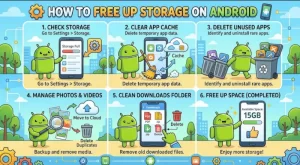
Your Android phone keeps warning you that storage is running low. You try to take a photo, install an app, or download a file, and suddenly there’s no room left. Sound familiar?
Running out of storage doesn’t always mean you need a new phone or more expensive cloud storage. Apps collect temporary files, messaging services save media automatically, and downloads accumulate long after you’ve finished using them. Before you start deleting things at random, a few targeted changes can free up gigabytes of space.
Here’s how to free up storage on Android safely, identify what’s taking up the most room, and keep your phone from filling up again.
1. Check What’s Using Your Android Storage
Start by finding out where your storage is going. Deleting files without checking their size can waste time, especially when one app or a large video might be responsible for most of the problem.
To check your storage:
- Open Settings on your Android phone.
- Tap Storage. Depending on your device, you might find it under Battery and device care, Device care, or a similar menu.
- Review the storage categories, such as Apps, Images, Videos, Audio, Downloads, and System.
- Identify the categories using the most space.
Menu names vary between Android versions and manufacturers, including Samsung, Google Pixel, and Xiaomi.
Pay attention to apps and media files first. If videos occupy several gigabytes, removing a few large recordings may make a bigger difference than clearing hundreds of small files.
Quick tip: Leave system files alone unless you understand what they contain. Android needs these files to run correctly, and deleting essential components can cause problems.
2. Remove Unnecessary Apps and Games
Apps can consume much more storage than their installation size suggests. Games may download additional content, while social media and streaming apps accumulate cached files and offline downloads.
Take a look at the apps you haven’t opened in weeks or months.
How to uninstall unused apps:
- Open Settings and go to Apps.
- Select an app you no longer use.
- Check its storage usage.
- Tap Uninstall if the option is available.
- Repeat for other unnecessary apps.
You can also uninstall apps by pressing and holding their icons on the home screen or in the app drawer, then selecting Uninstall.
Focus on large games, duplicate utility apps, old editing tools, and services you no longer need.
If your Android device offers an automatic app-archiving feature, consider using it. Archiving can remove an app’s installed software while retaining certain data and allowing you to restore the app later. Availability and behavior depend on your device and app.
Before uninstalling anything, check whether it stores important files locally. Removing an app can delete its data, including unsynchronized documents, downloaded content, or saved projects.
3. Clear App Cache Without Deleting Important Data
Clearing the cache is one of the quickest ways to reclaim space on Android.
A cache contains temporary files that apps use to load content faster. Your browser might store website resources, while social media apps cache images and videos you’ve viewed.
Over time, these files can take up considerable space.
To clear an individual app’s cache:
- Open Settings.
- Select Apps.
- Choose the app you want to clean.
- Tap Storage or Storage & cache.
- Select Clear cache.
Repeat the process for apps that use significant amounts of storage.
However, understand the difference between two options:
- Clear cache: Removes temporary files. The app can recreate them when needed.
- Clear storage or Clear data: Removes the app’s locally stored data and may sign you out or reset the app.
For routine maintenance, choose Clear cache first. Avoid Clear data unless you’re prepared to lose locally stored information or have confirmed that your important data is backed up.
Also, don’t expect cache clearing to permanently solve every storage problem. Apps rebuild their caches as you use them, so some storage will gradually be used again.
4. Delete Large Files and Old Downloads
The Downloads folder is easy to forget. It can contain PDFs, installation files, duplicate documents, ZIP archives, and videos you downloaded once and never opened again.
These files may remain on your phone even after you no longer need them.
Here’s how to clean up downloads:
- Open the Files app or your phone’s file manager.
- Navigate to Downloads.
- Sort files by size, if that option is available.
- Preview unfamiliar files before deleting them.
- Select unwanted files and move them to the trash or delete them.
Google’s Files app can also help identify large files, duplicate items, and other categories of content worth reviewing.
Check these locations as well:
- Documents: Old PDFs, spreadsheets, and exported files.
- Videos: Large recordings and saved clips.
- Audio: Podcasts, voice recordings, and downloaded music.
- Installation files: Old APK files you no longer need.
Be careful with files you don’t recognize. Some may belong to apps or contain important personal information.
After deleting files, check the file manager’s Trash or Bin. Some apps retain deleted items for a period before removing them permanently. Emptying the trash can recover additional space, but only after you’re certain you don’t need those files.
5. Clean Up Photos and Videos
Photos and videos are often among the biggest storage users on Android phones. High-resolution images, long video recordings, and duplicate shots can quickly consume several gigabytes.
You don’t have to delete every memory to reclaim space.
Start by reviewing your gallery for:
- Blurry photos and accidental screenshots.
- Duplicate pictures and burst shots.
- Long videos you no longer need.
- Screen recordings that served their purpose.
- Memes and images saved repeatedly from messaging apps.
Sort or filter your media by size when your gallery app supports it. Large videos are particularly useful targets because removing a single recording may free up more space than deleting dozens of photos.
Back up photos before removing local copies
If you use Google Photos or another cloud backup service, confirm that your files have finished uploading before deleting the local copies.
With Google Photos, the Free up space feature can remove eligible local copies that have already been backed up. The backed-up photos remain accessible through your account when you have an internet connection.
Don’t confuse this feature with manually deleting photos inside the Google Photos app. Depending on the action you choose, deletion may also affect the backed-up copy and other synchronized devices.
If you prefer offline access to your entire photo collection, transfer important files to a computer or external storage device instead.
6. Remove Unnecessary WhatsApp and Messaging Media
Messaging apps are another common source of hidden storage consumption.
Group chats can generate hundreds of images, videos, documents, and voice messages. Automatic media downloads make the problem worse because files accumulate even when you never open them.
For WhatsApp, you can review storage directly in the app:
- Open WhatsApp.
- Go to Settings.
- Tap Storage and data.
- Select Manage storage.
- Review large files and chats that use the most space.
- Select unwanted media and delete it.
Review files carefully before confirming deletion. A video or document that looks unimportant might contain information you want to keep.
You can also reduce future storage use by adjusting automatic media-download settings. For example, download photos over mobile data only when necessary, or limit automatic video downloads to Wi-Fi.
For other messaging apps, look for similar storage-management or media-download settings.
7. Move Files to Cloud or External Storage
Sometimes, the files taking up space are worth keeping. In that case, moving them elsewhere is better than deleting them.
Cloud storage services can hold photos, videos, documents, and other files outside your phone’s internal storage. Google Drive, Google Photos, and other providers offer different storage plans and backup options.
For large files, you can also use a computer, a compatible USB drive, or a microSD card if your phone supports one.
Choose the option that suits your needs:
- Cloud storage: Convenient for accessing files across devices, but may require an internet connection and sufficient account storage.
- Computer backup: Useful for archiving large video collections and documents without relying on a cloud subscription.
- MicroSD card: Available on some Android phones, although not every device supports expandable storage or allows every app to use it.
- USB-C external storage: Helpful for transferring large files directly, provided your phone supports the drive and its file system.
Always verify that transferred files open correctly before deleting the originals. For cloud backups, check the upload status rather than assuming synchronization is complete.
8. Prevent Android Storage From Filling Up Again
A one-time cleanup helps, but a few small habits can prevent the same problem from returning.
Use these storage-saving habits:
- Review your storage every few weeks.
- Remove offline videos, music, and podcasts after watching or listening.
- Disable automatic media downloads you don’t need.
- Uninstall apps you no longer use.
- Back up important photos regularly.
- Check the Downloads folder after major projects or trips.
- Keep some free storage available for app updates, downloads, and normal device operations.
You can also review whether your streaming apps are saving content at unnecessarily high quality. Lowering offline download quality can reduce the space used by movies, playlists, and other media.
Avoid installing unfamiliar phone-cleaner apps that promise instant performance boosts. Many routine cleanup tasks are already available through Android’s built-in settings and reputable file-management tools.
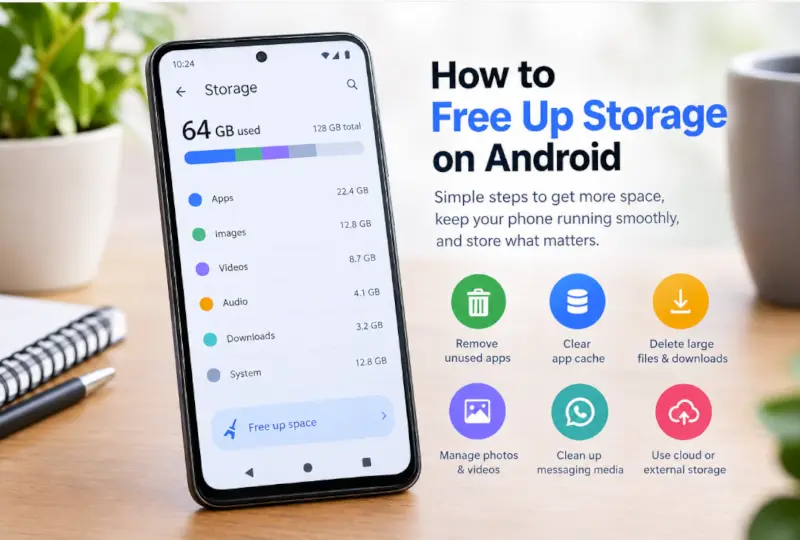
Reclaim Space Without Losing What Matters
Freeing up Android storage doesn’t require a factory reset or the permanent deletion of your favorite photos. The most effective approach is to identify what’s consuming space, remove files you no longer need, clear temporary app caches, and move important content to a safe backup location.
Start with Settings > Storage, then tackle the biggest categories first. Uninstall unused apps, review downloads, clean up messaging media, and back up photos before removing local copies.
Your next step: Check your phone’s available storage now and identify the largest category. Even 10 minutes of focused cleanup can make room for new photos, app updates, and the files you actually want to keep.
Extra posts:
 Free Up Disk Space with Storage Sense & Disk Cleanup in Windows 11 A Complete Guide
  OneDrive free Space feature in Office 365 and Windows 10
  Reclaim Your Attention How Windows 11 Focus Sessions Help You Stay Productive
  Microsoft Teams Immersive Space 3D and Mesh App
  How to Run Android Apps on Windows 11
  Microsoft Launcher Elevate Your Android Experience with Productivity and Personalization