
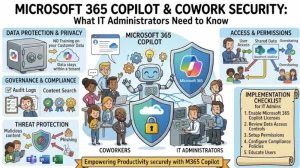
AI assistants are moving beyond answering questions. They can now coordinate tasks across applications, work with organizational data, and prepare actions that would previously have required several manual steps. That changes the security conversation for IT administrators.
Microsoft 365 Copilot Cowork brings this approach to enterprise work. It can help users coordinate activities across Microsoft 365, working with information from services such as SharePoint, OneDrive, Teams, and Exchange. The productivity benefits are compelling, but the ability to carry out multi-step work raises important questions about access permissions, sensitive information, user approvals, and compliance.
The good news is that Microsoft 365 Copilot Cowork operates within the existing Microsoft 365 security and compliance framework. Administrators don’t need to treat it as an entirely separate security environment. However, existing controls only work as intended when the underlying configuration is sound.
Here’s what IT teams, solution architects, and security professionals need to understand before expanding Cowork across their organizations.
How Microsoft 365 Copilot Cowork Changes the Security Model
Traditional AI chat experiences primarily generate answers based on a user’s prompt and available context. Cowork goes further by coordinating longer-running, multi-step tasks across supported tools and services.
For example, an employee might ask Cowork to prepare a project update using information from Teams conversations, relevant documents, and email discussions. Depending on the task and available capabilities, Cowork can help organize that information and prepare follow-up actions.
This creates a different risk profile.
The central question is no longer just whether an AI-generated answer is accurate. Administrators must also consider what information the assistant can access, what actions it can prepare, and how those actions are reviewed and recorded.
Microsoft’s approach builds on existing tenant permissions, information protection policies, and compliance controls. Cowork acts within the user’s authorized context rather than automatically receiving unrestricted access to company data.
That distinction matters: Cowork doesn’t eliminate the need for security governance; it makes consistent governance across Microsoft 365 even more important.
1. Identity and Access: Start With Existing Permissions
One of the most important principles of Microsoft 365 Copilot Cowork security is that access follows the user’s existing permissions.
If an employee can access a SharePoint site, OneDrive file, Teams conversation, or Exchange mailbox, Cowork may use that information when it’s available and relevant to an authorized task. It doesn’t automatically gain permission to read content that the user cannot access.
This reduces the need to create a separate set of access rules specifically for Cowork. It also means that poorly configured permissions can create risks that become more visible when AI searches and summarizes organizational information.
What administrators should review
Before enabling broad access, audit the permissions that govern your organization’s data.
- SharePoint: Identify sites, libraries, and documents shared with overly broad audiences.
- OneDrive: Review external sharing, inherited permissions, and access to sensitive files.
- Microsoft Teams: Validate team membership, private channels, and guest access.
- Exchange: Check mailbox access and delegation permissions.
- Microsoft Entra ID: Review identity protection, multifactor authentication (MFA), Conditional Access, and privileged access.
Consider a practical example. A finance document may have been shared with an entire department for convenience, even though it contains confidential salary information. If an employee has permission to access that document, AI-assisted discovery may make the information easier to find and summarize.
The underlying issue isn’t necessarily a Copilot permission failure. It’s an access governance problem.
Actionable takeaway: Review permissions before expanding Cowork access. Apply least-privilege principles and remove unnecessary access to confidential content.
2. Protect Sensitive Information With Microsoft Purview
Microsoft Purview is central to governing how organizational information is handled by Microsoft 365 Copilot and supported Cowork interactions.
Its information protection and compliance capabilities help organizations apply policies to sensitive content, investigate activity, and meet regulatory obligations. The precise capabilities available depend on the Purview feature, configuration, licensing, and the Cowork scenario.
Sensitivity labels and encryption
Sensitivity labels help classify documents and emails according to their confidentiality. For example, an organization might distinguish between Public, Internal, Confidential, and Highly Confidential information.
Labels can apply protection settings, including encryption and usage restrictions. Copilot respects applicable information protection controls, although certain encrypted or restricted files may not be available for AI processing when the required usage rights aren’t granted.
Administrators should validate that:
- Labels reflect the actual sensitivity of organizational data.
- Encryption and usage rights are configured correctly.
- Restricted content cannot be accessed or processed outside approved conditions.
- Users understand how to classify documents before sharing or using them in AI-assisted workflows.
Data loss prevention
Data loss prevention (DLP) policies help organizations identify and control sensitive information according to defined rules. Microsoft documents DLP support for Copilot agent interactions, including controls that can block processing of information that matches applicable policies or document sensitivity restrictions.
However, administrators shouldn’t assume that every DLP policy behaves identically across every Cowork workflow. Confirm the supported scenarios and policy behavior in the current Microsoft Purview documentation.
Retention and eDiscovery
Compliance teams may also need to retain and investigate AI interactions. Microsoft Purview provides auditing, retention, and eDiscovery capabilities for supported Microsoft 365 Copilot data.
Before deployment, determine which interactions and artifacts must be retained, how long they should be kept, and who can search or review them.
The goal is to make AI-assisted work subject to the same deliberate information governance that applies to other enterprise workflows.
3. Human Approval Matters for Sensitive Actions
An AI assistant that prepares a draft is different from one that can help carry out an action.
Cowork can coordinate multi-step work, and some tasks may involve sending messages, sharing information, scheduling meetings, or modifying content. These activities introduce operational risk if the assistant misunderstands instructions or selects the wrong target.
Microsoft describes approval checkpoints for sensitive actions. Users can review proposed actions before approving them, while applicable tenant policies continue to govern the operation.
This is an important safeguard, but it shouldn’t replace security controls or user judgment.
Imagine a project manager asking Cowork to prepare a status update and share it with stakeholders. If the assistant selects the wrong recipients or includes confidential details, a review step gives the user an opportunity to catch the problem before the action proceeds.
Recommended administrative practices
- Identify workflows involving external recipients, confidential files, or business-critical changes.
- Establish clear expectations for reviewing generated content and proposed actions.
- Train users to verify recipients, permissions, attachments, and meeting details.
- Test approval behavior using representative business scenarios.
- Define a process for stopping unexpected tasks and reporting potential security incidents.
Approval checkpoints reduce the risk of unintended actions. They don’t guarantee that every proposed action is correct, so human review remains essential.
4. Audit Cowork Activity and Establish Compliance Visibility
Security controls are only useful if administrators can verify how systems are being used and investigate suspicious activity.
Microsoft Purview auditing provides visibility into supported Copilot interactions. Microsoft’s Cowork governance documentation describes audit records under Copilot activities, including identifying information such as the agent name, ID, and version.
For IT administrators, this creates an important operational responsibility: ensure that audit visibility is available before Cowork becomes part of routine business operations.
Build an audit and investigation workflow
Start by answering four questions:
- What is recorded? Confirm which prompts, responses, referenced content, and agent activities are captured for the relevant scenarios.
- Who can access the records? Review audit permissions and restrict investigation access to authorized personnel.
- How long is information retained? Align retention policies with legal, regulatory, and internal requirements.
- How are incidents investigated? Document how security teams will investigate suspected data exposure, unexpected actions, or policy violations.
Don’t assume that every event is recorded in the same way or that all records are available indefinitely. Verify the current audit schema, supported events, licensing requirements, and retention behavior.
Also consider how Cowork activity fits into your existing incident response process. Security teams should know where to investigate, how to preserve relevant evidence, and when to involve compliance or data protection specialists.
5. Roll Out Cowork With a Controlled Governance Plan
Even a well-secured AI service can create avoidable risk if it’s deployed without a clear operating model.
Microsoft’s Cowork deployment guidance identifies several administrative considerations, including licensing, credit-based billing, access management, discovery settings, and model availability. These aren’t all security controls, but they affect how the service is introduced and managed.
A phased rollout gives administrators time to validate the configuration and identify unexpected behavior before adoption scales.
A practical deployment checklist
Before rollout
- Confirm the required Microsoft 365 Copilot licensing and credit-based billing configuration.
- Decide which users or security groups should receive access.
- Audit SharePoint, OneDrive, Teams, and Exchange permissions.
- Validate sensitivity labels, DLP policies, and relevant retention settings.
- Review Conditional Access, MFA, and device security requirements.
- Establish audit access and incident response procedures.
During the pilot
- Start with a limited group of users and clearly defined use cases.
- Test workflows involving internal documents, sensitive information, and external recipients.
- Verify that permission boundaries and approval checkpoints behave as expected.
- Review available audit records and compliance outcomes.
- Gather user feedback and document configuration gaps.
After rollout
- Expand access based on pilot results and business requirements.
- Monitor usage, policy exceptions, and reported incidents.
- Review permissions and information protection policies regularly.
- Reassess governance when new integrations, capabilities, or models become available.
- Coordinate security, IT, compliance, and business stakeholders on ongoing ownership.
A phased approach helps make security a continuing operational practice rather than a one-time deployment task.
Common Security Mistakes to Avoid
Several assumptions can undermine an otherwise solid Cowork deployment.
Assuming existing permissions are automatically correct. Cowork can respect access controls while still surfacing information that a user shouldn’t have been able to access in the first place. Oversharing must be addressed at the source.
Treating user approval as a complete security solution. Approval checkpoints are valuable, but they don’t replace DLP, least-privilege access, identity controls, or security monitoring.
Ignoring audit and retention requirements. Compliance teams should validate supported logging and retention behavior before production rollout, not after an incident.
Enabling access for everyone without a pilot. Broad access may be appropriate eventually, but a controlled rollout provides an opportunity to test policies, workflows, and user understanding first.
Failing to revisit governance. New capabilities and integrations can change the risks associated with an existing deployment. Review the configuration as the service evolves.
The Next Step: Make Security Part of Your Cowork Deployment
Microsoft 365 Copilot Cowork offers a more action-oriented way to work across organizational information. Its security foundation builds on Microsoft 365 permissions, information protection, compliance, and administrative controls.
For IT administrators, the priority isn’t to create an entirely separate security framework. It’s to ensure that the existing framework is ready for AI-assisted, multi-step work.
Start with three actions: audit access permissions, validate Microsoft Purview policies, and test sensitive workflows in a controlled pilot. Then establish audit review, user training, and ongoing governance before expanding adoption.
When these foundations are in place, organizations can pursue the productivity benefits of Cowork without treating security as an afterthought.
Note: Microsoft 365 Copilot and Cowork capabilities, supported compliance scenarios, licensing, and administrative settings can change. Validate the current documentation and your tenant configuration before implementing security controls.
Extra posts:
 How to Use Microsoft 365 Copilot Cowork to Clean Up Your Inbox
  15 Microsoft 365 Copilot Cowork Use Cases for Business Leaders
  Microsoft 365 Backup Is Getting Activity Logs: What Administrators Need to Know
  Microsoft 365 Copilot Adds Legal Plugins to Word and Cowork, Bringing 20+ AI Skills to Legal Workflows
  Microsoft Copilot for IT Administrators: The Complete Enterprise Deployment Guide
  Microsoft Gives Admins More Control Over Copilot Cowork Browser Access