
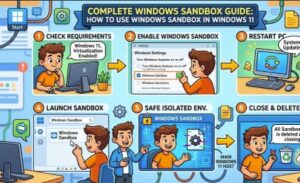
If you have ever wanted to test an unfamiliar program, open a suspicious file, or try a Windows setting without risking your main computer, Windows Sandbox can be a very useful tool.
Windows Sandbox gives you a temporary, isolated Windows environment that runs separately from your regular Windows 11 installation. You can use it to experiment with applications, test files, browse potentially risky websites, or simply explore Windows without worrying about permanently changing your main system.
The best part is that you do not need to create a traditional virtual machine with a separate operating system installation. Windows Sandbox is designed to be lightweight and temporary, making it particularly convenient for quick testing.
In this complete Windows Sandbox guide, we will explain what Windows Sandbox is, what you need to use it, how to enable it in Windows 11, how to launch and use it, and what beginners should know before getting started.
What Is Windows Sandbox?
Windows Sandbox is an isolated desktop environment built into supported editions of Windows. Think of it as a temporary Windows computer running inside your existing Windows 11 PC.
When you launch Sandbox, Windows creates a clean environment for you. You can install a program, open a file, change settings, or perform other tests without making those changes directly to your normal Windows installation.
When you close Windows Sandbox, the environment is discarded. The temporary files, installed applications, and other changes made inside the Sandbox are removed.
This makes Windows Sandbox particularly useful when you want a clean environment for a quick experiment.
For example, imagine that you downloaded a utility from the internet but are not completely sure whether you trust it. Instead of immediately installing it on your main Windows installation, you could first test it inside Windows Sandbox.
Why Should You Use Windows Sandbox?
There are several reasons Windows 11 users may find Sandbox useful.
1. Test Unfamiliar Software
If you regularly download utilities or applications for testing, Sandbox gives you an isolated environment where you can experiment before installing software on your main system.
2. Open Suspicious Files More Carefully
Sandbox can provide an additional layer of isolation when examining potentially unsafe files. However, it should not be treated as a replacement for antivirus software or general security practices.
3. Test Windows Settings
Want to see what happens when you change a particular Windows setting? You can experiment inside Sandbox instead of changing your primary installation.
4. Try Software Without Keeping It
One of the biggest advantages is that Sandbox is temporary. After you finish your testing session and close it, the environment is reset.
5. Get a Clean Windows Environment
Because Sandbox starts with a clean environment, it can be useful when you want to test software without interference from applications, settings, or files already present on your computer.
Windows Sandbox Requirements
Before trying to enable Windows Sandbox, make sure your Windows 11 PC supports it.
Windows Sandbox is available in supported editions of Windows 11, such as Pro, Enterprise, and Education. It is generally not included in Windows Home editions.
Your computer also needs hardware virtualization support. On many modern computers, virtualization is available through technologies such as Intel VT-x or AMD-V.
You should also have enough system resources available. Running an isolated Windows environment requires additional memory, processor resources, and storage.
If Windows Sandbox is unavailable on your PC, check your Windows edition and confirm that hardware virtualization is enabled in your computer’s firmware/UEFI settings.
How to Enable Windows Sandbox in Windows 11
Enabling Windows Sandbox is relatively straightforward.
Step 1: Open Windows Features
Press Windows + R to open the Run dialog.
Type:
optionalfeatures
Then press Enter.
This opens the Windows Features window.
Step 2: Find Windows Sandbox
Scroll through the list until you find Windows Sandbox.
Select the checkbox next to it.
Click OK.
Windows will search for the required files and components. You may need to restart your computer to complete the installation.
Step 3: Restart Windows 11
If Windows asks you to restart your PC, save your work and restart.
After Windows starts again, Windows Sandbox should be available from the Start menu.
How to Start Windows Sandbox
Once the feature is enabled, starting Sandbox is simple.
Open the Start menu and search for:
Windows Sandbox
Select the application from the search results.
Windows may take a few moments to create the environment. When it starts, you will see a Windows desktop inside a separate window.
This desktop may look similar to your normal Windows 11 desktop, but it is a separate temporary environment.
How to Use Windows Sandbox
Using Sandbox feels similar to using a regular Windows computer.
You can open File Explorer, launch applications, browse the web, and work with files inside the Sandbox.
For example, suppose you have downloaded an application installer to your normal Downloads folder.
You can copy the installer into the Sandbox and test it there.
Once inside Sandbox, you can install the application and see how it behaves.
If you do not like the application or something goes wrong, you can simply close Sandbox.
Windows will warn you that closing Sandbox will permanently discard its contents.
This is important: do not store anything inside Sandbox that you want to keep.
How to Copy Files Into Windows Sandbox
One of the easiest ways to move a file into Sandbox is to copy and paste it.
For example:
- Locate the file on your normal Windows 11 desktop.
- Right-click the file and select Copy.
- Open Windows Sandbox.
- Right-click inside the Sandbox desktop or a folder.
- Select Paste.
The file will then be available inside the Sandbox environment.
You can also use other methods for transferring files, depending on your testing requirements.
Remember that files created inside Sandbox will disappear when the Sandbox session is closed.
Does Windows Sandbox Keep Changes?
No. Windows Sandbox is designed to be temporary.
When you close the Sandbox window, the temporary environment is deleted.
That means applications you installed, files you downloaded, and system changes you made during the session will normally disappear.
This temporary nature is one of the main reasons people use Sandbox for testing.
It also means you should not think of Windows Sandbox as a replacement for your everyday Windows installation or a permanent virtual machine.
Windows Sandbox vs. Virtual Machine
Windows Sandbox and traditional virtual machines are related concepts, but they serve different purposes.
A traditional virtual machine can be configured and used as a persistent environment. You can install an operating system, save files, install applications, and return to the same virtual machine later.
Windows Sandbox is designed more for short-term testing.
If you want a disposable environment for a quick experiment, Sandbox can be much more convenient.
If you need a permanent virtual computer with customized settings and applications, a traditional virtual machine may be a better choice.
Is Windows Sandbox Safe?
Windows Sandbox provides isolation from your primary Windows environment, which makes it useful for testing potentially risky applications and files.
However, you should not assume that Sandbox makes every activity completely risk-free.
Security vulnerabilities can exist in operating systems and virtualization technologies. You should continue using antivirus protection, keep Windows 11 updated, and avoid intentionally executing highly dangerous or malicious content simply because you have Sandbox enabled.
For everyday testing and experimentation, though, Windows Sandbox can be a valuable additional layer of protection.
Common Windows Sandbox Problems
Sometimes Sandbox may not start as expected.
One common reason is that hardware virtualization is disabled. Check your computer’s UEFI/BIOS settings and make sure CPU virtualization is enabled.
Another possibility is that your Windows edition does not support the feature.
You should also make sure Windows 11 is properly updated and that your computer has enough available resources.
If Sandbox was previously working and suddenly stops, restarting Windows and checking Windows Features can be useful first troubleshooting steps.
Tips for Windows Sandbox Beginners
If you are using Windows Sandbox for the first time, keep these tips in mind:
Do not save important files inside Sandbox. Everything in the environment is temporary.
Keep Windows updated. Sandbox is part of Windows, so maintaining your operating system is important.
Use antivirus protection. Sandbox adds isolation, but it should not replace your security software.
Test one thing at a time. A clean environment makes troubleshooting much easier.
Remember that Sandbox resets when closed. If you need to keep a configuration or environment permanently, consider using a full virtual machine instead.

Windows Sandbox is one of the most useful built-in features available to Windows 11 users who need a quick and disposable testing environment.
For beginners, the concept is simple: open Sandbox, perform your test, and close it when you are finished. The temporary environment is then discarded.
Whether you want to test an unfamiliar application, experiment with Windows settings, or work with files in a cleaner environment, Windows Sandbox can save you from making unnecessary changes to your primary Windows installation.
It is not designed to replace a full virtual machine, and it should not be considered a guarantee against malware. But when used alongside normal security practices, it can be an excellent tool for safe experimentation.
If you have Windows 11 Pro, Enterprise, or Education and your hardware supports virtualization, Windows Sandbox is certainly worth exploring. Once you understand how it works, you may find yourself using it whenever you want to test something without cluttering or changing your main Windows environment.
Extra posts:
 Can I Rollback a Windows 11 Update? A Complete Guide to Reverting Windows Updates Safely
  How to Use Windows 11 Sandbox for Safe Testing
  The Complete Guide to Widgets in Windows 11
  How to Secure Your Windows 11 PC (Complete Guide)
  Complete Guide to Windows 11 Themes and Wallpapers
  Understanding the New Task Manager in Windows 11 (Complete Guide)