
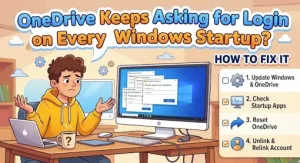
Have you ever signed into OneDrive, restarted your Windows PC the next morning, and been asked to log in all over again?
It is frustrating, especially when everything worked normally during the previous session. You enter the correct Microsoft account credentials, OneDrive starts syncing, and you assume the problem is gone. Then the next reboot brings the same sign-in prompt back.
This recurring OneDrive login problem can affect personal Microsoft accounts as well as Microsoft 365 work or school accounts. The cause is not always the same. A damaged OneDrive configuration, an incomplete account link, startup problems, authentication data, or an organization-managed policy can all lead to unexpected sign-in behavior.
The good news is that you usually don’t need to keep entering your password. The goal is to fix whatever is preventing OneDrive from maintaining a working sign-in state.
Here are the fixes worth trying, starting with the least disruptive.
Why Does OneDrive Keep Asking Me to Sign In?
Before changing anything, it helps to understand what can cause the repeated prompt.
Common possibilities include:
- A corrupted OneDrive configuration
- An incomplete or broken OneDrive account link
- Stale sign-in configuration data
- OneDrive not starting correctly with Windows
- An outdated or damaged OneDrive installation
- A work or school authentication issue
- Group Policy or Intune restrictions on managed PCs
- Network or security software interfering with authentication
The exact symptom can also provide a clue.
If OneDrive works normally after you manually sign in but forgets the session after every restart, focus on the local configuration and Windows startup behavior.
If several employees experience the same issue, look beyond the individual PC. An administrative policy, authentication configuration, or Microsoft 365 service issue may be involved.
1. Confirm You’re Using the Correct Microsoft Account
Start with the simplest check: make sure OneDrive is connected to the account you actually want to use.
This is especially important on computers that have both personal and work or school Microsoft accounts.
Open OneDrive and check the account shown in its settings. If you’re using OneDrive for Business, confirm that you’re signing in with the organization’s Microsoft 365 account rather than a personal Microsoft account.
If the account itself is correct but OneDrive repeatedly requests authentication, continue with the steps below.
2. Make Sure OneDrive Starts With Windows
A startup problem can make it appear as though OneDrive has forgotten your login when the real issue is that the sync client isn’t starting correctly.
Check whether the OneDrive cloud icon appears in the Windows notification area after signing in.
If it isn’t there:
- Open the Windows Start menu.
- Search for OneDrive.
- Launch the OneDrive desktop application.
- Check whether it signs in without requiring credentials again.
Microsoft also provides an administrative policy called Start OneDrive automatically when signing in to Windows, which can force the OneDrive sync client to start when users sign in.
For a normal home PC, also check OneDrive’s own startup setting and Windows’ startup-app configuration.
If manually launching OneDrive fixes the problem until the next reboot, startup configuration deserves particular attention.
3. Unlink and Re-Link OneDrive
If OneDrive is running but keeps requesting your credentials, rebuilding the connection is one of the first fixes to try.
Microsoft documents the following process:
- Select the OneDrive cloud icon in the Windows notification area.
- Select Help & Settings.
- Open Settings.
- Select the Account tab.
- Choose Unlink this PC.
- Confirm the unlink operation.
- Launch OneDrive again and sign in.
- If OneDrive detects your existing OneDrive folder, select Use this folder.
Unlinking does not delete your OneDrive data from the cloud. Microsoft states that the local folders are temporarily disconnected and changes can synchronize again after you relink the account.
Still, don’t rush through this step on a computer containing important unsynchronized files. Check the OneDrive sync status first and make sure you understand which files are stored locally versus in the cloud.
4. Clear OneDrive’s Sign-In Configuration
If unlinking and relinking doesn’t solve the problem, Microsoft provides a more targeted credential cleanup step.
Press Windows + R, enter:
%localappdata%\Microsoft\OneDrive\settingsPress Enter.
In that folder, locate:
PreSignInSettingsConfig.jsonDelete that file and then start OneDrive again.
Microsoft specifically recommends deleting this configuration file as part of its unlink-and-relink troubleshooting process.
This is a better first-line approach than blindly deleting registry keys or unrelated Office credentials. It targets OneDrive’s documented sign-in configuration without making broad changes to Windows authentication.
5. Reset OneDrive
Still getting the login prompt?
Resetting OneDrive is the next logical step.
Press Windows + R and run:
%localappdata%\Microsoft\OneDrive\onedrive.exe /resetIf Windows reports that it cannot find the file, Microsoft provides these alternative locations:
C:\Program Files\Microsoft OneDrive\onedrive.exe /resetor:
C:\Program Files (x86)\Microsoft OneDrive\onedrive.exe /resetAfter the reset, launch OneDrive manually from the Start menu if it doesn’t reopen automatically.
A OneDrive reset rebuilds the application’s local configuration and causes the sync relationships to be re-established. Microsoft states that resetting OneDrive does not delete your files or data, although the application will perform a full synchronization afterward.
That makes a reset considerably more useful than repeatedly entering your password and hoping the problem disappears.
6. Update or Reinstall OneDrive
A damaged or outdated OneDrive installation can also produce unusual startup and authentication behavior.
If resetting the application doesn’t help, make sure OneDrive is up to date.
If the installation appears damaged, reinstalling it is a reasonable next step:
- Open Settings.
- Select Apps > Installed apps.
- Find Microsoft OneDrive.
- Uninstall the application.
- Install the current OneDrive client.
- Sign in again.
- Allow synchronization to complete.
Don’t confuse reinstalling the sync application with deleting your cloud files. Your OneDrive data remains in the cloud. The important precaution is to verify that locally stored files have synchronized before you remove or move anything manually.
7. Don’t Start With Random Registry Fixes
You may find troubleshooting articles recommending that you delete OneDrive or Microsoft Office identity keys from the Windows Registry.
Be careful with those instructions.
Registry modifications can be appropriate in a controlled IT troubleshooting process, but deleting identity-related keys without understanding what they do can create new authentication problems.
For example, Microsoft documents specific OneDrive policy registry values used by Group Policy, but those values should be investigated in the context of the policies controlling them rather than deleted blindly.
If you’re an end user, work through the supported OneDrive reset and relink procedures first.
If you’re an administrator, use the relevant Microsoft policy documentation to identify which configuration is actually being applied.
8. IT Admins: Check Group Policy and Intune
For managed Windows PCs, the problem may not be local at all.
Microsoft provides OneDrive administrative templates for controlling sync behavior through Group Policy and Microsoft Intune. OneDrive policies can affect startup, personal-account syncing, folder locations, Files On-Demand, and other sync behavior.
One policy worth checking is:
Computer Configuration > Administrative Templates > Windows Components > OneDrive
The Prevent the usage of OneDrive for file storage policy disables OneDrive file synchronization when enabled. Microsoft maps this policy to the DisableFileSyncNGSC registry value.
Administrators should also review whether policies are:
- Forcing or preventing OneDrive startup
- Restricting personal OneDrive accounts
- Limiting which organizations users can synchronize
- Controlling the OneDrive folder location
- Affecting Files On-Demand
- Being deployed through Intune rather than local Group Policy
If the issue affects multiple users, compare the affected machines and check the organization’s applied policies before changing individual computers.
9. Check Network and Authentication Conditions
OneDrive authentication requires more than an internet connection icon showing “Connected.”
Corporate firewalls, proxies, endpoint security products, VPNs, and authentication policies can interfere with Microsoft 365 sign-in.
If the problem occurs only on a particular network, test the computer on another trusted connection. For an enterprise environment, have the network and identity teams check whether Microsoft 365 authentication traffic is being blocked or inspected incorrectly.
Avoid blindly disabling antivirus or firewall protection on a production computer. If security software is suspected, use the organization’s approved troubleshooting process instead.
Also consider whether the issue happens only when the PC starts before the network connection is fully available. A managed environment with strict startup or authentication policies may need to be investigated by the IT team.
10. Use Event Viewer When the Problem Persists
If none of the standard fixes works, Windows Event Viewer can provide additional clues.
Press Windows + R, type:
eventvwr.mscand press Enter.
Review:
Windows Logs > Application
Look for events occurring around the time OneDrive asks you to authenticate.
You’re looking for patterns rather than a single magic error message. Note the timestamp, application name, error code, and whether the event occurs immediately after Windows starts.
For managed PCs, correlate these events with:
- Windows sign-in
- Network connection
- Microsoft 365 authentication
- OneDrive startup
- Group Policy processing
This can help distinguish a local OneDrive problem from a broader Windows or enterprise authentication issue.
A Faster Troubleshooting Order
If you don’t want to work through every section, use this sequence:
OneDrive asks for login after every reboot:
- Confirm the correct Microsoft account.
- Make sure OneDrive starts with Windows.
- Unlink and re-link the PC.
- Delete
PreSignInSettingsConfig.json. - Reset OneDrive.
- Update or reinstall OneDrive.
- If it’s a company PC, investigate Group Policy, Intune, Entra authentication, and network controls.
- Use Event Viewer if the behavior continues.
This order starts with low-risk changes and progressively moves toward deeper troubleshooting.
The Practical Fix: Find Out What Is Forgetting the Session
A OneDrive login prompt on every Windows startup is annoying, but repeatedly entering your password only treats the symptom.
The important question is: what is preventing OneDrive from maintaining its authentication state?
For personal PCs, start with the OneDrive account link, startup behavior, sign-in configuration, and application reset.
For business PCs, broaden the investigation. If multiple users are affected, check Microsoft 365 authentication, Group Policy, Intune, network controls, and organizational OneDrive policies before modifying individual machines.
The most reliable approach is methodical: change one thing at a time, restart Windows, and verify whether OneDrive remains signed in after the next reboot.
Once OneDrive survives that test without another login prompt, you’ve confirmed that the underlying problem—not just the immediate notification—has been resolved.
Extra posts:
 How to Fix Windows 11 Black Screen After Login
  OneDrive’s 520-Character Fix: Microsoft Makes Windows Sync Errors Easier to Solve
  How to Fix OneDrive Stuck on Processing Changes: 10 Easy Solutions
  OneDrive Photos Comes Under IT Control: Microsoft Adds Admin Policy Support for Windows 10 and 11
  How to Use Copilot with OneDrive
  OneDrive free Space feature in Office 365 and Windows 10