
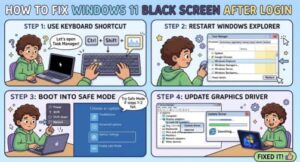
A black screen after logging into Windows 11 can be surprisingly frustrating. Your computer starts normally, you enter your PIN or password, and then… nothing. Instead of seeing your desktop, taskbar, and familiar icons, you’re left staring at a completely black screen.
The good news is that this problem does not necessarily mean your PC or monitor is damaged. In many cases, a Windows 11 black screen after login is caused by a temporary Windows process problem, a graphics driver issue, an incorrect display setting, or an application that fails to load properly.
If you can still move your mouse cursor or access Task Manager, there’s an even better chance that you can fix the problem without reinstalling Windows.
In this guide, we’ll walk through practical solutions, starting with the easiest ones and gradually moving toward more advanced troubleshooting.
Why Does Windows 11 Show a Black Screen After Login?
Before trying random fixes, it’s useful to understand what might be causing the problem.
A black screen immediately after login can happen for several reasons, including:
- A graphics driver that has crashed or become incompatible
- Windows Explorer failing to start
- An incorrect display or projection setting
- A recently installed Windows update
- A problematic application or startup program
- Corrupted Windows system files
- External monitors or USB devices interfering with display detection
- A temporary Windows glitch
Sometimes the computer is actually working normally in the background. Windows has started, but the desktop environment isn’t being displayed correctly.
Let’s start with the simplest solutions.
1. Check Your Monitor and Connections
It sounds obvious, but don’t skip this step.
If you’re using a desktop PC or a laptop connected to an external monitor, check that the display cable is properly connected. If possible, unplug the HDMI, DisplayPort, or USB-C cable and connect it again.
If you have another monitor or TV available, try connecting the computer to it. This can help determine whether the problem is related to Windows or the display itself.
Laptop users should also disconnect external monitors, docking stations, and unnecessary USB devices temporarily.
If the screen works after removing an external display, Windows may simply be having trouble choosing the correct display output.
2. Restart the Graphics Driver
One of the quickest things to try when Windows 11 displays a black screen is restarting the graphics driver.
Press:
Windows + Ctrl + Shift + B
Your screen may briefly flicker, and you might hear a short beep. This keyboard shortcut tells Windows to reset the graphics driver.
If the desktop appears afterward, the problem was likely related to a temporary graphics driver failure.
This is especially useful when you can see your mouse cursor on the black screen.
3. Try Opening Task Manager
If you can see the mouse pointer but the desktop is missing, Task Manager can be extremely helpful.
Press:
Ctrl + Shift + Esc
If Task Manager opens, look for Windows Explorer under the Processes list.
If you find it, right-click it and select Restart.
Windows Explorer is responsible for displaying important parts of the Windows interface, including the desktop and taskbar. If Explorer has stopped responding, restarting it can bring your desktop back almost instantly.
What if Windows Explorer isn’t listed?
In Task Manager, select Run new task.
Type:
explorer.exe
Then press Enter.
If Windows Explorer was the problem, your desktop should appear.
4. Check Windows Display Projection Settings
Sometimes Windows is sending the desktop to the wrong display.
Press:
Windows + P
You should see the display projection options. Try selecting PC screen only.
If you are working with multiple monitors, you can also test the other projection options to see whether the desktop appears.
This is a particularly common cause of a black screen when a laptop has recently been connected to a projector, TV, docking station, or second monitor.
5. Boot Windows 11 Into Safe Mode
If the black screen keeps appearing after every login, Safe Mode can help determine whether a third-party driver or startup program is causing the issue.
Windows Safe Mode starts the operating system with a limited set of drivers and services.
If you can reach the Windows recovery environment, go to:
Troubleshoot → Advanced options → Startup Settings → Restart
After the computer restarts, choose Safe Mode.
If Windows works normally in Safe Mode, there’s a good chance that a driver, application, or startup service is responsible for the black screen.
From there, you can investigate recently installed software and graphics drivers.
6. Update or Roll Back Your Graphics Driver
Graphics drivers are one of the most common suspects when dealing with display problems.
If you can access Windows normally or through Safe Mode, open Device Manager.
Expand:
Display adapters
Right-click your graphics card and choose Update driver.
If the problem started immediately after a driver update, however, updating again may not help. In that situation, check whether the Roll Back Driver option is available.
You can also obtain the latest driver directly from your computer or graphics-card manufacturer’s official support website.
Avoid downloading drivers from random websites. A bad or modified driver can create even more problems.
7. Disconnect Unnecessary Startup Programs
A program that launches immediately after login can sometimes interfere with Windows Explorer or the graphics environment.
If Task Manager works, open the Startup apps section.
Look through the applications that automatically launch when Windows starts. If you recently installed a program and the black-screen problem began around the same time, consider disabling it temporarily.
Restart your PC afterward and check whether the desktop loads normally.
Don’t disable everything blindly. Focus on applications you recognize and that you recently installed or don’t need to launch automatically.
8. Uninstall a Recent Windows Update
If the problem appeared immediately after a Windows update, the update itself could be involved.
From the Windows recovery environment, you may have the option to uninstall the latest quality update.
Go to:
Troubleshoot → Advanced options → Uninstall Updates
Follow the instructions provided by Windows.
This doesn’t mean Windows updates are bad. Occasionally, however, a particular update can conflict with specific hardware, drivers, or software configurations.
9. Run System File Checker
Corrupted Windows system files can also cause unusual startup and desktop problems.
If you can open Command Prompt with administrator privileges, run:
sfc /scannow
Windows will scan protected system files and attempt to repair corrupted ones.
You can also use the Deployment Image Servicing and Management tool if SFC reports problems that it cannot repair.
Run:
DISM /Online /Cleanup-Image /RestoreHealth
After the process finishes, restart your computer and check whether the black screen has disappeared.
10. Use System Restore
If none of the previous solutions work and the problem started recently, System Restore may be worth trying.
System Restore can return certain Windows system settings, drivers, and installed software configurations to an earlier restore point.
This can be particularly useful if your computer worked perfectly a few days ago and the black screen appeared after installing a driver, application, or update.
Keep in mind that System Restore is not a complete backup solution. Personal files generally aren’t the target of the restore process, but it’s still a good idea to maintain regular backups.
11. Reset or Reinstall Windows 11 as a Last Resort
If Windows continues to show a black screen after login despite all troubleshooting attempts, you may eventually need to consider resetting Windows.
Before doing so, make sure important personal files are backed up.
Windows 11 provides reset options that can allow you to reinstall Windows while choosing whether to keep personal files, depending on the situation.
However, don’t jump straight to a reset.
In many cases, a Windows 11 black screen after login can be resolved by restarting Explorer, resetting the graphics driver, correcting the display output, or dealing with a faulty graphics driver.

A black screen after logging into Windows 11 can make it seem like your entire computer has stopped working, but that’s often not the case.
If you can still move the mouse, open Task Manager, or use keyboard shortcuts, Windows may be running normally in the background. The issue could simply be that the desktop environment or graphics system isn’t loading correctly.
Start with the easiest fixes: check your monitor connections, press Windows + Ctrl + Shift + B, restart Windows Explorer, and check your display settings.
If those don’t work, move on to Safe Mode, graphics-driver troubleshooting, startup applications, recent updates, and system-file repairs.
The most important thing is to work through the solutions one at a time rather than making several major changes simultaneously. That makes it much easier to identify what actually fixed the problem.
And if you’ve recently installed a graphics driver, Windows update, or new application, pay particular attention to that change. The timing of the problem can often provide the biggest clue.
Extra posts:
 How to Record Audio and Screen Together in Windows 11: A Complete Beginner-to-Pro Guide
  How to Fix Windows 11 Not Responding
  How to Fix Windows 11 Taskbar Not Working
  How to Fix Windows 11 Running Slow and Speed Up Your PC
  How to Fix Windows 11 No Sound or Audio Not Working
  How to Fix 100% Disk or CPU Usage in Windows 11