
Malware infections remain one of the most persistent threats to Windows users, even in modern systems like Windows 11. While many people immediately turn to third-party antivirus tools, the reality is that Windows 11 already includes powerful built-in utilities capable of detecting and removing most common threats. Learning how to use these native tools not only saves money but also reduces reliance on additional software that may consume system resources.
In this guide, we’ll walk through practical, step-by-step methods to identify and eliminate malware using only the tools already available in Windows 11.
Understanding the Signs of Malware Infection
Before removing malware, you need to recognize when something is wrong. Malware rarely announces itself outright it tends to operate subtly.
Common symptoms include:
- Slower system performance than usual
- Unexpected pop-ups or ads
- Programs opening or closing on their own
- High CPU or disk usage without explanation
- Unknown apps appearing in your system
- Browser redirects or homepage changes
If you notice one or more of these issues, it’s time to investigate further.
Step 1: Use Windows Security (Microsoft Defender)
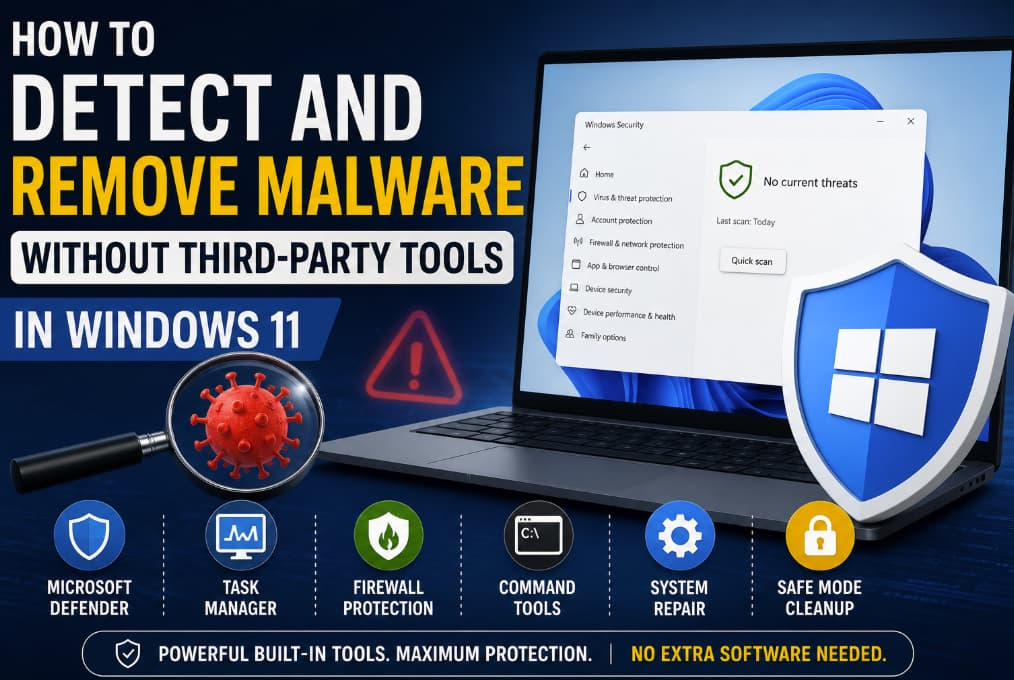
Windows 11 comes with a built-in antivirus called Microsoft Defender, accessible through Windows Security. This is your first and most important line of defense.
How to run a scan:
- Open Start Menu
- Search for Windows Security
- Click Virus & Threat Protection
- Select Quick Scan
If you suspect a deeper infection:
- Choose Scan options
- Run a Full Scan or Microsoft Defender Offline Scan
The Offline Scan is particularly useful because it restarts your system and scans before malware can load.
Step 2: Check Running Processes in Task Manager
Malware often runs silently in the background. Task Manager can help you spot suspicious processes.
Steps:
- Press Ctrl + Shift + Esc
- Review the Processes tab
- Look for:
- Unusual names
- High CPU or memory usage from unknown apps
If something looks suspicious:
- Right-click it
- Select Search online (to verify legitimacy)
- If confirmed malicious, choose End task
Be cautious ending essential system processes can cause instability.
Step 3: Disable Suspicious Startup Programs
Malware frequently installs itself to run at startup.
How to check:
- Open Task Manager
- Go to the Startup apps tab
- Look for unfamiliar or suspicious entries
Disable anything you don’t recognize by right-clicking and selecting Disable. This prevents malware from launching automatically.
Step 4: Uninstall Unknown Programs
Some malware appears as regular installed software.
Steps:
- Open Settings
- Go to Apps → Installed apps
- Sort by Install date
- Look for unfamiliar or recently installed programs
Click the three dots next to the app and select Uninstall.
Step 5: Use Windows Defender Firewall
While primarily for network protection, the firewall can help identify suspicious outbound connections.
Check firewall activity:
- Open Windows Security
- Go to Firewall & network protection
- Click Advanced settings
Here, you can review inbound and outbound rules. If you see unknown apps with network permissions, investigate further.
Step 6: Scan with Command Prompt (Advanced Users)
Windows includes a command-line malware removal tool called MRT (Malicious Software Removal Tool).
To run it:
- Press Windows + R
- Type
mrtand press Enter - Choose a Full Scan
This tool targets widespread malware and is updated regularly through Windows Update.
Step 7: Check Browser Extensions
Browsers are a common entry point for malware.
What to do:
- Open your browser (Edge, Chrome, etc.)
- Go to Extensions/Add-ons
- Remove anything suspicious or unfamiliar
Also reset your browser settings if you notice:
- Changed homepage
- New default search engine
- Frequent redirects
Step 8: Review System Files with SFC and DISM
Malware can corrupt system files. Windows includes built-in repair tools.
Run System File Checker (SFC):
- Open Command Prompt as Administrator
- Type:
sfc /scannow
Then run DISM:
DISM /Online /Cleanup-Image /RestoreHealthThese tools repair corrupted system files and restore system integrity.
Step 9: Boot into Safe Mode
Safe Mode loads Windows with minimal drivers, making it easier to remove stubborn malware.
To enter Safe Mode:
- Go to Settings → System → Recovery
- Click Restart now under Advanced startup
- Navigate to:
- Troubleshoot → Advanced options → Startup Settings → Restart
- Press 4 for Safe Mode
Once inside, repeat scans and remove suspicious files manually.
Step 10: Reset Windows (Last Resort)
If malware persists despite all efforts, resetting Windows may be necessary.
Steps:
- Go to Settings → System → Recovery
- Click Reset this PC
- Choose:
- Keep my files (recommended first)
- Or Remove everything for a clean slate
This reinstalls Windows and removes deeply embedded threats.
Prevention Tips
Removing malware is only half the battle—preventing future infections is equally important.
- Keep Windows updated regularly
- Avoid downloading files from untrusted sources
- Be cautious with email attachments
- Use strong, unique passwords
- Enable real-time protection in Windows Security
ou don’t need expensive third-party tools to keep your Windows 11 system secure. With a solid understanding of built-in utilities like Windows Security, Task Manager, and system repair tools, you can effectively detect and remove most malware threats.
The key is vigilance monitor your system regularly, act quickly when something feels off, and make full use of the powerful tools already at your disposal. By doing so, you not only protect your data but also maintain a faster, cleaner, and more reliable computing experience.
Extra posts:
 How to Speed Up Windows 11 Without Third-Party Tools (Complete Expert Guide)
  How to Integrate M365 with Third-Party SaaS Tools (Slack, Trello, Google Services) Without Breaking Security
  How to Boost Performance with Built-In Tools in Windows 11
  Best Microsoft Tools for Remote Work on Windows 11
  Unlocking Hidden Superpowers in Windows 11 Speech, Eye, and Voice Access Tools You Didn’t Know You Had
  Detect Human Faces and Compare Similar Ones with Face API in Azure