
Your complete guide to making the switch — and doing it right
Why Dark Mode Matters
Dark mode (also called “night mode” or “dark theme”) uses light text on dark backgrounds. It’s become increasingly popular — and for good reasons:
- It can reduce eye strain in low-light conditions.
- On OLED screens it may save battery life, because dark pixels draw less power.
- It gives a modern look and often feels more comfortable for evening use or prolonged screen time.
How to Enable Dark Mode on Common Platforms
On Android
- Open Settings → Display.
- Tap Dark theme (or toggle Dark mode) to enable it.
- Some devices allow scheduling (e.g., turn on at sunset or when battery saver is on).
- In some apps you may also need to configure their own theme settings.
On iOS / iPadOS
- Go to Settings → Display & Brightness.
- Select Dark to turn on dark mode.
- Optionally, use the Automatic setting to switch between light and dark based on time of day.
On Windows
- Open Settings → Personalization → Colors.
- Under Choose your mode, select Dark.
- You may also use Custom mode to set the Windows interface and apps separately (e.g., Windows UI dark, apps light).
On macOS
- Go to System Settings → Appearance.
- Choose Light, Dark, or Auto.
- macOS will adjust automatically if you select Auto.
In Web Browser (e.g., Google Chrome)
- In the browser: go to Settings → Theme.
- Choose Dark, Light, or System default.
- For desktop browsers you may also use extensions or flags to force dark mode on all websites.
Customizing Dark Mode for Your Preferences
Turning on dark mode is just the start. Here’s how you can fine-tune it for the best experience:
- Schedule automatic switching: Many platforms let you have dark mode turn on at specific times or at sunset.
- Use accent or theme colors: On Windows you can choose accent colors to appear on taskbar, title bars, etc., when dark mode is active.
- App-specific settings: Some apps allow you to override system theme. You might want an app in light mode even while your device is in dark mode — or vice versa.
- Browser-based tweaks: If you browse a lot of websites that don’t support dark mode natively, you can use browser extensions like “Dark Mode” or “Dark Reader.”
- Watch contrast and readability: Dark mode can be harder to read if contrast is too low. Adjust brightness or disable dark mode for those cases.
- Battery & display type matters: On OLEDs dark mode saves more battery, while on LCDs savings may be minimal.
When Dark Mode Might Not Be Ideal
- In bright daylight or outdoor use: dark backgrounds may reduce readability.
- For visually rich content (e.g., colorful images) where a dark background may affect perception.
- Some apps or websites may not yet support dark mode properly.
- If you rely on color-coded UI elements, ensure colors still work in dark mode.
Quick Summary Table
| Platform | Steps to Enable | Customization Options |
|---|---|---|
| Android | Settings → Display → Dark theme | Scheduling, app overrides |
| iOS / iPadOS | Settings → Display & Brightness → Dark | Automatic schedule |
| Windows | Settings → Personalization → Colors → Dark | Accent color, separate modes for system/apps |
| macOS | System Settings → Appearance → Dark | Auto switching, light/dark modes |
| Web Browser | Settings → Theme → Dark | Extensions, force dark on websites |
Switching to dark mode is simple but doing it thoughtfully can enhance your experience — especially for nighttime use, low-light environments, and devices with OLED screens. With the tips above, you can enable dark mode across your devices and fine-tune it so it works for you.
Extra posts:
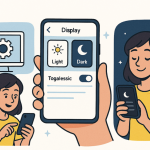 How to Enable and Personalize Dark Mode on any device
  10 Ways to Customize the Start Menu in Windows 11
  How to Disable or Customize Transparency Effects in Windows 11 – Full Guide
  How to Enable Ransomware Protection in Windows 11
  How to Enable Tabs in File Explorer in Windows 11
  How to Enable Two-Factor Authentication (2FA) in Windows 11