

If you’ve just created a Microsoft 365 trial tenant, one of the first things you should do—before adding users, syncing identities, or deploying apps—is lock down your environment with some essential security policies. Even in a trial tenant, you’re working with powerful cloud services that, if left unprotected, could be vulnerable to unauthorized access or misuse.
The good news? Microsoft 365 comes with built-in tools that make it relatively easy to enforce best-practice security controls, even for beginners. In this guide, we’ll walk through how to set up foundational security policies in your Microsoft 365 trial tenant so you start off on the right foot.
Why Security Setup Matters in a Trial Tenant
Many people treat trial tenants as temporary sandboxes and overlook security. But a few important things to remember:
- A trial tenant is still hosted in Microsoft’s cloud—meaning it’s exposed to the internet.
- Hackers often target new or unused trial tenants because they may have weak or default settings.
- You might use the tenant for demos, POCs, labs, or client presentations, meaning real data may eventually end up inside.
- Security policies you implement in a trial tenant can be easily replicated in a production environment later.
By taking a few minutes to configure your baseline protections, you’re laying the foundation for a secure Microsoft 365 environment—now and in the future.
1. Enable Multi-Factor Authentication (MFA)
MFA is the single most important step to securing any cloud environment. Even if your trial tenant will only have a few users, enabling MFA significantly reduces the risk of unauthorized access.
How to Enable MFA
Microsoft offers two primary options:
Option A: Use Security Defaults (Recommended for Trials)
Security Defaults provide a simple, one-click way to enforce MFA across the tenant.
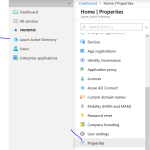
- Go to Azure Active Directory / Entra ID Admin Center.
- Navigate to Properties.
- Select Manage Security Defaults.
- Turn Security Defaults On.
This automatically enforces MFA and blocks legacy authentication protocols—both huge security wins.
Option B: Use Conditional Access (for Trial Tenants with P2)
If your trial includes Entra ID P1 or P2:
- Go to Azure AD (Entra ID) → Security → Conditional Access.
- Create a new policy:
- Assignments → All Users
- Cloud apps → All cloud apps
- Grant → Require MFA
- Set the policy to On.
This method gives more flexibility but requires additional licensing.
2. Block Legacy Authentication
Legacy authentication (like IMAP, POP, SMTP Basic) is one of the most common entry points for attackers. Even if you don’t use these protocols, they may still be enabled.
How to Block Legacy Authentication
If Security Defaults is enabled, this is already handled.
If using Conditional Access:
- Go to Conditional Access → Create New Policy.
- Assign to All users.
- Select All cloud apps.
- In the Conditions section → Client apps → check Legacy Authentication.
- In Access Controls, choose Block Access and enable the policy.
This one setting can eliminate a massive amount of risk.
3. Set Up Baseline Conditional Access Policies
If you have access to Conditional Access (P1 or P2), create the following basic policies:
Basic Policies to Enable
- Require MFA for Admins
- Require MFA for All Users
- Block Access from Outside Trusted Locations (optional)
- Block Countries You Don’t Operate In (optional)
These policies ensure you’re protecting both global admins and standard users.
For admin accounts in particular, requiring MFA is non-negotiable.
4. Enable Defender for Office 365 Protection
Even in trial tenants, you can enable several Defender for Office 365 features to protect against phishing and malware.
Key Policies to Configure
Anti-Malware Policy
- Go to Microsoft 365 Defender Portal.
- Navigate to Email & Collaboration → Policies & Rules.
- Edit the Default anti-malware policy.
- Turn on:
- Zero-hour auto purge (ZAP)
- Common attachment filtering
- Malware detection response
Anti-Phishing Policy
- Go to Threat Policies → Anti-phishing.
- Create a new policy or edit the default.
- Enable:
- Spoof intelligence
- Impersonation protection
- Safe Links
- Safe Attachments
These threat protection policies significantly enhance email security—which remains one of the most common attack vectors.
5. Enforce Password Protection Settings
Password policies are often overlooked, yet they play a crucial role in preventing brute-force attacks.
Recommended Password Settings
- Enable password expiration (if required by your organization).
- Enable banned-password lists using Microsoft’s intelligent protection.
- Encourage or enforce the use of passwordless authentication (like Microsoft Authenticator).
Passwordless is quickly becoming the modern best practice and is easily enabled through Entra ID → Authentication Methods.
6. Set Up User Risk Policies (If Available)
If your trial includes Azure AD Identity Protection:
- Go to Entra ID → Identity Protection.
- Configure:
- User risk policy → Require password reset for medium+ risk.
- Sign-in risk policy → Require MFA.
- Report-only mode initially, then turn to Enforce.
Risk-based conditional access adds adaptive security that automatically responds to suspicious activity.
7. Review Admin Roles & Implement Least Privilege
Trial tenants often assign Global Admin to whoever signs up—but this is a bad habit. Instead:
How to Improve Role Security
- Limit the number of Global Admin accounts (ideally two).
- Use Privileged Identity Management (PIM) if included.
- Assign roles like Security Admin, Compliance Admin, or Teams Admin as needed rather than using GA for everything.
Least privilege is a best practice that reduces the blast radius if an account is compromised.
8. Configure Security Alerts & Notifications
Finally, make sure you can actually see if something suspicious happens.
Settings to Enable
- Sign-in risk alerts
- Identity protection alerts
- Email notifications from Defender
- Audit logs
- Unified audit logs in Purview (enable if needed)
Visibility completes your security foundation.
Setting up basic security in a Microsoft 365 trial tenant doesn’t have to be overwhelming. By enabling MFA, blocking legacy authentication, applying conditional access basics, and configuring Defender policies, you’re already ahead of many organizations that rush past security in the early stages.
These policies not only secure your trial tenant today but also help you build good habits for deploying Microsoft 365 in any production environment later.
Extra posts:
 What’s Included in Microsoft 365 Free Trial and Developer Program
  Run Your Microsoft 365 Tenant Like a Pro Right from Your Couch
  How to get Office 365 Tenant ID
  Managing Data Retention Policies Without Overcomplicating Things in Microsoft 365
  New Microsoft 365 security center and new compliance center
  Securing Your Microsoft 365 Tenant Avoiding Common Weak Points