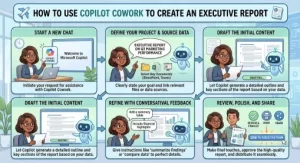
Creating an executive report sounds simple until you actually have to do it.
You may have spreadsheets full of numbers, meeting notes scattered across documents, emails containing important updates, presentation slides from different teams, and research collected from multiple sources. Turning all of that information into a clear report for executives can take hours — sometimes days.
This is where Copilot Cowork can become useful.
Instead of treating an executive report as a document you have to build from scratch, you can use Copilot Cowork to help organize information, identify important themes, summarize findings, and turn raw business information into a structured report.
The key, however, is not simply asking AI to “write an executive report.” The quality of the final report depends heavily on the information you provide, the instructions you give, and how carefully you review the result.
In this guide, we’ll look at how to use Copilot Cowork to create an executive report that is concise, professional, data-driven, and easy for senior leaders to understand.
What Is an Executive Report?
An executive report is a short, focused business document designed to help decision-makers quickly understand a situation.
Unlike a long analytical report, an executive report does not need to include every detail. Executives usually need the information that answers a few important questions:
- What happened?
- Why does it matter?
- What do the numbers show?
- What are the major risks or opportunities?
- What decisions need to be made?
- What actions should happen next?
A good executive report therefore focuses on clarity over volume.
This is also why AI tools can be helpful. They can process large amounts of information quickly, while you can focus your time on validating the facts and making the business judgment.
Why Use Copilot Cowork for Executive Reports?
The biggest advantage of using Copilot Cowork is that it can help reduce the manual work involved in preparing a report.
Imagine you need to prepare a monthly performance report for senior management. Your source material might include sales data, customer feedback, project updates, financial information, and notes from department managers.
Normally, you might open each file, read through the content, take notes, compare figures, and then start writing.
With Copilot Cowork, you can use a more structured workflow.
You can provide the relevant source material and explain what the report needs to accomplish. Copilot can then help organize the information into categories, identify recurring themes, summarize key points, and create a first draft.
That doesn’t mean the AI should make the final business decisions for you. Think of it as a reporting assistant rather than the final decision-maker.
Step 1: Define the Purpose of Your Executive Report
Before opening Copilot Cowork, decide what you want the report to achieve.
This is one of the most important steps.
A vague request such as:
“Create an executive report about our business.”
doesn’t give the AI enough direction.
Instead, explain the audience, purpose, reporting period, and expected outcome.
For example:
“Create an executive report for the leadership team summarizing Q3 sales performance. Focus on revenue trends, regional performance, major changes compared with Q2, key risks, and recommended areas for management attention.”
This instruction gives the tool a much clearer framework.
You should also define the expected length and format. If the report will be presented to senior executives, you may want a short executive summary followed by key metrics, findings, risks, and next steps.
Step 2: Gather and Organize Your Source Material
The next step is collecting the information Copilot Cowork will work with.
Depending on your project, this could include:
- Excel or spreadsheet data
- Word documents
- PowerPoint presentations
- Meeting notes
- Project updates
- Customer feedback
- Financial information
- Market research
- Internal business documents
Try to make sure the information is current and relevant.
If you give an AI tool outdated or incomplete information, the resulting report can look polished while still being inaccurate.
Organization also matters. Clearly naming files and separating information by reporting period, department, or project can make the reporting process easier.
For example, instead of having multiple files called “Report Final,” “Report Final 2,” and “Report New,” use descriptive names such as “Q3 Sales Performance,” “Q3 Customer Feedback,” and “Q3 Regional Results.”
Small details like this can make your workflow much easier to manage.
Step 3: Ask Copilot Cowork to Analyze the Information
Once the relevant information is available, ask Copilot Cowork to analyze it before asking for the final report.
This is an important difference.
Rather than immediately saying “write the report,” first ask questions such as:
“Review these materials and identify the five most important findings for senior management.”
You can then ask:
“Identify significant changes compared with the previous reporting period.”
Or:
“Highlight any risks, inconsistencies, unusual trends, or missing information that should be investigated before the report is finalized.”
This approach gives you an opportunity to understand what the AI has identified before turning those findings into a formal document.
Step 4: Build the Executive Summary
The executive summary is often the most important section of the report.
Senior leaders may not have time to read every page. They should be able to understand the main message within a few minutes.
Ask Copilot Cowork to create a concise summary based only on verified information.
A useful prompt could be:
“Write a 150-word executive summary based on the analyzed information. Focus on the most significant business developments, key performance indicators, major risks, and areas requiring management attention. Do not introduce information that is not supported by the source material.”
Notice the last sentence.
It is important because AI can sometimes produce plausible-sounding information that isn’t actually contained in the source material. Explicitly asking it to stay within the available evidence can help reduce this problem.
Step 5: Create a Clear Report Structure
A professional executive report should be easy to scan.
A simple structure might look like this:
Executive Summary
A brief overview of the most important findings.
Key Performance Indicators
Important figures and comparisons presented clearly.
Major Findings
The most significant developments identified in the reporting period.
Risks and Challenges
Issues that could affect performance, projects, customers, finances, or operations.
Opportunities
Areas where the organization may be able to improve performance or create value.
Recommended Actions
Specific actions that require consideration.
Next Steps
What should happen next, who needs to act, and when appropriate, the expected timeframe.
You can ask Copilot Cowork to organize your existing findings into this structure without changing the underlying facts.
Step 6: Turn Data Into Business Insights
One of the most useful applications of AI-assisted reporting is helping turn raw data into understandable insights.
For example, instead of simply reporting:
Revenue increased by 12%.
an executive report could explain:
Revenue increased by 12% compared with the previous quarter, with growth concentrated in the enterprise customer segment.
The second statement gives executives more context.
However, be careful about the difference between a fact and an interpretation.
If the data shows that revenue increased, that’s a fact.
If you conclude that revenue increased because of a specific marketing campaign, you should have evidence supporting that conclusion.
This is why every important insight should be checked against the underlying data.
Step 7: Ask Copilot to Make the Report More Executive-Friendly
After creating the first draft, you can ask Copilot Cowork to improve the presentation.
For example:
“Rewrite this report for a senior executive audience. Make the language concise and professional. Remove unnecessary repetition, shorten long paragraphs, highlight the most important findings, and preserve all numbers and factual statements.”
You can also ask it to identify areas that are too detailed.
The goal is not to make the report sound complicated. In fact, the opposite is usually better.
An executive report should be direct.
Instead of:
“It is important to note that there has been a considerable increase in…”
use:
“Revenue increased 15%.”
Simple writing makes important information easier to understand.
Step 8: Review the Report Before Sharing It
This is the step you should never skip.
AI can help create a report, but it should not replace human review.
Check every important number against the original source.
Review names, dates, percentages, financial figures, project statuses, and other business-critical information.
Also check whether the report makes claims that aren’t supported by the evidence.
Ask yourself:
- Are the numbers correct?
- Are comparisons based on the correct periods?
- Is the executive summary accurate?
- Are risks clearly explained?
- Are recommendations supported by evidence?
- Is anything important missing?
- Could an executive misunderstand any part of the report?
This final review is what turns an AI-generated draft into a professional business document.
A Useful Copilot Cowork Prompt
If you’re creating executive reports regularly, it can help to keep a reusable prompt.
Try something like:
“Act as a business reporting assistant. Review the provided source materials and prepare an executive report for senior leadership. Identify the most important facts, trends, changes, risks, opportunities, and management considerations. Organize the report into Executive Summary, Key Metrics, Major Findings, Risks, Opportunities, Recommended Actions, and Next Steps. Keep the language concise and professional. Use only information supported by the source material. Clearly identify areas where information is missing, inconsistent, or requires verification. Do not invent statistics, explanations, or recommendations.”
You can then customize the prompt for a sales report, financial report, project report, operations report, or customer experience report.
Common Mistakes to Avoid
Using AI for executive reporting can save time, but there are a few common mistakes to watch for.
Giving Too Little Context
The better Copilot understands the audience and purpose, the more useful the output can be.
Including Unverified Information
Always validate important facts against the original sources.
Making the Report Too Long
An executive report should prioritize what matters most. Additional details can be placed in appendices or supporting documents.
Asking AI to Make Every Decision
AI can organize information and surface patterns, but important business decisions should remain subject to human judgment and organizational processes.
Forgetting the Audience
A report for a finance director may need a different emphasis from one prepared for a CEO, project sponsor, or operations leader.
Using Copilot Cowork to create an executive report can make the reporting process faster and more organized. Instead of spending most of your time copying information between documents and formatting paragraphs, you can spend more time reviewing insights, validating data, and thinking about what the information means for the business.
The most effective approach is not to hand the entire reporting process over to AI.
Instead, use Copilot Cowork as part of a workflow:
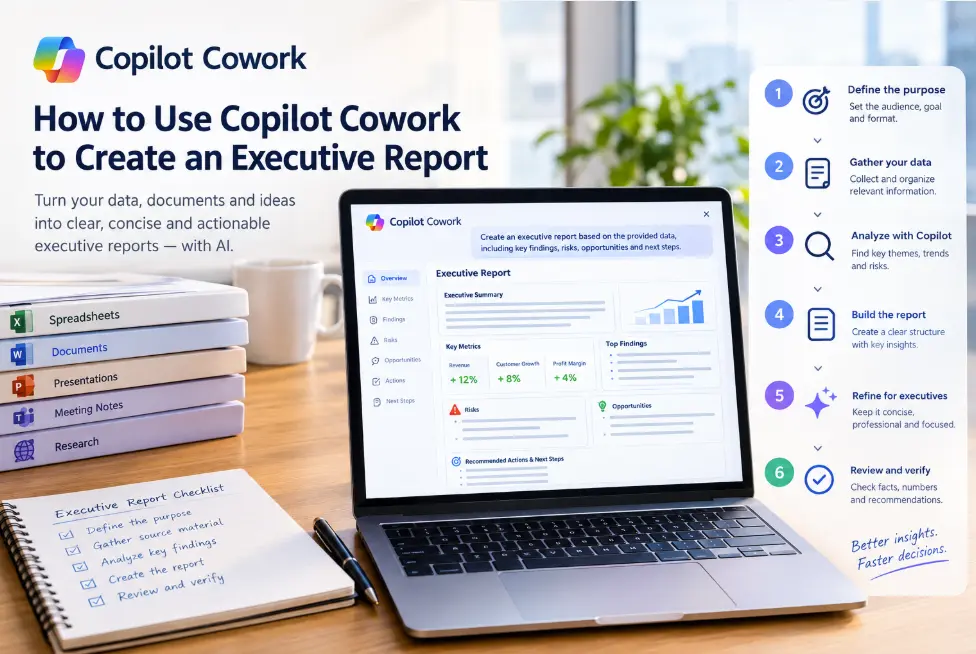
Collect the information → analyze the evidence → identify the key insights → create the report → review and verify → finalize for executives.
That combination of AI assistance and human judgment can help produce executive reports that are clearer, more concise, and easier for decision-makers to use.
The technology can help with the heavy lifting. Your role is to make sure the final report is accurate, relevant, and meaningful.