
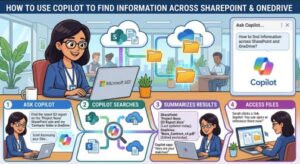
Finding information at work should be simple. In reality, it can sometimes feel like looking for a needle in a haystack.
A project document might be sitting in SharePoint, an updated presentation could be in OneDrive, and the information you need may be buried inside several Word files, Excel spreadsheets, PDFs, or other documents. Instead of opening each file and searching manually, Microsoft Copilot Cowork can help you find and work with information across your Microsoft 365 environment.
Cowork is designed to do more than simply answer a question. You can describe what you need in natural language, and it can search organizational resources, work with files, summarize information, and help complete multi-step tasks.
So, how do you actually use it?
Let’s walk through it.
What Is Copilot Cowork?
Copilot Cowork is an AI-powered experience within Microsoft 365 that helps you complete tasks instead of simply giving you suggestions.
Think of it as a digital work assistant.
You can give Cowork an instruction such as:
“Find the latest customer onboarding documents in SharePoint and OneDrive, compare the changes between them, and summarize the key updates.”
Instead of manually searching folders, opening documents, comparing versions, and writing down the important points yourself, Cowork can help coordinate that process.
It can search organizational information, browse OneDrive and SharePoint files, conduct research, summarize information, and work with files.
That makes it particularly useful when your information is spread across multiple locations.
Why Use Cowork for SharePoint and OneDrive?
SharePoint and OneDrive are powerful file-management platforms, but organizations can accumulate thousands of files over time.
You may have folders such as:
- Projects
- Marketing
- Sales
- Finance
- HR
- Operations
- Customer documentation
- Policies
- Meeting notes
- Product information
The challenge isn’t always storing information. The real challenge is finding the right information quickly.
Cowork can help reduce that friction by allowing you to ask questions in normal language.
For example, instead of searching for a specific filename, you could ask:
“Find the documents related to the 2026 marketing campaign and summarize the current strategy.”
You can also provide more context:
“Search our SharePoint and OneDrive files for the latest version of the Q3 sales strategy. Ignore older documents and give me the main changes from the previous version.”
The more specific your request, the easier it is for Cowork to understand what you are trying to accomplish.
Step 1: Open Copilot Cowork
Start by opening Microsoft 365 Copilot and selecting Cowork.
Depending on your Microsoft 365 environment and account, Cowork may be available through the Microsoft 365 Copilot experience.
Once Cowork is open, you’ll see a chat-style interface where you can describe the task you want it to perform.
You don’t need to use complicated search syntax.
Simply explain what you’re looking for.
For example:
“Find all documents about our employee onboarding process in SharePoint and OneDrive.”
Step 2: Be Specific About What You Want
This is probably the most important part.
Don’t simply write:
“Find onboarding documents.”
Instead, provide useful context.
For example:
“Search SharePoint and OneDrive for our employee onboarding process. Find the most recent policy, training guide, and checklist. Summarize the purpose of each document and identify anything that appears outdated.”
This gives Cowork a much clearer objective.
You can mention:
- A project name
- A department
- A document type
- A date or time period
- A person or team
- A specific topic
- The type of information you want extracted
The goal is to explain the outcome you need, not just the keyword you’re searching for.
Step 3: Let Cowork Search Your Available Information
Once you submit your request, Cowork can work across your available Microsoft 365 information.
For work or school accounts, Cowork can search organizational resources and work with information from sources such as SharePoint. It can also browse OneDrive files.
For example, imagine you’re preparing for a client meeting.
You could ask:
“Search SharePoint and OneDrive for documents related to the ABC client. Give me a summary of the latest project status, outstanding issues, deadlines, and recent changes.”
Instead of manually opening every document, Cowork can help bring the relevant information together.
This becomes especially useful when several files contain pieces of the same story.
Step 4: Ask Cowork to Compare Documents
Finding documents is only half the job.
Often, you need to understand what’s different between them.
For example:
“Compare the latest sales strategy document with the previous version and list the major changes.”
Or:
“Compare these two project plans and tell me what changed in deadlines, responsibilities, budget, and deliverables.”
This can save a significant amount of time when you’re working with revised policies, proposals, project plans, contracts, or business reports.
You can also use Copilot in OneDrive to ask questions about multiple files and compare documents.
Step 5: Ask for a Summary Instead of Reading Everything
Sometimes you don’t need every detail.
You just need to know what’s important.
Try a prompt such as:
“Review the relevant files and give me a five-bullet summary of the most important information.”
Or:
“Summarize the latest project updates from the documents in SharePoint and OneDrive. Highlight anything that requires action.”
This is particularly useful before meetings.
You could also ask:
“Find the latest documents about this project and prepare a short briefing for my meeting tomorrow.”
Cowork can help with research, briefing, summarization, and enterprise search, making these types of multi-step requests particularly useful.
Step 6: Attach Specific Cloud Files When Needed
You don’t always have to rely on a broad search.
If you already know which documents you want to work with, you can provide them as context.
Cowork can work with cloud files from locations such as OneDrive, SharePoint, and Teams, depending on your Microsoft 365 environment and available features.
For example:
“Review these three project documents and tell me whether the latest project plan reflects all the changes mentioned in the meeting notes.”
This approach can be useful when you want a focused answer rather than a broad organization-wide search.
Step 7: Ask Follow-Up Questions
One of the biggest advantages of using an AI assistant is that you don’t have to formulate the perfect question the first time.
Start broad, then narrow the results.
For example:
First prompt:
“Find documents about our customer retention strategy.”
Then:
Follow-up:
“Which one appears to be the latest?”
Then:
“Summarize the three biggest changes.”
Then:
“Turn those changes into talking points for my management meeting.”
This makes the process feel much more natural than traditional file searching.
Important: Check Permissions and Data Access
There is an important point to remember when using AI with company information.
Cowork does not simply give you access to everything in your organization.
Its access to Microsoft 365 information is tied to your account and the permissions you already have.
That means your organization’s SharePoint and OneDrive permissions still matter.
For administrators, this is especially important because poorly configured sharing permissions can affect what Microsoft 365 Copilot is able to discover.
Good information governance is still essential even when AI is doing the searching.
Before rolling out Copilot Cowork across a team, organizations should review their SharePoint and OneDrive permissions, sharing settings, sensitive information policies, and overall content governance.
Best Copilot Cowork Prompts for SharePoint and OneDrive
Here are a few prompts you can try.
Find Information
“Find the latest documents about the 2026 product launch across SharePoint and OneDrive.”
Summarize
“Summarize the key points from the latest project documents and highlight anything that needs my attention.”
Compare
“Compare the current project plan with the previous version and list the important changes.”
Research
“Search our organizational files for information about this customer and prepare a short briefing.”
Prepare for a Meeting
“Find the latest documents related to this project and prepare five talking points for my meeting.”
Find Missing Information
“Review the project documentation and tell me if there are any important areas where information appears to be missing.”
Tips for Getting Better Results from Copilot Cowork
If you want more useful results, don’t treat Cowork like a traditional search box.
Instead, think of it as an assistant that needs context.
Give it a clear objective, explain what information matters, and specify the format you want in the final answer.
For example, instead of saying:
“Search for sales reports.”
Try:
“Search SharePoint and OneDrive for sales reports from the first half of 2026. Identify the latest report, summarize revenue trends, highlight any significant changes, and present the findings in five bullet points.”
The second prompt gives Cowork a much clearer job.
You can also tell it what to exclude.
For example:
“Focus only on documents updated in the last six months and ignore archived files.”
Or:
“Use the most recent approved documents and exclude drafts where possible.”
These additional instructions can make your results more relevant and reduce the amount of information you need to review.

Copilot Cowork can change the way people search for information in Microsoft 365.
Instead of thinking about which folder contains a file, you can focus on what information you need.
That’s a meaningful shift.
SharePoint and OneDrive remain the places where your organization’s content lives, but Cowork provides a more conversational way to find, understand, compare, and work with that information.
The best results will come from clear prompts, good file organization, appropriate permissions, and human review.
AI can save time, but important business information should still be checked before it is used for decisions or shared with others.
For teams that spend hours searching through folders, opening documents, and comparing versions, learning how to use Copilot Cowork effectively could turn information search from a frustrating task into a much faster conversation.
Extra posts:
 Copilot + SharePoint Search: How AI Changes Information Discovery
  How to Design a Future-Proof SharePoint Information Architecture
  How to Use Microsoft 365 Copilot Cowork to Clean Up Your Inbox
  What Do You Use Copilot Cowork For? Practical Ways to Get More Done
  Sensitivity Labels vs. Copilot Creating an AI Policy That Honors Information Protection (MIP)
  SharePoint vs Teams vs OneDrive: When to Use Each (and When Not To)