

Imagine reviewing a contract and asking your company’s Copilot, “Approve this contract and notify the legal team.” Instead of simply explaining the approval process or drafting an email, Copilot initiates a workflow, routes the request to the right approver, updates the relevant business system, and sends notifications when the process reaches the next stage.
That is the difference between a copilot that generates content and one that helps execute business operations.
By combining Microsoft Copilot Studio with Power Automate, organizations can connect natural-language conversations to structured business processes. A prompt can become the starting point for an approval, a record update, a document-processing task, or a multi-step workflow involving several enterprise applications.
The key is to design the integration carefully. Copilot should understand what the user wants, while Power Automate handles the rules, permissions, integrations, and execution steps that make the action happen.
Why Connect Copilot to Power Automate?
Many business copilots can summarize documents, answer questions, and draft communications. Those capabilities are useful, but they often leave the user responsible for carrying out the next step.
A contract summary, for example, does not initiate a formal approval. A drafted email does not update a procurement system. A recommendation to create a support ticket does not actually create one.
Power Automate bridges that gap by executing predefined workflows in response to a request.
When integrated with Copilot Studio, a flow can serve as an action that the copilot invokes when a user asks for a supported operation. The flow can then interact with Microsoft 365, SharePoint, Dataverse, Teams, and other systems through available connectors.
Typical use cases include:
- Contract approvals: Submit contracts for review, assign approvers, and track decisions.
- Employee onboarding: Create tasks, provision approved resources, and notify relevant teams.
- IT service management: Create tickets, retrieve status information, and route incidents.
- Procurement: Submit purchase requests, check approval thresholds, and update records.
- Document processing: Extract relevant information, validate required fields, and initiate downstream actions.
The important distinction is that Copilot interprets the request and coordinates the interaction, while Power Automate executes the defined business process.
How the Copilot-to-Power Automate Integration Works
A typical implementation uses Copilot Studio to define the conversational experience and Power Automate to perform the operational work.
The architecture follows a straightforward sequence:
- A user submits a natural-language request to Copilot.
- Copilot identifies the intended action and gathers any missing information.
- Copilot invokes a configured action backed by a Power Automate flow.
- The flow validates inputs and executes its business logic.
- The flow returns a result or status to Copilot.
- Copilot communicates the outcome to the user.
For example, consider the request, “Submit contract CT-1042 for approval.”
Copilot can identify the contract reference, collect any required details, and invoke the appropriate flow. Power Automate retrieves the contract, checks whether it is eligible for approval, creates an approval request, and notifies the designated reviewer.
Once the flow returns a result, Copilot can tell the user that the request was submitted and provide a reference number or current status.
This division of responsibilities matters. Natural language makes the interaction easier, but the underlying workflow should remain deterministic, auditable, and governed by explicit business rules.
Step 1: Build the Power Automate Flow
Start by designing the workflow independently of the conversational interface.
For a contract approval scenario, the flow might include these actions:
- Accept a contract ID and relevant request details.
- Retrieve the contract from SharePoint or Dataverse.
- Validate the contract’s status and required metadata.
- Determine the appropriate approver based on business rules.
- Start an approval using an available Power Automate approval action.
- Record the outcome and update the contract’s status.
- Notify the requester and other relevant stakeholders.
The flow should have a clear input contract and a predictable output.
For example, the input could contain a contract identifier, a requested action, and a business justification. The output could contain a success indicator, a request reference, and a human-readable status message.
Avoid placing all the business logic inside the copilot’s instructions. Approval thresholds, authorization checks, routing rules, and record updates belong in the workflow or the systems responsible for enforcing those rules.
A well-designed flow is also easier to test independently, troubleshoot, and reuse in other applications.
Step 2: Expose the Flow as a Copilot Action
In Copilot Studio, configure an action that allows the copilot to call the relevant Power Automate flow. Depending on the current authoring experience and flow type, this may be presented through an agent flow or a configured tool.
The flow must meet the integration requirements supported by the chosen Copilot Studio action. In supported agent-flow configurations, this includes using the appropriate trigger for invocation from the copilot and returning a response through the supported response action.
Configure the action’s inputs and outputs carefully.
For example:
| Parameter | Purpose |
|---|---|
contractId | Identifies the contract to process |
requestedAction | Specifies the requested operation |
businessJustification | Explains why the action is being requested |
status | Reports the execution outcome |
requestId | Identifies the approval request |
Use clear parameter names and descriptions. These help the copilot determine when an action is relevant and what information it must provide.
The action description should explain both its purpose and its boundaries. An action that submits a contract for review should not imply that it can grant final approval unless that capability is explicitly implemented and authorized.
After configuring the action, make it available to the appropriate topic or allow the copilot to select it according to the agent’s instructions and action configuration.
Step 3: Connect the User’s Prompt to the Right Action
A natural-language request is not a reliable substitute for structured input validation.
Suppose a user says, “Approve this contract.” The copilot needs to determine which contract the user means and what the word approve represents in the organization’s process.
Does the user want to submit the contract for approval? Approve a pending request they are authorized to decide? Or simply check whether a contract has already been approved?
These are different operations.
Configure the copilot to ask follow-up questions when required information is missing or the intended action is ambiguous. If multiple contracts match the request, it should identify the relevant candidates rather than guess.
The workflow should also distinguish between a request to start an approval and the approval decision itself.
For instance, “Submit contract CT-1042 for approval” can initiate the process. By contrast, “Approve contract CT-1042” should only record an approval decision if the user has the required authority, the request is in an approvable state, and the implementation explicitly supports that operation.
This distinction prevents a conversational shortcut from bypassing a formal control.
Step 4: Handle Approvals, Permissions, and Security
Connecting Copilot to a workflow introduces a critical question: whose permissions govern the action?
The answer depends on the configured authentication model, connector settings, connection references, and execution context. A flow may use the invoking user’s connection or a configured connection belonging to another identity. Each approach has different security implications.
Before deploying the integration, verify the following:
- Identity and access: Confirm that the user is authorized to initiate the requested operation.
- Least privilege: Grant the flow and its connections only the permissions they require.
- Approval separation: Keep the final approval decision with an authorized approver when policy requires it.
- Input validation: Verify contract identifiers, record ownership, status, and required fields before making changes.
- Auditability: Record who initiated the request, what was processed, and what outcome occurred.
- Sensitive data: Avoid returning confidential contract details or unnecessary internal information in conversational responses.
Do not assume that a user who can chat with a copilot is automatically authorized to perform every action exposed by that copilot.
Likewise, hiding an action from the conversational interface is not an adequate security boundary. Enforce authorization in the workflow and the underlying business systems.
Step 5: Return a Useful Result to Copilot
A flow should not finish by simply stopping execution. It should return enough information for the copilot to explain what happened.
For example, a successful submission might return:
- Status:
Submitted - Contract ID:
CT-1042 - Approval request ID:
APR-2087 - Message:
The contract has been submitted to the legal team for review.
The copilot can turn that structured response into a concise, natural-language answer.
It should also distinguish between successful execution, validation failures, authorization failures, and unexpected errors. If the flow fails because the contract does not exist, the response should say so. If an approval request was created but a later notification failed, the response should not report that the entire process failed without explaining the partial outcome.
For long-running approvals, return a submission confirmation and a tracking reference rather than implying that the final decision has already been made. The user can then ask the copilot to check the status through a separate, appropriately secured action.
Common Implementation Mistakes to Avoid
Even a simple integration can become unreliable if its boundaries are unclear.
Putting too much logic in the prompt: Instructions help the copilot choose an action, but they should not replace workflow validation or access controls.
Using vague action descriptions: If an action’s purpose is unclear, the copilot may invoke it in the wrong context or fail to request the necessary inputs.
Ignoring duplicate requests: A user may repeat a prompt because the response is delayed. Design sensitive workflows to detect duplicate submissions where appropriate, using request identifiers, state checks, or idempotency controls.
Treating every flow response as success: Return explicit outcomes and handle timeouts, connector failures, and partial completion.
Skipping end-to-end testing: Test missing inputs, unauthorized users, invalid records, repeated requests, rejected approvals, and downstream service failures—not just the happy path.
Practical Takeaway: Start With One High-Value Action
The most effective way to introduce workflow execution through Copilot is to begin with a narrowly defined, valuable business action.
Contract approval is a good candidate because it has a clear starting point, identifiable participants, established rules, and a measurable outcome. Build the Power Automate flow first, expose it through Copilot Studio, validate its inputs, enforce permissions, and return a meaningful status to the user.
Then test the complete experience with realistic prompts and failure scenarios before expanding to additional processes.
The goal is not to let a copilot perform unrestricted actions. It is to give users a conversational way to initiate approved, governed workflows without forcing them to navigate every application manually.
When designed properly, a Copilot prompt becomes more than a request for information. It becomes a controlled entry point into the business processes that move work forward.
Extra posts:
 Automating Daily Tasks with Microsoft Power Automate
  Automating Microsoft Teams Meeting Summaries with Power Automate
  From Draft to Decision: How to Integrate Copilot Studio Agents with Power Automate for Smart Email Approval Workflows
  Automating Daily Tasks with Power Automate Desktop: A Practical Guide for Modern Workflows
 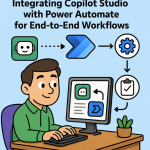 Integrating Copilot Studio with Power Automate for End-to-End Workflows
  The “Copilot Loop” in Loop: Collaborative Content Generation and Iteration in the Flow of Work