
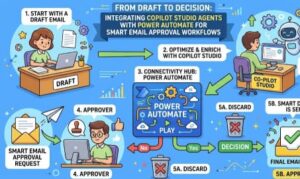
Artificial intelligence is changing the way businesses communicate. Today, AI assistants can understand requests, generate content, summarize information, and help employees complete tasks faster. However, when it comes to sending emails, many organizations still need an important layer of control: approval.
This is where the combination of a Copilot Studio agent and Power Automate becomes powerful.
Instead of allowing an AI agent to immediately send messages, you can design a smarter workflow where the agent prepares the email, Power Automate manages the approval process, and a human makes the final decision before anything reaches the customer, partner, or internal team.
This approach creates a balance between automation and responsibility. The AI handles repetitive work, while people maintain control over important communication.
In this article, we will explore how to integrate a Copilot Studio agent with Power Automate to build an email approval workflow, why this architecture matters, and how businesses can use it effectively.
Why Combine Copilot Studio and Power Automate?
A Copilot Studio agent is designed to interact naturally with users. It can answer questions, collect information, understand intent, and perform actions through connected tools.
Power Automate, on the other hand, specializes in workflow automation. It connects applications, triggers processes, sends notifications, creates approvals, and manages business logic.
Together, they create a complete AI-powered workflow.
Imagine an employee asks:
“Create a follow-up email for this customer.”
The Copilot Studio agent can:
- Understand the request
- Gather customer details
- Create a professional email draft
- Send the draft to Power Automate
Power Automate can then:
- Create an approval request
- Send the draft to a manager or team member
- Wait for approval or rejection
- Send the email only after approval
This prevents accidental messages and ensures communication follows company standards.
The Basic Architecture
The workflow usually contains three main components:
1. Copilot Studio Agent
The agent acts as the conversation layer. Users interact with it using natural language.
For example:
“Prepare a renewal reminder email for the customer.”
The agent can collect information such as:
- Customer name
- Email address
- Purpose of the message
- Important details to include
After preparing the email content, the agent triggers a Power Automate flow.
2. Power Automate Flow
Power Automate becomes the process manager.
The flow receives:
- Recipient information
- Email subject
- Email body
- Additional context
Instead of sending the email immediately, the flow creates an approval step.
A typical flow looks like this:
Trigger → Receive email draft → Create approval → Wait for response → Send email if approved
3. Human Approval Step
The approval stage is the most important part of the workflow.
The approver receives a request containing:
- Proposed email
- Recipient details
- Reason for sending
- Approval options
They can choose:
- Approve
- Reject
- Request changes
Only approved emails continue to the sending stage.
Step-by-Step Integration Process
Step 1: Create Your Copilot Studio Agent
Start by creating an agent in Copilot Studio.
Define the purpose of your agent clearly.
For example:
“You are an assistant that creates customer communication drafts.”
Add instructions such as:
- Use a professional tone
- Never send emails directly
- Always submit drafts for approval
Clear instructions help the agent follow the correct business process.
Step 2: Create an Action Using Power Automate
Inside Copilot Studio, create an action that connects to a Power Automate cloud flow.
The flow should accept inputs like:
- Email recipient
- Subject
- Message content
These values will come from the agent conversation.
Step 3: Build the Approval Flow
In Power Automate, create a new flow.
Add the trigger connected to Copilot Studio.
Then add the approval action.
The approval message can include:
“An AI-generated email is ready for review.”
Include the draft content so the reviewer can evaluate it quickly.
Step 4: Add the Sending Condition
After the approval action, add a condition.
If the response is approved:
- Send email through Outlook connector
If rejected:
- Return the feedback to the agent or store the reason
This creates a controlled AI workflow.
Example Business Scenario
Consider a sales team using an AI assistant.
A salesperson asks:
“Write a proposal follow-up email for my client.”
The Copilot Studio agent creates:
Subject:
“Following Up on Our Proposal Discussion”
Body:
A personalized follow-up message based on available information.
Instead of sending it, Power Automate sends an approval request to the sales manager.
The manager reviews it, approves it, and the email is sent automatically.
The sales team saves time while maintaining quality control.
Benefits of an Approval-Based AI Email Workflow
Better Security
AI-generated content can sometimes require review. Approval workflows reduce the chance of sending incorrect or sensitive information.
More Consistency
Organizations can ensure emails follow approved communication styles and policies.
Increased Productivity
Employees spend less time writing emails and more time focusing on valuable work.
Human-Controlled Automation
The goal is not to replace people. It is to allow AI to handle preparation while humans make important decisions.
Best Practices
Define Clear Agent Instructions
Tell your Copilot Studio agent exactly what it can and cannot do.
A simple rule like “draft only, do not send” can prevent unwanted actions.
Keep Approval Messages Clear
Approvers should immediately understand:
- Who is receiving the email
- Why it is being sent
- What action is needed
Store Approval History
Keep records of approved and rejected emails for auditing and improvement.
Start Small
Begin with internal emails or low-risk communication before expanding the workflow.

The Future of AI-Powered Workflows
The future of workplace automation is not just about making AI faster. It is about making AI reliable, transparent, and aligned with business processes.
The combination of Copilot Studio and Power Automate shows how organizations can build practical AI systems where automation and human judgment work together.
By allowing AI to prepare emails and Power Automate to manage approvals, businesses get the best of both worlds: speed from AI and confidence from human oversight.
Integrating a Copilot Studio agent with Power Automate creates a smarter way to manage email communication. The agent handles the creative and repetitive work of preparing messages, while Power Automate ensures every email goes through the right approval process before being sent.
This human-in-the-loop approach makes AI adoption safer, more scalable, and more useful for everyday business operations.
AI does not have to work alone. With the right workflow design, it can become a trusted assistant that helps teams communicate better.
Extra posts:
 Integrating Copilot Studio with Power Automate for End-to-End Workflows
  Copilot Studio vs. Power Virtual Agents What’s Changed?
  The Difference Between Declarative Agents and Autonomous Agents in Copilot Studio
  No-Code AI How Non-Developers Can Build Smart Chatbots with Copilot Studio
  No-Code AI: How Non-Developers Can Build Smart Chatbots with Copilot Studio
  Copilot Studio vs Azure AI Agents: What Should You Use?