
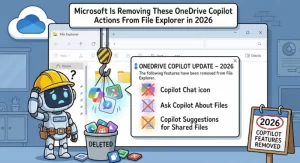
Microsoft is simplifying the way users access Copilot features for OneDrive files in Windows File Explorer, with several dedicated AI actions scheduled for retirement between mid-November and early December 2026. The change will affect users who rely on File Explorer’s right-click context menu to summarize documents, compare files, extract text from images, and perform other AI-assisted tasks.
The retirement will roll out worldwide, according to Microsoft’s announcement. However, the company is not removing these Copilot capabilities altogether. Instead, users will be directed toward a more centralized experience through the Ask Copilot option, the Copilot icon in File Explorer Home, and the OneDrive activity center.
For organizations, the update requires no administrative action. IT teams should still prepare users for the interface change and revise internal documentation that references the retiring shortcuts.
What Is Changing in Microsoft OneDrive and Copilot?
Microsoft is retiring eight OneDrive Copilot actions from the File Explorer context menu as part of an effort to simplify the experience of working with files through AI.
The affected actions are:
- Summarize: Generate a summary of a file’s contents.
- Create FAQ: Produce frequently asked questions based on file content.
- Compare Files: Help identify differences between files.
- Ask a question: Ask questions about a file.
- Explain image: Request an explanation of an image.
- Explain images: Access image-related explanation functionality.
- Compare images: Compare visual content across images.
- Extract text: Retrieve text from supported image content.
These actions have provided direct entry points to Copilot from File Explorer. Their removal means users will no longer find these dedicated commands in the OneDrive file context menu after the rollout reaches their devices.
The key distinction is that Microsoft is retiring the shortcuts, not announcing the removal of the underlying Copilot experience. Users will still be able to work with their OneDrive files through the remaining Copilot entry points.
When Will Microsoft Roll Out the Change?
Microsoft’s published schedule places the retirement in the second half of November 2026, with completion expected by early December.
The timeline applies to general availability worldwide.
| Rollout detail | What users should know |
|---|---|
| Service | Microsoft OneDrive and Copilot |
| Affected interface | File Explorer context menu |
| Rollout begins | Mid-November 2026 |
| Expected completion | Early December 2026 |
| Geographic availability | Worldwide |
| Administrator action | None required |
As of October 20, 2026, the announced retirement window is still in the future. Users and administrators should therefore prepare for the change rather than assume the shortcuts have already disappeared.
Microsoft’s schedule describes an expected rollout period, not a guarantee that every user will see the change on the same day. Organizations should communicate the planned timeline while checking their own environments as the rollout progresses.
How to Use Copilot With OneDrive Files After the Change
Although the dedicated context menu actions are being retired, Microsoft is retaining several ways to open Copilot with a OneDrive file.
1. Right-click a file and select Ask Copilot
Users can continue to open File Explorer, locate a OneDrive file, and right-click it to access Ask Copilot.
Selecting this option opens a new Copilot conversation with the file attached by reference. Users can then ask questions about the file or request assistance with its contents through the conversation.
This approach consolidates multiple file-related tasks into a single conversational interface instead of presenting a separate command for each operation.
2. Open Copilot from File Explorer Home
Another option is available through File Explorer Home.
Users can hover over a file and select the Copilot icon to start a new conversation with that file attached. This gives users another route to AI assistance without requiring them to navigate to a separate application first.
For people who regularly work with documents from File Explorer Home, this may become the most convenient replacement for the retiring shortcuts.
3. Use the OneDrive activity center
Microsoft also confirms that the OneDrive Copilot actions will remain available in the OneDrive activity center.
This is an important detail for existing users: the change does not eliminate every alternative route to these actions. Users who prefer the activity center can continue using the functionality available there.
Organizations should update internal instructions to explain which route employees should use for specific tasks, particularly where existing training materials rely on the old right-click commands.
Why Is Microsoft Simplifying the Copilot Experience?
The stated reason for the change is straightforward: Microsoft wants to simplify how people use Copilot with OneDrive files in File Explorer.
The existing context menu exposes multiple individual actions. While this can make particular tasks easy to discover, it can also create a more crowded interface as AI functionality expands.
Moving users toward Ask Copilot creates a more centralized entry point. Rather than selecting a dedicated command for summarization, file comparison, or question answering, users can begin with a file and continue through a Copilot conversation.
There are potential benefits to this approach:
- A more consistent workflow: Users have a common starting point for different file-related tasks.
- Less context menu complexity: Removing dedicated commands can reduce the number of options presented when users right-click a file.
- More conversational flexibility: Users can describe what they want to accomplish instead of choosing from a fixed list of actions.
- Simpler user guidance: IT teams can focus training on a smaller number of entry points.
There is also a practical trade-off. Dedicated commands can be faster for users who already know exactly what they want to do. A person who regularly compares documents or extracts text from images may need to adjust to a conversation-based workflow.
Whether the new experience feels simpler will depend on individual work habits, the available Copilot capabilities, and how effectively users learn the replacement routes.
What Does This Mean for Businesses and IT Administrators?
The change is particularly relevant to organizations that use Microsoft 365, OneDrive, and Copilot in everyday document workflows.
Microsoft states that no administrative action is required to implement the retirement. Administrators do not need to perform a special migration simply to accommodate the removal of these context menu actions.
However, the absence of a technical requirement does not mean there is nothing worth preparing for.
Update employee training and support documentation
Organizations should review internal guides, onboarding materials, knowledge-base articles, and help desk scripts that instruct employees to use the retiring commands.
For example, a guide that tells employees to right-click a OneDrive document and select Summarize may become outdated once the change reaches their devices.
Replacing those instructions with the Ask Copilot workflow can help prevent unnecessary support requests.
Prepare the help desk for user questions
Employees may initially interpret the disappearance of familiar commands as a software problem or a change in their account permissions.
Support teams should be ready to explain that the retirement is an announced product change. They can then direct users to the remaining Copilot entry points.
Review workflows that depend on individual actions
Teams that frequently compare files, summarize documents, or extract text from images should test their existing workflows against the available alternatives.
The aim is to identify any practical differences before the rollout reaches the entire organization. Teams should avoid assuming that every replacement route behaves identically in every situation; they should verify that the required task remains available in their environment.
Will File Permissions and Security Protections Change?
Microsoft says that files opened through the Ask Copilot workflow are attached by reference, allowing their existing permissions and protections to continue to apply.
This matters because organizational files may be governed by access controls and other security requirements. Opening a Copilot conversation with a file should not be interpreted as a blanket change to the file’s permissions.
The announcement does not describe this retirement as a change to OneDrive’s underlying file access model. Instead, it focuses on how users launch Copilot actions from File Explorer.
Organizations should continue following their existing Microsoft 365 security policies and should not treat the new entry point as a reason to relax access controls. Any separate questions about data governance, retention, or Copilot licensing should be assessed against the applicable organizational configuration and Microsoft’s relevant documentation.
How Users Can Prepare Before December 2026
Most individual users will not need to change any settings. A few simple steps can make the transition easier.
- Learn the Ask Copilot workflow: Practice opening a OneDrive file through the right-click menu and starting a conversation.
- Explore File Explorer Home: Become familiar with the Copilot icon that appears when hovering over a file.
- Check the OneDrive activity center: Use it as an alternative route where the relevant actions remain available.
- Update saved instructions: Replace references to the retiring context menu commands in personal notes and team documentation.
- Report genuine access problems separately: If Copilot features fail to work through the remaining routes, investigate that issue rather than assuming every problem is caused by the planned retirement.
These steps are particularly useful for employees who have built repeatable workflows around the current context menu.
What Happens Next for OneDrive and Copilot?
The immediate priority is the transition to a more centralized way of accessing AI assistance in File Explorer. Microsoft’s mid-November-to-early-December rollout window gives organizations a short period to communicate the change and prepare their users.
The longer-term question is how Microsoft will balance streamlined interfaces with the quick access that experienced users expect. As AI tools become more closely integrated into everyday file management, the placement of features can matter almost as much as the capabilities themselves.
For now, the practical message is clear: the eight dedicated OneDrive Copilot context menu actions are being retired, but users will retain alternative ways to work with their files. Organizations that update their guidance early should be better positioned to avoid confusion as the rollout progresses.
The next milestone is the start of the worldwide rollout in mid-November 2026. Users should watch for the interface change, while administrators can focus on communication, documentation, and ensuring employees know where to find the remaining Copilot features.
Extra posts:
 Microsoft Expands Copilot in OneDrive: Smarter Ways to Find, Analyze and Create With Your Files
  How to Fix “This File Can’t Be Synced” in OneDrive
  Microsoft OneDrive Pay-As-You-Go Storage: Preview, Pricing Model and 2026 Rollout
  Microsoft Outlook for Android Adds Multi-Select and Bulk Email Actions in October 2026
  How to Enable Tabs in File Explorer in Windows 11
  Advanced File Explorer Tips for Faster Navigation in Windows 11