
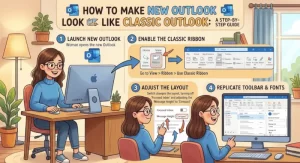
If you’ve switched to the new Outlook for Windows and immediately felt that something was missing, you’re not alone. The cleaner interface looks modern, but familiar features, menus, navigation options, and email controls may appear in different places. Even everyday tasks, such as managing folders, switching between messages and the calendar, or adjusting the reading pane, can take longer when you’re used to Classic Outlook.
The good news is that you can customize several parts of New Outlook to make it look and feel much closer to the classic version. You can adjust the message layout, restore a more familiar navigation experience, change the ribbon and toolbar options, and fine-tune email settings.
There is one important limitation: New Outlook cannot be made into an exact copy of Classic Outlook through settings alone. Some features available in the traditional desktop application are still different or unavailable in New Outlook. However, a few targeted changes can make the transition much easier for home users, office employees, and IT teams.
1. Understand the Difference Between New Outlook and Classic Outlook
Before changing settings, it helps to understand what you’re working with.
Classic Outlook for Windows is the traditional desktop application, with its established ribbon interface, extensive account settings, and long-standing email management tools. New Outlook for Windows uses a more modern interface and shares elements of the Outlook web experience.
The differences go beyond appearance. You may notice changes in:
- Ribbon and menus: Commands are reorganized, and some options appear under different menus.
- Navigation: Mail, Calendar, People, and other apps may be displayed differently.
- Email organization: Message lists, conversations, and reading pane options may use different controls.
- Settings: New Outlook places many preferences in its Settings panel rather than the traditional Outlook Options dialog.
- Advanced functionality: Certain classic desktop features, add-ins, automation tools, and specialized workflows may not behave the same way.
Your goal should be to recreate the parts of Classic Outlook that matter most to your daily work, rather than trying to reproduce every detail.
2. Change the New Outlook Layout to Match Classic Outlook
The message list and reading pane have a major impact on how Outlook feels. If your inbox looks unfamiliar, start here.
Step 1: Open the Outlook layout settings
- Open New Outlook for Windows.
- Select the Settings gear icon in the upper-right corner.
- Open Mail, then look for Layout.
- Review the available options for message organization, the reading pane, and message previews.
- Apply the settings that most closely match your Classic Outlook configuration.
The exact labels and available options can vary by Outlook version, account type, and update channel.
Step 2: Position the reading pane
Classic Outlook users often prefer reading messages without opening each email in a separate window.
Look for the Reading pane setting and choose the available position that best matches your previous setup. Depending on your version, you may see options such as:
- Right: Displays the selected email beside the message list.
- Bottom: Displays the selected email below the message list.
- Hide: Gives the message list more space and requires opening messages to read them.
If you previously used the classic three-column arrangement—with folders on the left, messages in the middle, and the selected email on the right—the right-side reading pane is usually the best starting point.
Step 3: Adjust message density and previews
A crowded inbox can make New Outlook feel very different from the traditional application.
Review the available settings for message previews, sender information, and message spacing. If your version offers compact or denser message-list options, use them to display more emails on the screen.
For business users handling dozens or hundreds of messages daily, a compact layout can reduce scrolling and make it easier to scan subjects, senders, and timestamps.
Practical tip: Change one layout setting at a time. That makes it easier to identify which configuration feels closest to your previous workflow.
3. Customize the Ribbon and Toolbar
One of the biggest differences between the two applications is how commands are presented.
Classic Outlook has a familiar ribbon with tabs such as Home, Send/Receive, Folder, View, and Help, depending on the version and configuration. New Outlook uses a redesigned command bar and a different arrangement of menus.
You cannot simply restore the complete Classic Outlook ribbon in New Outlook, but you can make frequently used actions easier to access.
Step 1: Find the available toolbar options
- Open your inbox.
- Look across the top of the message list for the command bar.
- Open the available toolbar customization menu, if your version provides one.
- Review which commands can be displayed or prioritized.
Depending on your build, you may be able to customize available commands or use menus to access less frequently used actions.
Step 2: Prioritize familiar email commands
Make the actions you use every day easy to find. Common examples include:
- New mail
- Reply and Reply all
- Forward
- Delete
- Archive
- Move to folder
- Mark as read or unread
- Flag or follow up
Not every command can be pinned or customized in every version. If an action is not available directly on the toolbar, check the message context menu or the relevant ribbon-style menu.
Step 3: Use keyboard shortcuts
Keyboard shortcuts are one of the easiest ways to preserve your existing workflow even when the interface changes.
For example, commonly used Outlook shortcuts include:
- Ctrl + N: Create a new item in the current context, where supported.
- Ctrl + R: Reply to an email.
- Ctrl + Shift + R: Reply to all.
- Ctrl + Enter: Send a message in supported configurations, sometimes after confirmation or additional setup.
- Ctrl + 1: Switch to Mail in supported Outlook configurations.
Shortcut behavior can vary between New Outlook, Classic Outlook, and other Outlook platforms. Test important shortcuts before relying on them in a production workflow.
For teams that process a high volume of email, learning a handful of reliable shortcuts can save more time than trying to reproduce every button in the classic interface.
4. Make the Navigation Pane Feel More Like Classic Outlook
The navigation pane is where many users notice the change immediately. In Classic Outlook, the folder list, Favorites, and navigation controls provide a familiar structure for moving between mailboxes and applications.
New Outlook organizes these elements differently, but you can still improve the experience.
Step 1: Show the folder pane
- Open New Outlook.
- Go to Settings and select Mail if you need to review folder-related preferences.
- Return to your inbox and look for the folder-pane expansion control, usually near the upper-left side of the application.
- Expand the pane if it is collapsed.
- Check that your Inbox, Sent Items, Drafts, Deleted Items, and other frequently used folders are visible.
Keeping the folder pane expanded makes it easier to navigate between folders without repeatedly opening menus.
Step 2: Organize Favorites
If you relied on Favorites in Classic Outlook, recreate a similar arrangement in New Outlook.
- Locate a frequently used folder, such as Inbox or Sent Items.
- Open its context menu by right-clicking the folder or using the available menu.
- If the Add to Favorites option is available, select it.
- Repeat the process for important folders, such as a shared mailbox folder, a project folder, or a customer-support folder.
Favorites are particularly useful for employees who work across multiple projects or mailboxes. Instead of navigating through a long folder tree, you can jump directly to the folders you use most.
Step 3: Adjust app navigation
New Outlook may display Mail, Calendar, People, and other Microsoft 365 applications in a navigation bar or app launcher, depending on your version.
Look for the available navigation customization options and prioritize the applications you use regularly.
You may not be able to restore the exact placement and appearance of the Classic Outlook navigation bar, but you can create a more predictable way to switch between email and calendar tasks.
5. Recreate Classic Email Behavior Through Settings
Visual similarities matter, but email behavior matters just as much. If messages are grouped differently, replies are handled unexpectedly, or important emails disappear from view, Outlook can feel unfamiliar even when the layout looks right.
Step 1: Review conversation view
New Outlook can group messages into conversations, depending on your settings.
To adjust this:
- Open Settings.
- Select Mail, then Layout.
- Look for message organization or conversation-related options.
- Choose the available setting that best matches how you used Classic Outlook.
If you prefer to see every email as a separate entry, look for an option to show messages individually rather than grouped into conversations. If you like threaded discussions, keep conversation grouping enabled.
This is particularly important for business correspondence. A long customer-support thread may be easier to manage as a conversation, while an inbox containing many unrelated requests may be easier to scan as individual messages.
Step 2: Configure the default reply behavior
Review the available settings for replies and forwarded messages. Depending on your version, these may be found under Settings > Mail > Compose and reply or a similarly named section.
Check the available options for:
- Whether replies open in the reading pane or a separate window.
- How the original message appears in a reply.
- The default font, size, and formatting for new messages.
- The signature used for new emails and replies.
The available choices may differ from Classic Outlook, so focus on matching the result rather than the exact location of each control.
Step 3: Set up your signature
A professional signature is especially important when you use Outlook for client communication.
- Open Settings.
- Go to the mail composition settings.
- Find the Email signature section.
- Create or edit your signature.
- Select the available options to apply it automatically to new messages, replies, or forwards, as appropriate.
- Save your changes.
If your organization requires a standardized signature, check its formatting and any approved branding requirements before using it.
Step 4: Review notification settings
Classic Outlook users may also be accustomed to specific desktop alerts or sound notifications.
Open the notification settings available in New Outlook and review which alerts you receive. Where supported, adjust notifications to reduce interruptions while ensuring that important incoming messages remain visible.
For business users, this can be a useful balance: notifications for priority correspondence, fewer distractions from low-priority folders, and a predictable inbox routine.
6. Adjust Calendar and Other Everyday Features
If you used Classic Outlook as an all-in-one desktop workspace, email is only part of the experience. Calendar navigation, contacts, and task management also contribute to how familiar Outlook feels.
Customize your calendar view
Open Calendar and review the available view options. Depending on your version, you may be able to switch between Day, Work week, Week, and Month views.
Choose the view that best matches your previous routine. For example, a weekly view may work well for scheduling meetings, while a daily view may be more useful when you manage appointments in short time blocks.
Also review calendar settings for working hours, time zones, reminders, and other relevant preferences. Some options are account-dependent.
Review contacts and tasks
New Outlook may integrate People, To Do, and other Microsoft 365 services differently from Classic Outlook.
If you previously relied on Outlook’s traditional Tasks experience, check which task-management options are available in your version. Microsoft To Do may provide the functionality you need for personal task lists and flagged emails, but it is not a universal replacement for every classic task workflow.
Likewise, check how your contacts and address book are accessed before assuming that a familiar command has disappeared.
7. Which Classic Outlook Features Cannot Be Fully Recreated?
This is the point where expectations matter.
Settings can make New Outlook more familiar, but they cannot add every feature of the classic desktop application. The available differences depend on your Outlook version, account type, and organization’s Microsoft 365 configuration.
| Area | What you can do in New Outlook | Important limitation |
|---|---|---|
| Interface | Adjust layout, navigation, and available commands | The complete classic ribbon cannot be restored through a simple setting |
| Email organization | Configure conversation view, folders, and Favorites | Some classic message-management behaviors may differ |
| Rules and automation | Use the supported rules and automation options | Advanced workflows may not offer full feature parity |
| Add-ins | Use compatible, supported add-ins | Some COM add-ins used by Classic Outlook are not supported in New Outlook |
| Offline access | Use available offline functionality where supported | Availability and capabilities differ from Classic Outlook |
| Data files and accounts | Use supported account and data-management options | Some classic PST, account, and local-data workflows may be limited or handled differently |
| Advanced customization | Use the settings and commands provided | Traditional VBA macros and other classic desktop integrations may not work the same way |
Before migrating a business user or department, test any critical workflow that depends on COM add-ins, VBA macros, specialized archive arrangements, custom forms, or other advanced desktop functionality.
If a required feature is unavailable, changing the layout will not solve the problem. You may need to continue using Classic Outlook for that workflow, if it remains available and supported in your environment.
8. How to Switch Back to Classic Outlook
If the redesigned interface still slows you down, returning to Classic Outlook may be the most practical option—especially if you depend on features that New Outlook does not support.
Step 1: Check whether Classic Outlook is installed
Look in the Windows Start menu for Outlook (classic). If it appears, open it and confirm that your account and essential folders are available.
If it does not appear, check your Microsoft 365 installation or ask your IT administrator whether Classic Outlook is included in your organization’s software deployment.
Step 2: Look for the switch in New Outlook
- Open New Outlook.
- Look for the New Outlook toggle, usually near the upper-right area of the window, if your version provides it.
- Turn the toggle off.
- Follow any prompts to switch back or provide feedback.
- If prompted, allow Classic Outlook to open.
The toggle and switching experience vary by installation, account, and deployment policy. In some environments, the option may be unavailable.
Step 3: If the toggle is missing
Try these alternatives:
- Search Windows for Outlook (classic).
- Check whether your Microsoft 365 installation includes the classic desktop application.
- Contact your IT administrator if your organization manages Outlook installations.
- Consult Microsoft’s official guidance for your version of Outlook before reinstalling or changing software.
Avoid uninstalling New Outlook simply because you prefer the classic interface. The two applications can have different installation and deployment arrangements, and removing one does not necessarily restore the other.
Make Outlook Work for You, Not Against You
The best way to make New Outlook look like Classic Outlook is to start with the settings that affect your daily routine: the reading pane, message list, folder navigation, toolbar commands, and conversation view. Then adjust signatures, notifications, and calendar preferences to match how you work.
For most users, these changes can make New Outlook feel considerably more familiar without requiring a complete return to the traditional application.
For business users, there is one additional step: test the features that support your actual work. If your workflow depends on advanced add-ins, macros, or specialized data management, verify compatibility before committing to New Outlook.
Your next step: Adjust the layout first, use it for a day, and then fine-tune the navigation and email behavior. If the missing functionality—not just the appearance—continues to get in your way, check whether Classic Outlook is available in your environment.
The objective isn’t to make two different applications identical. It’s to create an Outlook setup that feels familiar, supports your workflow, and helps you get through your inbox with less friction.
Extra posts:
 How to Use Copilot in Outlook A Step by Step Guide
  How to Reset Windows 11 Without Losing Files: A Complete Step-by-Step Guide
  How to Change Desktop Icons in Windows 11: A Step-by-Step Guide
  How To Use Sensitivity Labels in Microsoft Teams (Step-by-Step Guide)
  Customizing the Lock Screen in Windows 11 A Step-by-Step Guide to Personalize and Optimize
  Integrating Copilot in Microsoft Teams Channels and Projects: A Step-by-Step Guide