
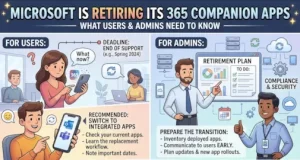
Microsoft is retiring its Microsoft 365 companion apps Calendar, People, and Files on December 16, 2026, bringing an end to the taskbar-integrated applications that gave Windows users another way to access everyday Microsoft 365 information.
After that date, the companion apps will stop functioning and will no longer receive support. Microsoft is advising administrators to remove the apps from devices in their organizations and prevent new installations before the retirement deadline.
The change affects enterprise customers worldwide that have installed the companion apps. However, the retirement does not mean that Microsoft is removing calendars, contacts, files, or the underlying Microsoft 365 data associated with them.
Users will continue to access those capabilities through established Microsoft 365 and Windows experiences, including Outlook, Teams, Windows Search, File Explorer, SharePoint, and OneDrive.
What Are the Microsoft 365 Companion Apps?
The Calendar, People, and Files apps were designed as taskbar-integrated companions for Microsoft 365 users.
Their purpose was straightforward: provide quick access to commonly used information without requiring users to move through multiple applications or interrupt their current workflow.
The apps offered additional entry points for finding:
- Calendar information
- People and contact information
- Microsoft 365 files
That convenience is now being phased out as Microsoft prepares to end the apps’ lifecycle.
The retirement is therefore primarily a change to how users access Microsoft 365 information, rather than a removal of the information itself.
When Will the Microsoft 365 Companion Apps Stop Working?
Microsoft has established December 16, 2026, as the end-of-life date for the companion apps.
There are two important stages for organizations to understand.
Current retirement period: Microsoft has begun phasing out automatic installation of the companion apps through Microsoft 365 Apps updates. New updates and fixes, including security fixes, are no longer being provided.
Existing installations can continue to function during the retirement window.
December 16, 2026: Any remaining companion apps will stop functioning and will no longer be supported.
That deadline gives organizations time to identify installations, communicate the change to employees, adjust deployment practices, and update internal documentation.
What Changes for Businesses?
For IT departments, the retirement creates several administrative tasks.
Microsoft says organizations should prevent new installations through other deployment methods and remove existing installations from managed devices.
This matters because simply allowing the apps to remain installed until the deadline could leave users with software that eventually stops working without an alternative workflow being clearly communicated.
Administrators should consider the retirement as both a software-removal exercise and a user-communication exercise.
Key actions include:
- Inform employees that the companion apps are being retired.
- Stop deploying new installations.
- Remove existing installations from managed devices.
- Ask users with unmanaged devices to uninstall the apps.
- Review internal documentation that references the companion apps.
- Update training materials and employee guides.
- Replace screenshots or instructions that direct users to the retired applications.
Microsoft also recommends that administrators review its dedicated retirement guidance for the detailed steps required for their environment.
Your Microsoft 365 Data Is Not Being Deleted
One of the most important distinctions in Microsoft’s announcement is that retiring the companion apps does not remove the underlying Microsoft 365 capabilities or data.
A user who previously relied on the companion Calendar app, for example, will still have access to calendar information through supported Microsoft 365 experiences.
The same applies to people and files.
The change removes an access method rather than the Microsoft 365 content itself.
That distinction should be central to employee communications. Users may initially interpret the retirement of the Calendar, People, or Files apps as a broader change to Microsoft 365 services, when Microsoft’s guidance indicates that those core capabilities remain available elsewhere.
Where Users Can Find Calendar, People and Files
Microsoft is pointing users toward existing Microsoft 365 and Windows experiences.
Depending on the task, users can continue accessing their information through tools such as:
- Outlook for calendar and people-related information
- Teams for collaboration and access to Microsoft 365 information
- Windows Search for finding relevant content
- File Explorer for file access
- SharePoint for organizational content and collaboration
- OneDrive for cloud-based file access
For organizations, this makes the transition less about introducing completely new software and more about reinforcing workflows that employees may already use.
That could reduce the operational disruption associated with the retirement, particularly in environments where Outlook, Teams, OneDrive, and SharePoint are already standard tools.
Security and Support Are Also Changing
The end of updates and fixes is another important part of the retirement.
Microsoft says that updates and fixes, including security fixes, are no longer being provided during the retirement period. Existing installations may continue to work temporarily, but continued functionality should not be confused with continued support.
This is particularly relevant for organizations with managed Windows environments.
Leaving retired software installed can create confusion for help desks and employees, especially if an application continues to launch for a period before ultimately stopping.
For that reason, organizations have a practical reason to remove the apps ahead of the final deadline rather than treating December 16 as the date on which all preparatory work should begin.
What IT Administrators Should Do Now
The retirement gives administrators a defined set of tasks to work through before the deadline.
1. Identify existing installations
Organizations should determine which managed devices have the Calendar, People, or Files companion apps installed.
The scope may vary depending on how the applications were originally deployed.
2. Stop new deployments
Microsoft is phasing out automatic installation through Microsoft 365 Apps updates, but administrators also need to consider alternative deployment mechanisms that could reinstall the applications.
Deployment policies and software-management processes should be reviewed accordingly.
3. Remove the apps
Microsoft recommends removing the companion apps from managed devices before the December 16, 2026 end-of-life date.
Users on unmanaged devices should be instructed to uninstall them themselves.
4. Update internal documentation
Organizations should search employee documentation, knowledge bases, onboarding material, training resources, and internal communications for references to the retired apps.
Removing outdated instructions can prevent users from following workflows that will no longer work.
5. Communicate the replacement workflows
Employees should know where to go after the apps disappear.
Simple guidance pointing users toward Outlook, Teams, Windows Search, File Explorer, SharePoint, or OneDrive can help reduce support requests during the transition.
Why the Retirement Matters
The companion apps were built around convenience: giving users quick access to information from the Windows taskbar.
Their retirement reflects a shift toward the broader Microsoft 365 and Windows experiences that already provide access to the same categories of information.
For most users, the immediate change will likely be the disappearance of a familiar access point rather than the loss of a core Microsoft 365 capability.
For IT teams, however, the change involves software inventory, deployment management, communications, documentation, and support planning.
The distinction is important because organizations have different levels of exposure. A company that never deployed the companion apps may have little work to do, while an organization with widespread installations will need a more structured removal and communication process.
What Happens Next?
The key date for organizations is December 16, 2026.
Until then, existing installations may continue to function, but Microsoft has already begun phasing out automatic installation and has stopped providing updates and fixes.
That makes the period leading up to the deadline an opportunity for organizations to identify affected devices and transition employees to existing Microsoft 365 workflows.
Microsoft’s official retirement guidance also provides troubleshooting information for issues that arise during the retirement period.
For administrators, the priority is straightforward: identify affected installations, stop new deployments, remove the apps, and make sure employees know which Microsoft 365 and Windows tools to use instead.
The apps may be disappearing, but the underlying calendar, people, and file capabilities remain part of the Microsoft 365 experience.
Extra posts:
 Microsoft 365 Companion Apps for Windows 11 A New Way to Stay Productive
  Microsoft Outlook Is Retiring Meeting Insights: What Business Users Need to Know
  Microsoft Changes Copilot Email Sender: What Microsoft 365 Admins Need to Know
  Microsoft 365 Usage Reports Are Changing on September 21: What Admins Need to Know
  Microsoft 365 Apps August 2026 Update Is Rolling Out — Outlook MailTips Issue Fixed
  Microsoft Planner Lands Inside Outlook and Copilot: A Major Productivity Upgrade for Microsoft 365 Users