
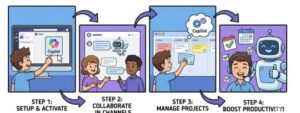
Modern workplaces thrive on collaboration, speed, and clarity. Microsoft Teams has already become the backbone of teamwork for many organizations, but the introduction of Microsoft Copilot takes collaboration to an entirely new level. By embedding AI directly into Teams channels and project workflows, Copilot helps teams work smarter, not harder.
In this blog, we’ll explore what Copilot is, why integrating it into Teams channels and projects matters, and most importantly, step-by-step instructions on how to integrate and use Copilot effectively. Whether you manage projects, lead teams, or simply want to boost productivity, this guide will help you unlock Copilot’s full potential.
What Is Microsoft Copilot in Teams?
Microsoft Copilot is an AI-powered assistant built into Microsoft 365 applications, including Teams. It leverages large language models and your organization’s data (with security and compliance intact) to help you:
- Summarize conversations and meetings
- Draft messages, plans, and documentation
- Track tasks and action items
- Answer questions based on chat, files, and meetings
When integrated into Teams channels and projects, Copilot becomes a real-time collaboration partner that understands context and accelerates decision-making.
Why Integrate Copilot into Teams Channels and Projects?
Before diving into the “how,” let’s understand the value.
Key Benefits
- Improved productivity: Less time searching chats and files
- Faster decision-making: Instant summaries and insights
- Better project visibility: Clear action items and status updates
- Reduced manual effort: Automated notes, drafts, and reports
Instead of scrolling through long conversations or juggling multiple tools, Copilot brings everything together inside Teams.
Prerequisites for Using Copilot in Teams
Before integration, ensure the following:
- Microsoft 365 Copilot License assigned to users
- Microsoft Teams (new version recommended)
- Proper permissions to access channels, files, and projects
- Updated Microsoft 365 apps
- Data stored in Microsoft ecosystem (SharePoint, OneDrive, Planner, etc.)
Once these basics are in place, you’re ready to integrate Copilot.
Step-by-Step: Integrating Copilot in Teams Channels
Step 1: Enable Copilot in Microsoft Teams
Copilot is enabled at the tenant level by Microsoft admins after getting the licenses
- Go to Microsoft 365 Admin Center
- Navigate to Users
- Ensure Copilot access is turned on for required users
Once enabled, Copilot automatically appears in supported Teams experiences.
Step 2: Use Copilot in a Teams Channel
Open any Teams channel where Copilot is available.
You’ll notice:
- A Copilot icon in the top bar or message area
- Access through the search and command box

Examples of prompts you can use:
- “Summarize today’s channel conversation”
- “What decisions were made this week?”
- “List unresolved questions from this channel”
Copilot reads the channel context and delivers concise, useful responses.
Step 3: Generate Channel Summaries and Action Items
One of the most powerful features is automatic summarization.
Ask Copilot:
- “Summarize this channel for me”
- “Create action items from this discussion”
- “Who is responsible for what?”
Copilot extracts key points and tasks, saving hours of manual review.
Step 4: Draft Messages and Announcements
Copilot can help you communicate clearly.
Try:
- “Draft a project update message for this channel”
- “Write a follow-up asking for status updates”
- “Create a professional announcement based on today’s discussion”
You can edit and personalize the draft before posting.
Step-by-Step: Integrating Copilot into Teams Projects
Projects in Teams often rely on tools like Planner, Loop, SharePoint, and meetings. Copilot ties them all together.
Step 1: Connect Copilot with Planner and Tasks
When using Planner or Tasks by Planner in Teams:
Ask Copilot:
- “What tasks are overdue in this project?”
- “Summarize project progress”
- “Suggest next steps based on current tasks”
Copilot analyzes task data and provides a real-time overview.
Step 2: Use Copilot During Project Meetings
During or after meetings, Copilot becomes invaluable.
You can ask:
- “Summarize this meeting”
- “What decisions were made?”
- “List action items and owners”
Meeting notes are automatically generated, reducing the need for manual documentation.
Step 3: Create Project Documentation with Copilot
Copilot can generate structured content such as:
- Project plans
- Risk registers
- Status reports
- Retrospective summaries
Example prompt:
“Create a project status report based on this channel’s discussions and files.”
This is especially helpful for project managers and stakeholders.
Step 4: Use Copilot with Loop Components
Loop components allow real-time collaboration in Teams messages.
Copilot can:
- Summarize Loop content
- Suggest improvements
- Turn discussions into structured tables or lists
This keeps project information dynamic and up to date.
Best Practices for Using Copilot in Teams
To get the most out of Copilot, follow these best practices:
1. Be Specific with Prompts
Clear prompts yield better results.
Instead of “Summarize,” try:
“Summarize key risks discussed in the last 3 days.”
2. Verify AI Output
Copilot assists, but humans decide. Always review before sharing externally.
3. Encourage Team Adoption
Train team members on basic Copilot prompts to maximize value.
4. Maintain Organized Channels
Well-structured channels help Copilot provide more accurate insights.
Security and Compliance Considerations
Microsoft Copilot respects:
- Existing Microsoft 365 permissions
- Data residency and compliance
- Security boundaries within Teams and SharePoint
Users only see information they already have access to.
Integrating Copilot in Microsoft Teams channels and projects is not just about AI—it’s about working smarter together. From summarizing conversations and meetings to managing tasks and creating project documentation, Copilot transforms Teams into a true productivity hub.
By following the steps outlined above and adopting best practices, organizations can reduce manual work, improve collaboration, and deliver projects faster with greater clarity.
If your teams already live in Microsoft Teams, Copilot is the natural next step in your digital workplace evolution.
Extra posts:
 Beginner’s Guide to Microsoft Teams: Chat, Meetings, and Channels
  Unlock Marketing Superpowers with Copilot in Microsoft 365 A Step-by-Step Guide
  How To Use Sensitivity Labels in Microsoft Teams (Step-by-Step Guide)
  How to Register and Prepare for the GitHub Copilot Exam Step-by-Step Guide
  How to Use Copilot to Draft Messages and Announcements in Microsoft Teams
  How to Use Copilot in Outlook A Step by Step Guide