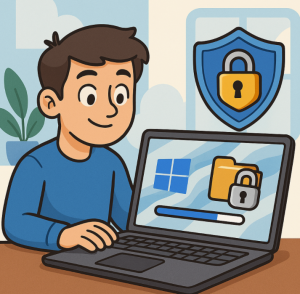
In today’s digital world, keeping your data safe is more important than ever. Whether you’re a student, a professional, or just someone who values privacy, encrypting your files ensures that sensitive information stays protected even if your device falls into the wrong hands. On Windows 11, BitLocker Drive Encryption is one of the most powerful built-in tools you can use to secure your data.
In this post, we’ll cover what BitLocker is, why it matters, and how you can enable it on your Windows 11 device.
What is BitLocker?
BitLocker is Microsoft’s disk encryption feature, available in Windows 11 Pro, Enterprise, and Education editions. It encrypts the contents of your entire drive, making your files unreadable to anyone who doesn’t have the correct decryption key or password.
Unlike simply locking your account with a password, BitLocker protects your files even if someone removes your hard drive and tries to read it from another computer.
Why Should You Use BitLocker?
Here are some key benefits of enabling BitLocker on your Windows 11 device:
- 🔒 Strong Security – Protects your data from unauthorized access.
- 💻 Full Drive Encryption – Covers your entire drive, not just selected files.
- 📂 Transparent Use – Once enabled, you don’t need to manually encrypt/decrypt files—it works in the background.
- 🧳 Peace of Mind – Essential if you travel with your laptop or store sensitive business/personal data.
How to Enable BitLocker in Windows 11
Before starting, check that your edition of Windows 11 supports BitLocker (Pro, Enterprise, or Education). If you’re using Windows 11 Home, you’ll have access to Device Encryption, a lighter version of BitLocker.
Step 1: Open BitLocker Settings
- Press Windows + I to open Settings.
- Go to Privacy & security > Device encryption (or search for “BitLocker”).
Step 2: Choose a Drive to Encrypt
- Under BitLocker Drive Encryption, select the drive you want to protect (usually your system drive
C:). - Click Turn on BitLocker.
Step 3: Set Up Unlock Method
- Choose how you want to unlock your drive at startup:
- Password
- Smart card
- TPM (Trusted Platform Module) chip
Step 4: Save Your Recovery Key
- Windows will generate a recovery key in case you forget your password.
- Save it somewhere safe—options include your Microsoft account, a USB drive, or printing it out.
⚠️ Never skip this step! Without the recovery key, you could lose access to your own files.
Step 5: Choose Encryption Settings
- Encrypt used disk space only (faster) or the entire drive (more secure).
- Select the new encryption mode (recommended for fixed drives) or compatible mode (if you’ll move the drive to older Windows PCs).
Step 6: Start Encryption
- Click Start Encrypting.
- The process may take a while, depending on drive size and speed.
Once finished, your drive will be fully encrypted, and your files will be safe.
Managing BitLocker After Setup
- You can pause, resume, or turn off BitLocker anytime from the BitLocker settings.
- If you add a new drive or external storage, you can encrypt those separately.
- Always keep your recovery key updated and stored securely.
Using BitLocker in Windows 11 is a simple yet powerful way to secure your files. With full-drive encryption running quietly in the background, you don’t need to worry about sensitive documents being exposed if your device is lost or stolen.
If you’re serious about protecting your data, enabling BitLocker should be one of the first steps you take after setting up your Windows 11 PC.
Extra posts:
 How to Transfer Files and Apps from Old PC to Windows 11
  Recover Deleted Files with Windows File Recovery A Lifesaver from Microsoft
  Recovering Deleted Files Using Windows File Recovery A Complete Guide
  BitLocker encryption can conflicts with Microsoft Windows Updates
  How to Use Hyper-V with BitLocker Without Constant Recovery Prompts How to suspend BitLocker Encryption