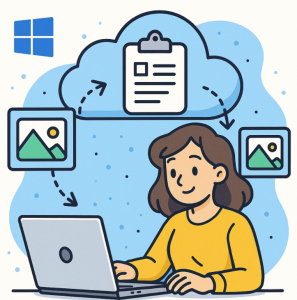
Copy-paste might feel like one of the most basic things we do on a computer, but in Windows 11, it has evolved into something much smarter. Microsoft has supercharged the clipboard with features like Clipboard History and Cloud Sync, turning a simple command into a productivity powerhouse.
Let’s explore how these features work, why they matter, and how you can unlock their full potential.
📋 Clipboard History: More Than Just One Copy
Traditionally, the clipboard only remembered the last thing you copied. Accidentally copied something else? That’s it—your previous text, image, or link was gone.
With Clipboard History, Windows 11 now keeps track of multiple items you’ve copied. You can:
- Press
Win + Vto open the Clipboard History panel. - See a list of your recently copied items (text, images, links, etc.).
- Click any item to paste it wherever you need.
It’s like having a time machine for your clipboard—perfect for students juggling research notes, developers reusing code snippets, or anyone who often re-pastes the same information.
☁️ Cloud Sync: Your Clipboard Everywhere
The clipboard doesn’t stop at your PC anymore. With Cloud Sync, you can copy something on one device and paste it on another—seamlessly.
- Copy a link on your desktop PC.
- Paste it on your laptop without emailing yourself.
- Even use it between PC and Android devices (via SwiftKey keyboard).
🔧 How to Enable Clipboard Cloud Sync in Windows 11
- Open Settings → Press
Win + I. - Go to System → Clipboard.
- Under Clipboard history, toggle On.
- Scroll down to Sync across devices.
- Toggle the switch On.
- Choose either:
- Automatically sync text that I copy (hands-free sync), or
- Never automatically sync text that I copy (manual control via
Win + V).
That’s it—your clipboard is now synced across devices linked to your Microsoft account.
🔒 Security & Control
Worried about privacy? Microsoft built in options so you stay in control:
- Sync is off by default—you choose when to enable it.
- You can sync automatically or only when you manually copy an item to the cloud.
- Clipboard data is stored securely and linked to your Microsoft account.
So, your sensitive information stays protected while still giving you flexibility.
⚡ Power Tips for Clipboard Superpowers
Want to take things even further? Try these:
- Pin frequently used items in Clipboard History so they don’t get lost.
- Use emoji & GIF search right inside the
Win + Vpanel for quick inserts. - Pair it with Windows PowerToys for even deeper clipboard enhancements.
Windows 11’s Clipboard History and Cloud Sync elevate a decades-old function into a true productivity tool. No more lost copies, no more emailing yourself links, no more frustration.
With these features, copy-paste isn’t just a shortcut—it’s a superpower.
Extra posts:
 Unlock Your Productivity Superpower: A Beginner’s Guide to Clipboard History and Cloud Clipboard
  How to Use File History for Backup in Windows 11
  Unlocking Hidden Superpowers in Windows 11 Speech, Eye, and Voice Access Tools You Didn’t Know You Had
  How to Sync Your Android Phone with Windows 11 Using Phone Link
  How Microsoft Keeps Your Data Safe in the Cloud – A Deep Dive into Cloud Security Practices
  Copy Data to Office 365 using On Premise Gateway