
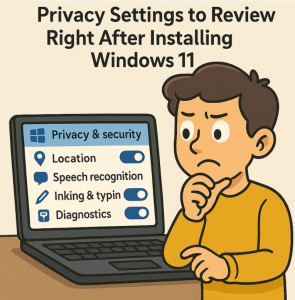
When you first set up a new Windows 11 PC, it’s easy to click through the setup screens just to get started. But Microsoft’s default settings often lean toward data collection and personalization, which may not align with your privacy preferences. By taking a few minutes to review and adjust your settings, you can better protect your personal data, reduce tracking, and control how much information your computer shares with Microsoft and third parties.
Here are the key privacy settings you should review immediately after installing Windows 11:
1. Diagnostics & Feedback
- Go to Settings > Privacy & Security > Diagnostics & Feedback.
- By default, Windows sends diagnostic data to Microsoft. You can:
- Set Diagnostic Data to Required only.
- Turn off Tailored experiences to prevent personalized ads and tips based on your usage.
- Disable Improve inking & typing if you don’t want Microsoft collecting typing data.
2. Advertising ID
- Navigate to Settings > Privacy & Security > General.
- Turn off Let apps show me personalized ads by using my advertising ID.
- This stops apps from building a profile of you for targeted advertising.
3. Activity History
- In Settings > Privacy & Security > Activity history, uncheck Store my activity history on this device and Send my activity history to Microsoft.
- This prevents Windows from tracking and syncing your app and browsing activity.
4. Location Settings
- Go to Settings > Privacy & Security > Location.
- If you don’t use location-based apps, turn Location services off entirely.
- If you need location occasionally, limit access to specific apps instead of allowing all apps.
5. App Permissions
Windows 11 gives apps access to sensitive hardware and data by default. Review permissions under Settings > Privacy & Security and check each category (Camera, Microphone, Contacts, Calendar, etc.):
- Disable access for apps that don’t need it.
- For example, keep your microphone and camera off unless actively used by video conferencing or recording apps.
6. Speech, Inking & Typing
- In Settings > Privacy & Security > Speech, turn off Online speech recognition unless you rely on voice dictation.
- Under Inking & Typing personalization, disable personalization if you don’t want Microsoft learning your typing style.
7. Find My Device
- In Settings > Privacy & Security > Find my device, disable it if you don’t want your location tracked.
- If you use a laptop and travel often, you may want to keep it on for recovery purposes.
8. Microsoft Account & OneDrive Syncing
- During setup, Windows pushes you to use a Microsoft account and sync files with OneDrive.
- If privacy is your priority, consider:
- Using a local account (you can switch after setup).
- Turning off OneDrive sync for folders you don’t want stored in the cloud.
9. Edge Browser Privacy
If you use Microsoft Edge:
- Go to Settings > Privacy, search, and services.
- Set Tracking prevention to Strict.
- Turn off Personalized ads, shopping, and search suggestions.
- Clear browsing data regularly or set it to clear on exit.
Windows 11 can be customized to respect your privacy more, but it requires a little upfront effort. By reviewing these settings right after installation, you take control over your personal data instead of letting Microsoft’s defaults decide for you.
Extra posts:
 Windows 11 Privacy Settings You Should Change Right Now
  How to Manage Teams Permissions and Privacy Settings
  Windows 11 for Gamers Settings That Actually Boost FPS
  Hidden Settings That Make Multitasking Easier in Windows 11
  Managing Bluetooth Devices and Settings in Windows 11: A Complete Guide
  Managing App Permissions for Better Privacy in Windows 11 A Complete Guide