
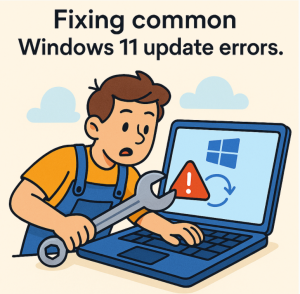
Keeping Windows 11 up to date is essential for security, stability, and performance. However, update errors can sometimes get in the way. If you’ve run into issues while installing the latest Windows 11 updates, don’t worry—you’re not alone. Here’s a guide to fixing some of the most common Windows 11 update errors.
1. Check Your Internet Connection
A weak or unstable connection can interrupt the update process.
- Make sure you’re connected to a stable Wi-Fi or Ethernet network.
- Run the built-in troubleshooter:
- Go to Settings > System > Troubleshoot > Other troubleshooters.
- Run the Internet Connections troubleshooter.
2. Run the Windows Update Troubleshooter
Windows 11 includes a dedicated tool to fix update-related problems.
- Navigate to Settings > System > Troubleshoot > Other troubleshooters.
- Click Run next to Windows Update.
This will scan and attempt to automatically fix common issues.
3. Free Up Disk Space
Updates need enough storage space to download and install.
- Delete temporary files:
- Open Settings > System > Storage > Temporary files.
- Select items to remove and click Remove files.
- Consider moving large files to external storage if your drive is nearly full.
4. Restart Windows Update Services
Sometimes update services get stuck and need a reset.
- Press Win + R, type
services.msc, and hit Enter. - Locate these services:
- Windows Update
- Background Intelligent Transfer Service (BITS)
- Cryptographic Services
- Right-click each one and select Restart.
5. Clear the Windows Update Cache
Corrupt cache files can prevent updates from installing.
- Open Command Prompt as Administrator.
- Run these commands one by one:
net stop wuauserv net stop bits del %systemroot%\SoftwareDistribution\DataStore\* /s /q del %systemroot%\SoftwareDistribution\Download\* /s /q net start bits net start wuauserv - Try running Windows Update again.
6. Use the Windows Update Assistant
If updates still fail, Microsoft’s Windows 11 Installation Assistant can help.
- Download it from the official Microsoft website.
- Run the tool to manually install the latest updates.
7. Check for Corrupt System Files
System file corruption can block updates.
- Open Command Prompt (Admin).
- Run:
sfc /scannow - After the scan, restart your computer and try updating again.
You can also run:
DISM /Online /Cleanup-Image /RestoreHealth8. Temporarily Disable Antivirus or VPN
Third-party security software or VPNs sometimes interfere with updates.
- Temporarily disable them and try again.
- Don’t forget to re-enable your protection once the update is complete.
9. Check Error Codes
If you see a specific error code (like 0x80070070 or 0x800f0831), search Microsoft’s official support site for tailored solutions. Often, these codes point to disk space issues, missing files, or network problems.
10. As a Last Resort: Reset Your PC
If all else fails, you may need to reset Windows 11.
- Go to Settings > System > Recovery > Reset this PC.
- Choose whether to keep your files or remove everything.
This should fix deep system problems blocking updates.
Windows 11 updates are crucial, but errors can make them frustrating. By following these steps—starting from simple fixes like checking your internet and moving up to advanced methods like clearing the update cache—you can resolve most update problems without needing professional help.
If you consistently face update failures, consider contacting Microsoft Support, as there may be hardware-specific or account-related issues at play.
Extra posts:
 Fixing Wi-Fi Connection Problems Easily on Windows 11
  What’s New in Windows 11May 2025 Update Overview
  Windows 11 Update Stuck? Here’s How to Fix It (Expert Guide)
  Troubleshooting Common Windows 11 Issues
  OneDrive Keeps Asking for Login on Every Windows Startup? How to Fix It
  Microsoft Announces Update For All Windows 10 Users