
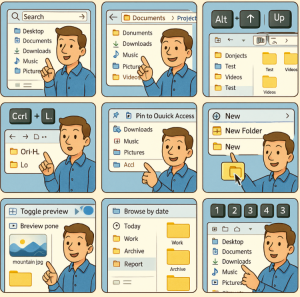
Whether you’re a power user managing huge project folders or just someone who wants to cut down wasted clicks, mastering File Explorer (on Windows) can save you serious time. Most people only scratch the surface of its capabilities, but with a few advanced tricks, you can fly through your files and folders with ease.
Here are some advanced File Explorer tips to boost your navigation speed:
1. Master Keyboard Shortcuts
Forget constant clicking—keyboard shortcuts are your best friend. Here are some lesser-known gems:
- Alt + D – Jump to the address bar.
- Ctrl + L – Also focuses the address bar, ready for quick path entry.
- Ctrl + Shift + N – Create a new folder instantly.
- Alt + ↑ – Navigate up one directory level.
- Alt + → / Alt + ← – Go forward/backward through navigation history.
- F2 – Rename selected file(s).
2. Use the Quick Access Toolbar
The Quick Access Toolbar (QAT), at the top-left of File Explorer, is customizable. Add frequently used actions like New Folder, Undo, or Properties for single-click access. Right-click any command and select Add to Quick Access Toolbar.
3. Pin Folders to Quick Access
Dragging your most-used folders into the Quick Access panel makes them available anywhere with one click. Combine this with pinned folders in the taskbar for lightning-fast access to your workspace.
4. Leverage the Address Bar
The address bar isn’t just for paths—you can type shortcuts:
- Type
..and hit Enter → Moves up one directory. - Type app names like
notepadorcmd→ Opens them directly from File Explorer. - Paste a full path (even network drives or URLs) → Instantly navigates there.
5. Enable and Use File Explorer Tabs (Windows 11)
With Windows 11’s tabbed File Explorer, you can manage multiple folders in a single window. Use Ctrl + T to open a new tab and Ctrl + W to close one. Think of it like browser-style file management.
6. Use Grouping & Sorting Smartly
Instead of endless scrolling, right-click inside a folder → Group by (Type, Date, Size, etc.). Pair it with Sort by for maximum clarity. For example, grouping by Type can help separate documents, images, and executables instantly.
7. Search Like a Pro
Windows search can be powerful if you know the operators:
*.pdf→ Finds all PDFs.date:today→ Shows files modified today.size:>100MB→ Filters large files."exact phrase"→ Finds files containing an exact phrase.
8. Use Libraries for Aggregated Views
Libraries let you merge multiple folders into one virtual view. For example, a “Projects” library could unify folders from different drives. Right-click in File Explorer → Show Libraries → Create a new library and add locations.
9. Customize Folder Templates
Every folder doesn’t need the same layout. Right-click a folder → Properties → Customize tab → Choose a template (General, Documents, Pictures, Music, Videos). You can also apply it to all subfolders.
10. Use Third-Party Enhancements (Optional)
If you need even more speed, third-party File Explorer alternatives like Directory Opus, XYplorer, or FreeCommander offer dual-pane navigation, scripting, and advanced filtering that power users love.
File Explorer is deceptively powerful once you move beyond the basics. With shortcuts, grouping, libraries, and customizations, you can cut navigation time dramatically and keep your workflow smooth. Whether you’re wrangling thousands of files or just want cleaner navigation, these tips can help you move like a pro.
Extra posts:
 Advanced File Explorer Tips for Faster Navigation in Windows 11
  How to Enable Tabs in File Explorer in Windows 11
  Microsoft Defender Advanced Protection Tips for Windows 11
  Advanced Task Manager Tips for Power Users in Windows 11
  Setting Up Windows Hello for Faster Logins in Windows 11
  How to Use File History for Backup in Windows 11