
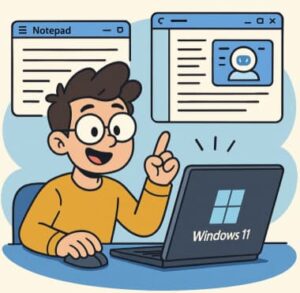
In the ever-evolving world of desktop computing, even small apps like text editors are getting major upgrades. With its recent refreshes, Notepad in Windows 11 is no longer just a blank-page, “write-and-save” tool. Meanwhile, Copilot is emerging as the AI assistant built into Windows, transforming how you interact with your PC. Let’s explore both: what’s new, how they work together (and separately), and how you can get the most out of them.
Notepad in Windows 11: More than meets the eye
The evolution of Notepad
Notepad has been around for decades — the simple text editor that comes with every Windows installation. But in Windows 11, Microsoft has been steadily modernizing it:
- It added tabs so you can work on multiple documents in one window.
- It introduced spell check, autocorrect, dark mode, custom fonts and sizes, improved find-and-replace, and more.
- Most recently, it added lightweight rich text and formatting support: bold, italics, hyperlinks, lists, headings, and even Markdown syntax.
- It also gained generative AI features, such as a “Write” mode that helps you draft text based on a prompt.
What’s new & why it matters
Formatting & Markdown support
With the toolbar and formatting options, Notepad moves closer to being a lightweight word processor. You can bold text, italicize, insert links, make headings and lists, and toggle between a formatted and raw Markdown view.
This is significant because if you’re someone who writes simple documents — notes, outlines, drafts — you no longer need to open a heavier application. Notepad can now handle more than just plain text. And if you prefer the old minimalist experience, you can still disable formatting.
AI-powered writing and summarization
The “Write” feature leverages AI to help you start a document or build upon existing content. Notepad is also working on an AI summary feature, allowing you to highlight text and get a condensed version instantly.
These features mean Notepad is not just about editing text anymore — it’s also about creating and refining it quickly.
Productivity & workflow improvements
Other welcome features include:
- Multiple tabs for better multitasking.
- Spell check and autocorrect for cleaner writing.
- Session restore or clean-start options.
- Optional plain text mode for simplicity.
How you can use Notepad today
- Use headings, bold, and italics to organize notes and drafts.
- Keep multiple files open using tabs.
- Try the “Write” feature to generate drafts from prompts.
- Disable formatting in settings if you prefer a simple view.
- Take advantage of the improved Find/Replace tools for editing.
Copilot in Windows: Your AI companion
What is Copilot?
Copilot in Windows is an AI-powered assistant built into the operating system. It helps you ask questions, control your system, create content, and interact with your PC using natural language or voice.
It can be launched from the taskbar, and on certain devices — called Copilot+ PCs — it runs some AI processes directly on your hardware for faster, more private responses.
Key features & capabilities
- Natural-language commands: Ask it to change settings (“Turn on dark mode”) or open apps.
- Voice input: Speak instead of typing.
- Image and screen context: On supported hardware, Copilot can analyze your desktop and provide insights.
- Content creation: Write, summarize, or rephrase text instantly.
Why it matters
Copilot brings contextual computing to Windows — rather than searching through menus, you can just ask it to handle a task. It reduces friction, saves time, and makes your workflow smoother. It’s also an accessibility boost for users who rely on voice or visual tools.
Limitations to keep in mind
- AI features depend on account permissions and sometimes specific hardware.
- Always verify AI outputs before applying system changes.
- Some features are still in preview and may not be fully available to all users.
How you can use Copilot today
- Press Windows key + C or click the Copilot icon to open it.
- Try prompts like:
- “Summarize this paragraph.”
- Share app windows or screenshots for context-aware help.
- Adjust privacy settings to control how Copilot interacts with your desktop.
How Notepad & Copilot work together
There’s a natural synergy between Notepad and Copilot in Windows 11:
- Start drafting in Notepad, then use Copilot to generate ideas or rephrase your text.
- Ask Copilot to summarize or expand on a paragraph you’ve written.
- Use Notepad’s formatting tools to polish the output.
- Combine the simplicity of Notepad with the intelligence of Copilot to streamline your writing process.
If you’ve been using Notepad just for quick notes, now is the time to rediscover it. The new formatting and AI features make it a capable writing tool. And with Copilot built into Windows, you can enhance your productivity, creativity, and workflow.
The best part? You remain in control. Copilot assists, Notepad delivers — together, they form a balanced pair for anyone who writes, plans, or creates on Windows 11.
Extra posts:
 Unlocking the Future of Productivity Unique Copilot+ PC Features in Windows 11
  Agentic AI in Microsoft Teams: The Future of Workplace Automation (Technical Deep Dive)
  Unlocking Productivity Copilot Success Kit for Small and Medium Businesses
  Layered vs. Clean Architecture: A Deep Dive
  Deep Dive into Microsoft Lists Advanced Formatting and Automation
  Unlocking Productivity with Copilot Notebooks Benefits and How to Use Them